The Content Advisor
Nolorem's built-in, context-aware AI assistant. Open it from any page for content help, usage answers, answers taken from your own uploaded documents, and social drafts.
Updated Sep 9, 2026
The Content Advisor is an AI assistant that lives inside Nolorem. It knows your content, your usage stats, the documents in your media library, and the page you are on, so it gives relevant, actionable answers without leaving the platform. It is available to Pro, Premium, and Trial subscribers.
Opening It
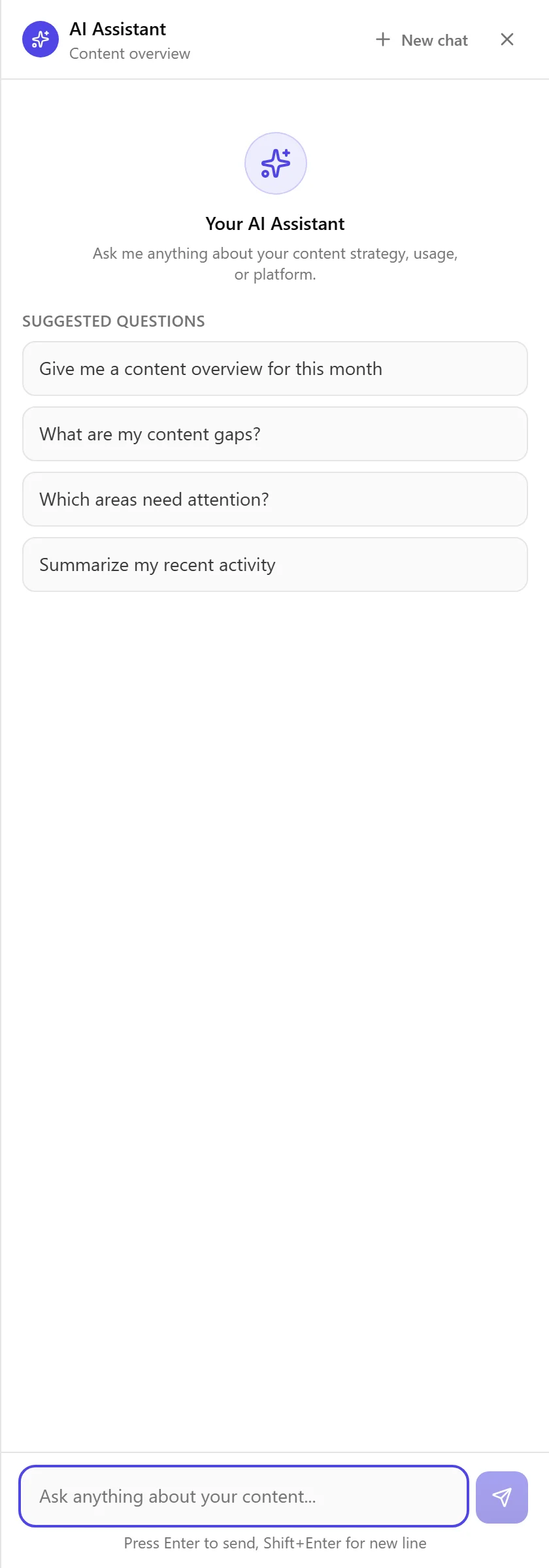
Click the sparkle button in the bottom-right corner of any platform page to open a slide-over chat panel. You can also press Ctrl+Shift+H to toggle the panel.
Answering With Clicks, Voice, or a File
The message box does more than take typed text.
Choice pills. When the advisor offers you a few options, they appear as pills you can click. Clicking one selects it rather than sending it straight away, so you can pick more than one, add a sentence of your own, and send it all together. Click an active pill again to drop it.
Dictation. The microphone button next to the send button turns your speech into text. What you say lands in the message box, where you can read and edit it before sending, so a misheard word never goes out on its own. It follows your interface language, so a Dutch interface listens for Dutch. The button only appears in browsers that support this; where it is missing, your browser does not offer it.
Attaching a document. The paperclip adds a document from your computer to the conversation. It is uploaded to your media library, and the advisor reads its text when you refer to it, so you can ask questions about a brief, a report, or a transcript without pasting it in. Mention the file by name in your message and the advisor will look it up.
Two things worth knowing. An image can be attached, but the advisor receives its name, not the picture itself: it reads documents, it does not look at images. And having the advisor read your own documents is part of the Pro plan.
Context-Aware Assistance
The advisor detects which part of the platform you are on and adjusts its focus:
| Current page | Assistant focus |
|---|---|
| Blog pages | Topics, keywords, posts |
| Social pages | Channels, scheduling |
| Settings | Configuration, billing |
| Dashboard | Stats, activity |
| Media library | Images, presets |
| An open post in the editor | That post: its title and its sections |
When you have a post open in the editor, the advisor knows which one it is. Ask it what you have open and it names the post by its title, and it can quote the section headings from inside it. It reads that post; it does not write it for you.
Asking About Your Own Documents
Ask the advisor about a document you uploaded to the media library and it answers from what is in that document, not from a general impression of your business.
You do not select anything first. Name the file or the subject and it finds the right one: "What does the annual report say about our costs?" works, and so does "What do you know about our sales figures?" when the numbers sit in a spreadsheet whose name you have forgotten. The document it used is named in the answer, and that name is a link, so one click takes you to the document's own row in the media library.
It can draw on several documents in one answer, up to a limit set by your plan: 3 documents per question on Pro, 6 on Premium, and 2 during a trial. Basic does not include reading documents.
When it finds nothing it says which of three things happened, instead of filling the gap with something that merely sounds right:
- You have not uploaded any documents yet.
- You have documents, but none of them bear on what you asked.
- The document you named holds no readable text. That is usually a scanned PDF with no text layer, and it is the one case you can fix yourself: run the file through an OCR tool and upload it again.
The Use for post suggestions switch does not silence it. That switch decides whether a document is used to propose posts to you on its own. Turn it off and the advisor still reads the document when you ask for it by name. The two are deliberately separate: not wanting a document to generate ideas is not the same as not wanting to ask about it.
Objectives That Name Their Source
When you ask the advisor to set up a campaign from something in a document, the objective it proposes carries the document it came from and the sentence it took it from. You see both on the card before you apply it, and they stay on the campaign afterwards.
The quote is checked against the document before anything is saved. If a sentence does not actually appear in the document it claims, the objective is still kept but the source is dropped, so an attribution you read is one that held up. Delete the document later and the objective keeps its quote, with a line saying the document is no longer in your library.
Starter and Proactive Prompts
When you open a new conversation, the panel shows suggested questions tailored to the current context, such as "What should I write about next?" or "How are my social posts performing?". It may also show proactive suggestions based on your data, for example when your keyword bank is empty or you are running low on image generations. Click any suggestion to send it.
Smart Cards and Social Drafts
The advisor can render smart cards inline: usage stats with progress bars, stat highlights, and key-value lists. When you ask it to repurpose blog content, it can generate social draft cards with platform-specific text. Click the action on a draft card to create a social post directly from the advisor.
Conversations
Click the new chat button in the header to clear the current conversation and start fresh. The advisor does not persist chat history between sessions.
Memory
The Content Advisor remembers facts about you across conversations, organized into four categories: Niche, Preference, Workflow, and Style. It stores extracted facts only, not conversation text. The memory is personal to you: colleagues in your workspace never see it, and it travels with you into every workspace you belong to. While you are chatting about a post you have open in the editor, nothing new is added to it; start a new conversation if you want the advisor to remember something again. Manage it in Settings then Assistant: each fact shows when it was learned, you can delete individual facts with the trash icon, or use Clear all memory to erase everything and start fresh.
Related articles
Frequently asked questions
Was this article helpful?
Still need help?
Can't find what you're looking for? Open your support portal for live chat and tickets. Sign in with your Nolorem account.
Open support portal