The Backlog
Collect the posts you want written in lists, without a campaign and without a date, and let Nolorem write them when you ask.
Updated Oct 24, 2026
A backlog is a list of posts you want written, with no campaign and no publication date. You collect topics whenever they come to mind, and Nolorem writes them when you ask. Nothing is scheduled by itself.
You find the Backlog on the Create page, on both the Blog tab and the Social tab, next to Suggestions. Click Create in the sidebar and pick Backlog under the tab you are on.
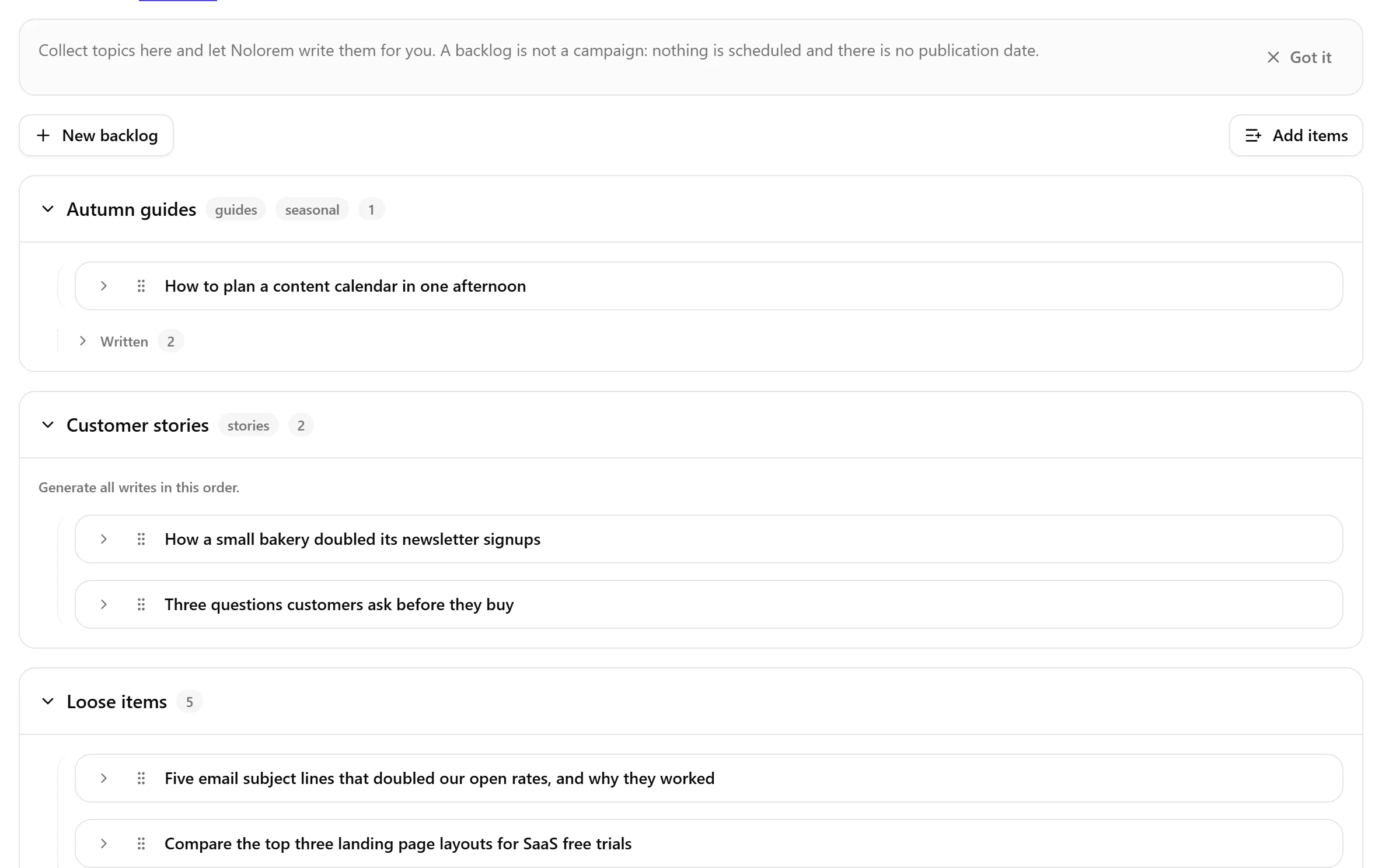
Lists and loose items
- A list has a name and up to ten tags. Blog lists belong to one blog, so each blog has its own lists.
- Every list is one frame. Its items sit inside the frame, indented, with a dotted line on the left. Click the arrow at the start of a list to fold the whole list, and the arrow at the start of an item to open or close that item.
- A closed item shows its title and its status on one line. Items start closed. Open an item to see its description, keyword, tags and the buttons.
- Loose items is a fixed group at the bottom for items that are not in a list. Ideas you saved before the Backlog existed are here.
- Click New backlog to create a list. The list window has Cancel and Save (Create backlog for a new list). Type a tag and press Enter to add it; you can add up to 10. Click Rename or Delete backlog on a list to change it. Deleting a list does not delete its items: they become loose items.
Written items
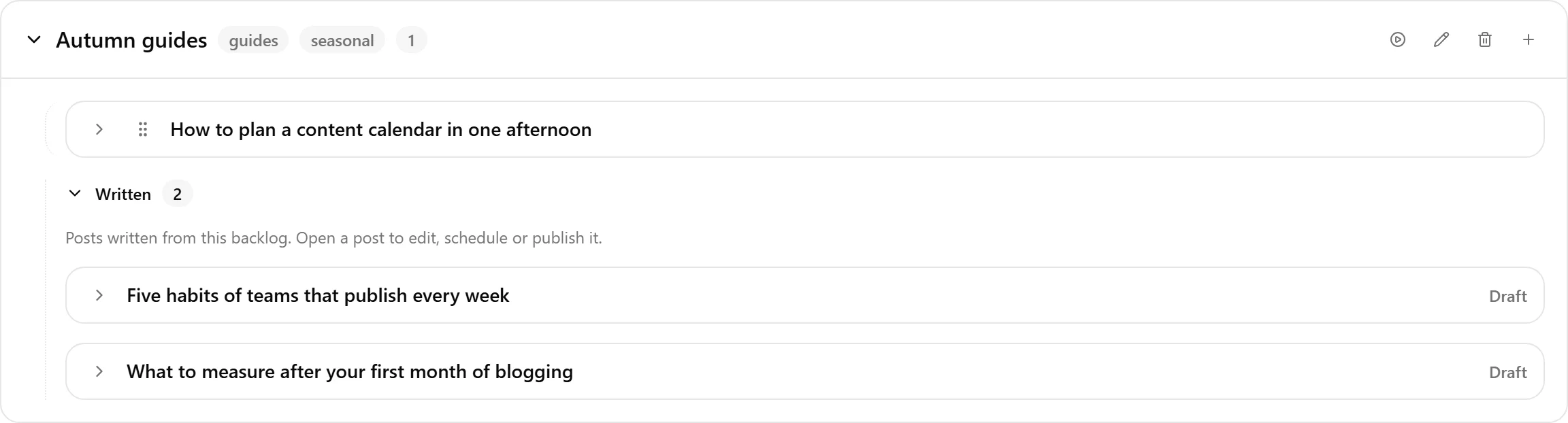
When an item has a post, it counts as written. Items with a draft, a published post or a scheduled post move into a folded section called Written at the bottom of their list (and of Loose items), with its own count. Open it to see them. Each shows Open post, which opens the post in the editor, where you can edit, schedule or publish it.
Items that still need you stay in the list: items held by the fact check (Review the post opens the claims check), items whose publication did not go through, and items that are waiting, being written or failed. An item with a post shows no Create button, so it is never written twice. Written items cannot be dragged, but Move to... still works. When every item in a list is written, the list says so and Generate all is disabled.
Edit an item
Open an item and click Edit item. The window shows the title, description, focus keyword, tags and the list the item belongs to. Change what you want and click Save. The title is the topic Nolorem writes about; the description is what the post should cover. An item that already has a post can still be edited, and that does not change the post. While an item is being written, Edit item is not offered. You can also ask the Assistant to change an item. It shows the old and the new value of each field and changes the item when you confirm. An item that is being written cannot be changed.
Add items
There are five ways to add an item:
- Click Add items (or the plus button on a list). The window has two tabs, Add and Bulk add.
- Press Ctrl+Shift+I (Cmd+Shift+I on a Mac) on a page of the Blog or Social tools, type the topic and save it to your loose items. It does not work on the Create page itself.
- Click Add to backlog on a suggestion row under the Suggestions tab.
- Ask the Assistant to add a post about something. It shows what it wants to add and the list, and adds it when you confirm. If the new item looks like one that is already on your backlog, a line under the card says so. The assistant does not propose a title with a colon between two parts: if it does, the item is not saved and you are told, and you can ask for a title without a colon or type the title yourself. A title you typed yourself is never refused.
- On a campaign page, click Backlog at the top, next to Export. The Add items window opens with the list of the blog of that campaign already chosen. The Assistant on that page can also add a post to your backlog.
The Add tab
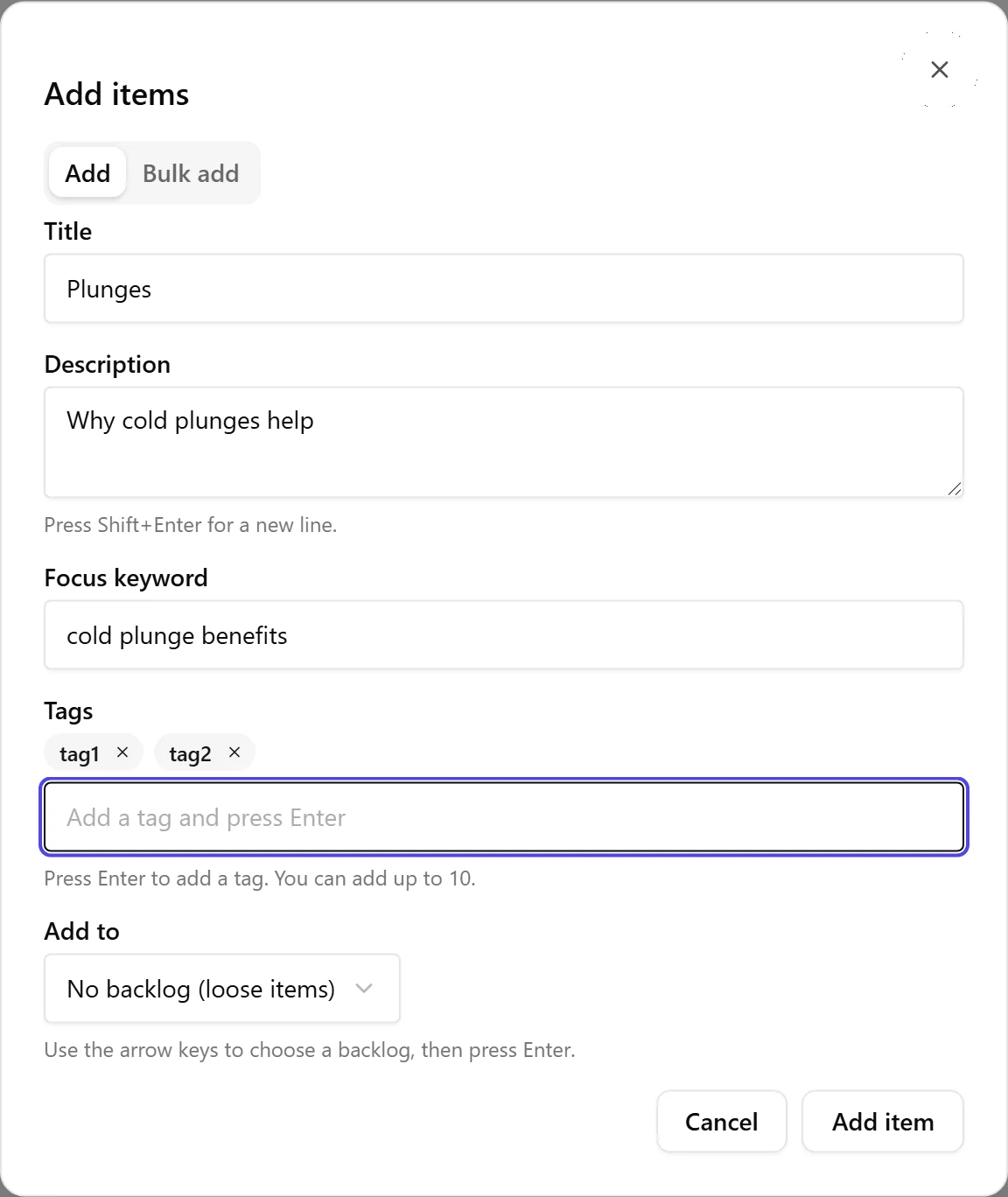
Fill in one item. You can move through the fields with the keyboard: Title, then Description (Shift+Enter starts a new line), then Focus keyword, then Tags (Enter adds a tag; Enter on an empty field moves on), then Add to (choose a list with the arrow keys and press Enter), then Add item. Ctrl+Enter (Cmd+Enter on a Mac) adds the item from any field. Give the item a title or a description, or both.
Bulk add
Type one item per line; a dash at the start is optional. A line reads title | description | focus keyword | tags, and everything after the title is optional. For example:
Plunges | Why cold plunges help | cold plunge benefits | tag1 tag2
Separate tags with commas, or with spaces when there are no commas. To skip a field, leave it empty: Title | | keyword has no description but does have a focus keyword. You can add up to 50 items at once.
Note that the second field is now the description. If you used to type text | keyword, the part after the pipe is now read as the description, not as the keyword. Write text | | keyword to keep it as a keyword. Before anything is added, the window shows how each line will be read (title, description, keyword and tags), so you can correct a line first.
Order and move
Drag the handle at the start of a row to reorder items in a list or to move them to another list or to Loose items. Prefer the keyboard or a menu? Use Move to... in the row menu and choose the list. Generate all writes the items in the order of the list. While you drag, a preview of the item follows the pointer, also across lists.
Use Add note on a row to keep a remark with an item. To change the title, description, keyword or tags, use Edit item.
Generate
Each item without a post has one Create button with a menu:
- Generate writes the post as a draft. You decide whether and when it is published.
- Generate + publish writes the post and publishes it as soon as it is ready, unless the fact check holds it back. Most posts are held for a fact check first. You then get a notification and an email, the item shows the status Held by the fact check, and you publish after checking the claims. If every image of the post failed, the post is not published: it waits as a draft for your review, and the item says that all images failed. If preparing the images fails before any image was requested, the post also waits for your review, without a message about failed images, because nothing was tried. If your image allowance is full or images are switched off for the blog, the post is published as usual, without images.
A few rules:
- Contributors can only use Generate. An editor or admin publishes.
- Contributors can add items and lists, rename lists, move items and add notes. Only editors and admins can delete items and lists.
- A blog without a place to publish to cannot use Generate + publish. The button is disabled and links to the connection settings.
- Generate all on a list writes every item that is not yet written, in order, as drafts. It is available when your plan includes bulk generation. Before it starts, the window tells you how many items will be written and how many are already written and skipped. It writes what fits in your monthly post allowance and leaves the rest in the list. When everything is written, the button is disabled and explains why.
- Generation is available for blog backlogs. The Social tab has the same lists and rows, but no Generate.
- While an item is being written you see its status (Waiting, Writing, Scheduled, Draft, Published, Held by the fact check or Failed). If the daily limit is reached, the remaining items wait in the list.
Delete
Deleting an item removes it for good. Posts already written from it stay. Deleting a list turns its items into loose items. Only editors and admins can delete. You can also ask the Assistant to delete an item. It shows which item it will delete and removes it only when you confirm. The removal is final, and a post already written from the item stays.
Related articles
Was this article helpful?
Still need help?
Can't find what you're looking for? Open your support portal for live chat and tickets. Sign in with your Nolorem account.
Open support portal