Updates and the Maintenance Window
Nolorem is updated regularly, and an update takes the platform offline for a moment. A bar warns you first, then a screen holds you up until the new version is running. Save your work while the bar is up, better not to start an image or video generation, and leave the tab open, because the page reloads itself.
Updated Sep 10, 2026
Nolorem gets updated regularly. An update takes the platform offline for a moment, and you see it coming before it happens.
What You See
First a bar at the top of the screen: An update is on the way. It says the platform goes offline for a short update in a moment, and asks you to save your work.
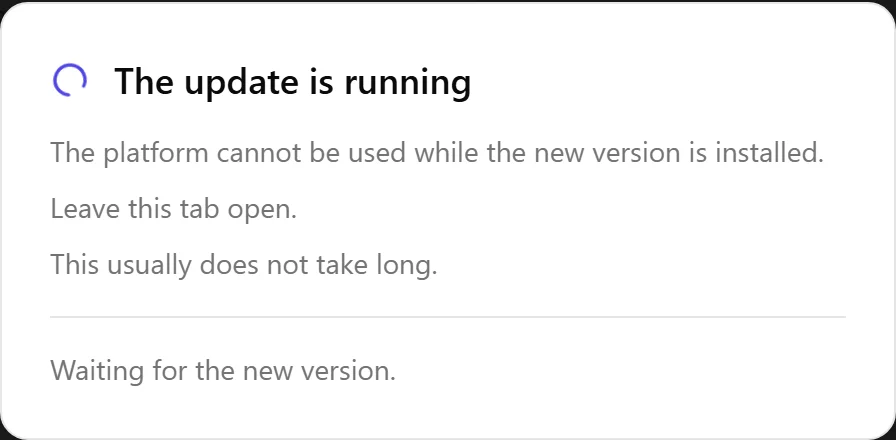
Then the update starts and a screen covers the page. It reads The update is running, and under it that the platform cannot be used while the new version is installed.
That screen has no close button, and that is deliberate. While the new version is being installed the platform cannot answer, so anything you did behind it would be lost anyway.
What to Do While the Bar Is Up
Save your work. The blog editor saves each section by itself as you write, but a change you are in the middle of is safer on the server than in your browser tab.
Better not to start an image or a video generation. Those run inside the request itself and do not survive the restart, so you would have to start them over.
A blog post caught halfway through generating is a different case. It remembers where it stopped, and Continue generating in the post's menu picks it up again from there.
What Happens Afterwards
Nothing you need to do. Leave the tab open and the screen goes away by itself: the page reloads as soon as the new version is running.
Is it taking longer than you expect? Reload the page yourself. That is safe at any moment.
Why the Screen Exists
Without it, a tab you left open would keep running the old version after the update, with buttons that quietly stop working until you reload by hand. The screen is what makes sure the page you come back to is the new one.
Related articles
Was this article helpful?
Still need help?
Can't find what you're looking for? Open your support portal for live chat and tickets. Sign in with your Nolorem account.
Open support portal