Blog Settings Overview
A single scrollable page that controls how the AI generates, styles, and publishes your blog content.
Updated Sep 21, 2026
Nolorem consolidates all blog configuration into a single scrollable settings page with sidebar navigation. Navigate to Blog then Settings, or click Settings in the sidebar while viewing any blog tool. The left-hand menu lets you jump to any section.
Sections at a Glance
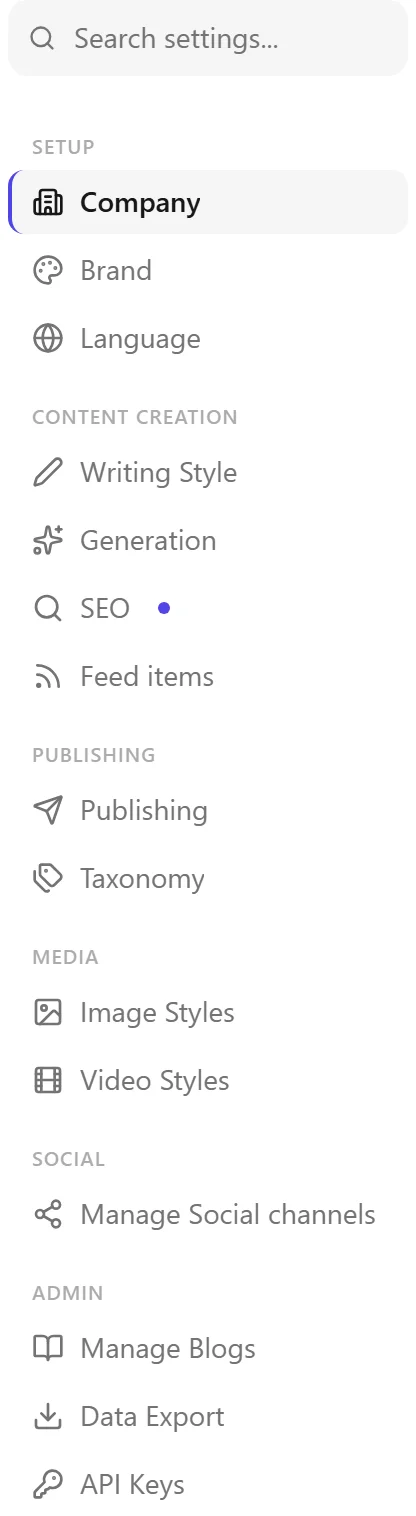
Setup:
- Company: company profile and website. Scan your website to propose a company name, profile, brand colors, languages, and keywords all at once -- see Scan Your Website to Fill In Settings.
- Brand: brand colors, logo, and visual identity applied to generated images -- see Putting Your Logo on Generated Images. Each blog has its own brand, so switching blog switches the brand you are editing. A new blog starts from the brand of the blog you were on, and you can pick a different source blog or turn that copy off.
- Language: interface language for the platform, plus the default content language, writing region, and measurement country -- see "Writing Region and Measurement Country" below.
Content creation:
- Writing Style: Voice DNA profiles, tone, and audience.
- Generation: post length, section structure, blockquote settings, and source citation preferences.
- SEO: keyword bank, SEO scoring thresholds, and focus keyword configuration.
- Content Sources: RSS feeds and websites used for research during generation.
Publishing:
- Publishing: CMS connection settings for WordPress, Ghost, and other platforms, including credentials, sync behavior, and the WP Bridge plugin.
- Taxonomy: blog categories and tags, with language-aware classification.
Media:
- Image Styles: default image presets for blog and social content, the house rules that apply to every generated image (up to 4000 characters), and the switch for whether your brand colors go into generated images -- see Generating Images.
- Video Styles: video templates and motion graphics.
Social:
- Manage Channels: connect and manage social media channels.
Admin (admin only):
- Manage Blogs: rename a blog, change its slug, set the default blog, or delete a blog. Renaming a blog changes only the name it is shown under; the slug stays exactly as it was. You can still change the slug yourself, but links that already exist do not follow it.
Writing Region and Measurement Country
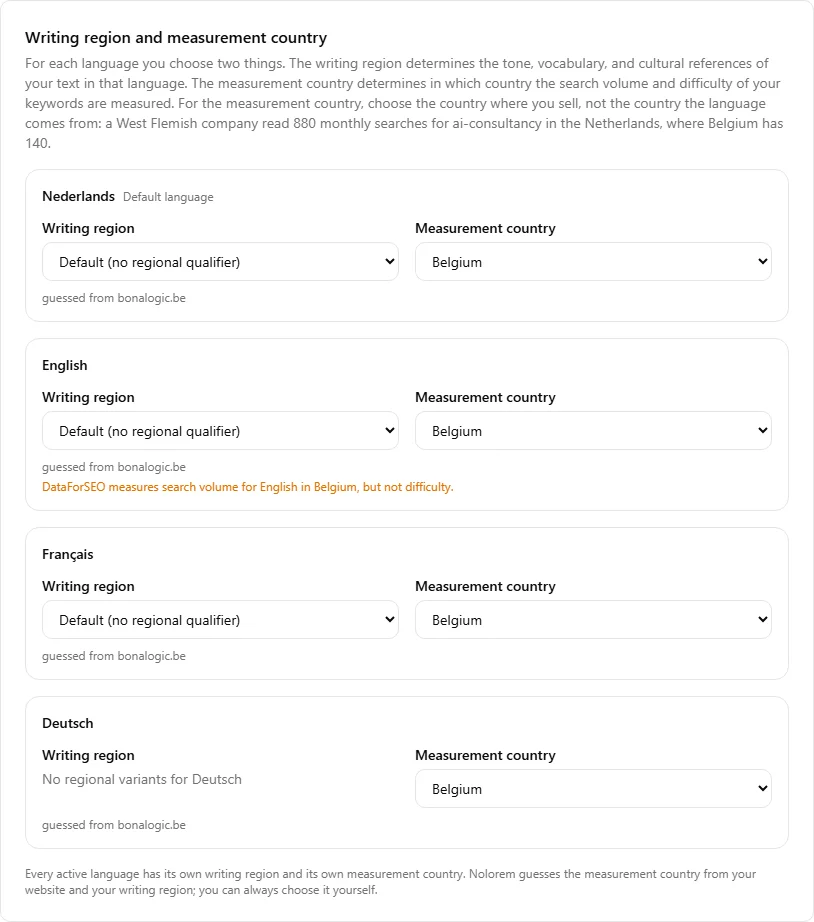
For every active language you choose two separate things:
- Writing region sets the tone, vocabulary, and cultural references of your text in that language (available for languages with regional variants: Dutch, English, French, Spanish, and Portuguese; a language without variants, like German or Italian, shows "No regional variants" instead of a dropdown).
- Measurement country sets which country your keyword search volume and difficulty are measured in, for that language.
For the measurement country, choose the country where you sell, not the country the language happens to come from. They are often not the same place, and the gap can be large: a West Flemish company read 880 monthly searches for "ai consultancy" in the Netherlands, where Belgium has only 140. If your customers are Belgian, the Belgian number is the one that should guide your keyword choices, even though the Dutch number looks more impressive.
Under each dropdown, a line names where the current value came from:
- "guessed from " -- Nolorem read your website's domain (for example a
.beaddress guesses Belgium) and used that. - "from your writing region" -- no usable domain was found, so Nolorem fell back to the country implied by your writing region.
- "default for " -- neither of the above applied, so Nolorem used a sensible default for that language.
- "chosen by you" -- you picked it yourself. A "Reset to the guess" link appears so you can go back to an automatic value at any time.
Every active language keeps its own writing region and its own measurement country; changing one language never moves another. When English is measured in a country where DataForSEO does not index keyword difficulty for English -- Belgium is the current example -- a warning explains it directly under that language's dropdowns: search volume is still measured, only the difficulty score is unavailable. Switching that language's measurement country (for example to the United States or the United Kingdom) restores a difficulty score.
This setting is also what the keyword bank reads to decide where each keyword's figures are measured -- see Building Your Keyword Bank.
How Blog Post Status Works
Post status in Nolorem is read-only. You never type or pick a status directly. Instead, the editor toolbar shows your post's current status as a badge and offers action buttons that move the post forward through the editorial process.
The status values, in editorial order, are:
- Draft -- work in progress.
- Ready -- you have finished writing and the post is ready to publish, but you have not published it yet. Use "Mark as ready" to signal this to your team. The post stays in Nolorem until you or an editor publishes it.
- Awaiting approval -- submitted by a contributor for an editor to approve. Use "Submit for review" to move to this state. Editors can Approve (which publishes immediately or at a scheduled time) or Reject (which returns the post to draft).
- Scheduled -- will publish automatically at the date and time you chose.
- Published -- live on your destination (your CMS or through your API connection).
The action buttons available in the editor change based on current status. For example, a draft post shows "Publish now", "Schedule", "Mark as ready", "Submit for review", and "Back to draft". A published post shows only "Unpublish".
What You Need Before You Can Publish
Publishing requires at least one destination:
- A connected CMS (WordPress, Ghost, or another supported platform), set up in the Publishing section of blog settings.
- OR an active Content API key (Settings > API Keys), which lets Drupal or Webflow connectors pull your published posts.
If neither is configured, the "Publish now" and "Schedule" buttons are disabled and a message links you to settings to add a destination.
Search and Deep Links
A Search settings bar at the top of the sidebar filters sections by keyword (for example "wordpress", "seo", or "voice"). You can also link directly to a section by appending its anchor to the URL, for example /tools/settings#blog-seo, which is useful for bookmarking or sharing.
Saving Changes
Most sections save individually with their own Save button. Look for Save changes at the bottom of each section's form. A confirmation appears when changes save successfully.
Related articles
Was this article helpful?
Still need help?
Can't find what you're looking for? Open your support portal for live chat and tickets. Sign in with your Nolorem account.
Open support portal