Embedding Content From Another Service
Put a PDF, a slide deck or a video from YouTube, Google Drive, Google Docs, Scribd, Issuu, Calameo, Google Slides or Canva into a post. Paste a link, see the real frame in the editor, choose per language edition whether it shows, and learn what happens on WordPress, Webflow, Ghost, the Content API and in your exports.
Updated Oct 27, 2026
An embed puts a document, a slide deck or a video from another service into your post, so readers can look at it without leaving the page. In the editor it is a block of its own, next to your text sections.
What You Can Embed
Nolorem accepts content from these services:
- Video: YouTube.
- PDF and documents: Google Drive, Google Docs, Scribd, Issuu and Calameo.
- Slides: Google Slides and Canva.
A link from any other service is refused, and the message names the services that do work. The list is fixed on purpose: each service is tried out before it is added, because an embed is a frame that the service itself fills.
How to Add One
- Hover between two sections, or above the introduction, and press Embed from another service. The button sits next to the plus button that adds a text section.
- Paste the link of the file or video into Link or embed code, and press Enter. You can paste the embed code of the service instead: Nolorem reads only the address from it and ignores the rest, so nothing in a pasted code ever runs on your page.
- The block shows the real frame as readers will see it, and below it a Title field. A short title helps readers who use a screen reader, and it is the text of the link where a frame cannot be shown (see below).
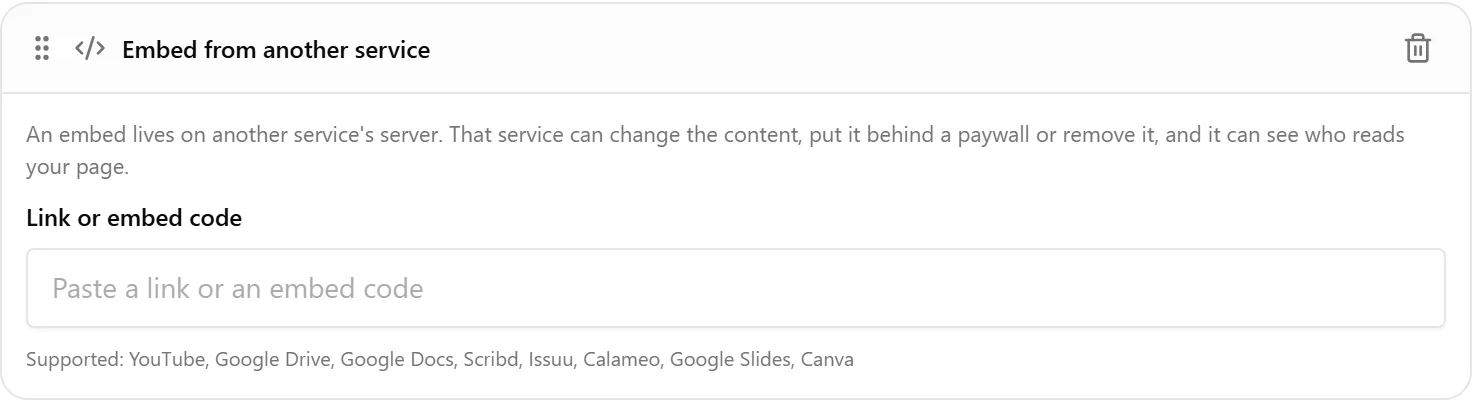
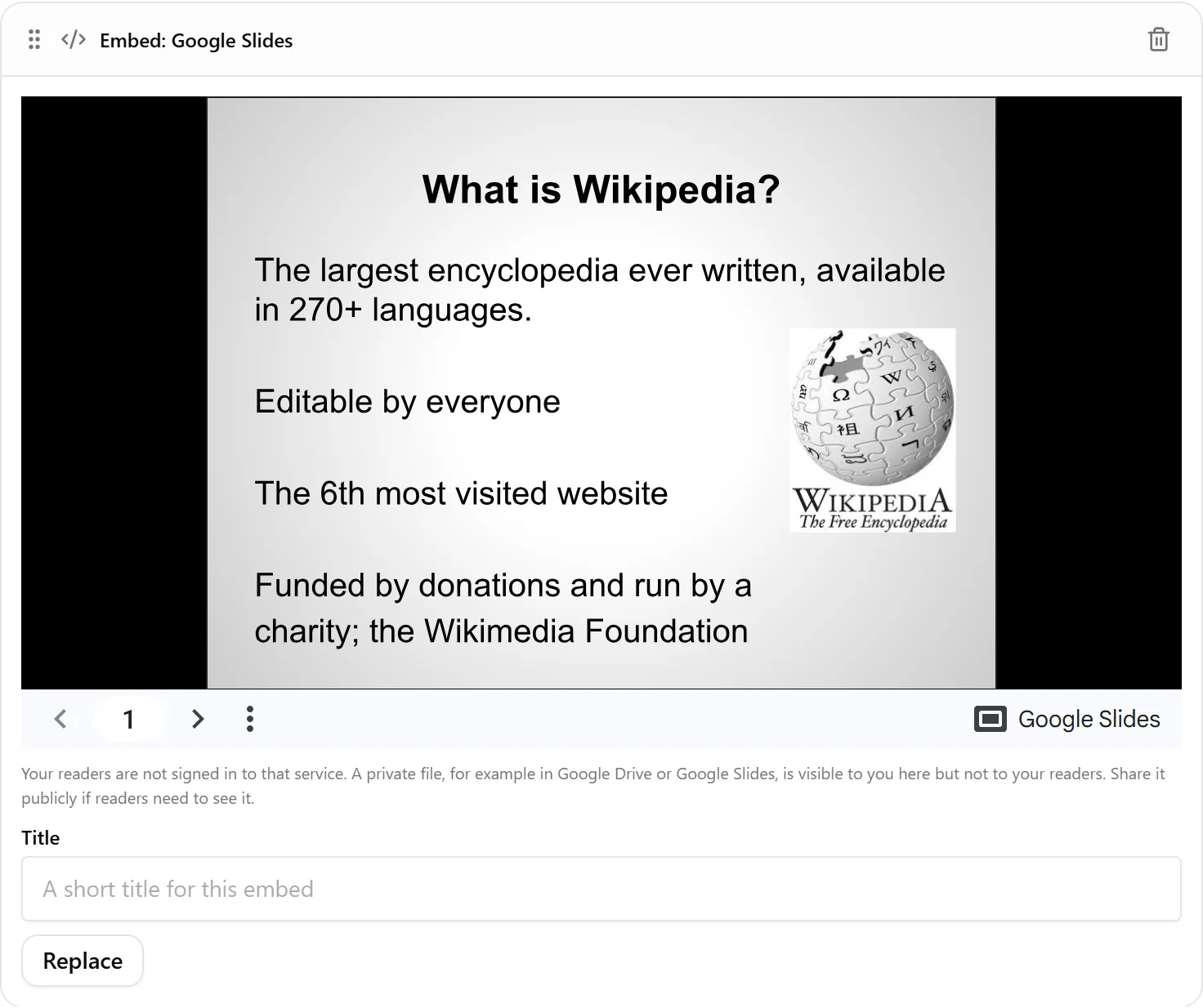
Use Replace to paste another link in the same place, and the trash can to remove the block, after a confirmation. If a link is refused, the block says why in plain words and nothing is saved. A link from a supported service in a shape Nolorem does not recognise (for example a Google Slides link that is not the normal share link) asks you to use the share link or the publish link instead.
The button is there for everyone who can edit the post, on every plan. A post that is read-only for you shows the frame but not the buttons.
Share the File Publicly First
Readers are not signed in to the service. A private file in Google Drive or Google Slides shows to you in the editor, because you are signed in, but readers see a sign-in request or nothing. The editor says so under every frame. Before you publish, open the link in a private window: what you see there is what a reader sees. Google Docs embeds only a document that is published to the web, and Canva embeds a design that has a public view link.
What an Embed Means for Your Readers
The frame is not a copy: it is the service's own page, loaded in your page. That has consequences you should know about, and the block says the first three of them each time you add one:
- The service can change the content, put it behind a paywall or remove it. The embed on your page changes with it.
- The service can see who reads your page. The reader's browser contacts it when the page loads, and some services set cookies or load their own advertising or analytics. When we tested, Calameo and Scribd loaded the most of that, YouTube (through its privacy-enhanced address), Issuu and Google Slides the least. If your readers or your own privacy policy need to know about it, name the services you embed.
- Links inside the frame that open a new window do not open for YouTube, Google Drive, Issuu, Calameo, Google Slides and Canva (for example "Watch on YouTube"): the frame is shut in on purpose. In a Google Docs or Scribd frame such a link does open, in a new window.
Nolorem does not add a click-to-load step: the frame loads with the page.
One Embed per Language Edition
An embed does not appear in a language edition by itself, because a Dutch slide deck is usually the wrong thing to show a German reader. Open the language tab (see Localizing a Post) and look for Embeds in the language. Each embed has three choices:
- Leave out is what every embed does until you choose otherwise.
- Also show in the language shows the same embed in this edition.
- Use my own embed takes a link or an embed code of your own from a supported service, for example the German version of the deck.
The choice is saved per embed and per language. A text change in the source never switches an embed on in an edition, and an embed never makes an edition incomplete.
Where an Embed Goes When You Publish
| Where | What readers get |
|---|---|
Your Nolorem blog, the Content API (html field) | The frame. The Content API also returns the embeds as a list, with the service, the address and the title. |
| WordPress | A WordPress embed block for YouTube, Scribd, Issuu and Canva, and an HTML block with the frame for Google Drive, Google Docs, Calameo and Google Slides. WordPress can strip a frame from an HTML block when the author has no permission to publish unfiltered HTML, so check the first post you push (see Publishing to WordPress). |
| Webflow | A link with the title of the embed, not a frame. |
| Ghost | The frame, in an HTML card. |
| HTML export | The frame. |
| Markdown and PDF export | A link with the title and the name of the service, because those files cannot hold a frame. |
| JSON export | The embeds as a list, and the full HTML. |
What Nolorem Does Not Do With an Embed
An embed has no text of its own, so the writer never rewrites it, the language models never see it, and it is not part of the Source check. It adds nothing to the SEO score and no words to the word count (see SEO scores). Whatever the document or video says is not checked against your sources: that is yours to judge, because the content belongs to the other service.
Related articles
Was this article helpful?
Still need help?
Can't find what you're looking for? Open your support portal for live chat and tickets. Sign in with your Nolorem account.
Open support portal