Localizing a Post for Another Market
Turn a finished post into a version for another language market, with a focus keyword drawn from that market's own search terms rather than a translation. Edit, delete, or choose a region for any version.
Updated Sep 16, 2026
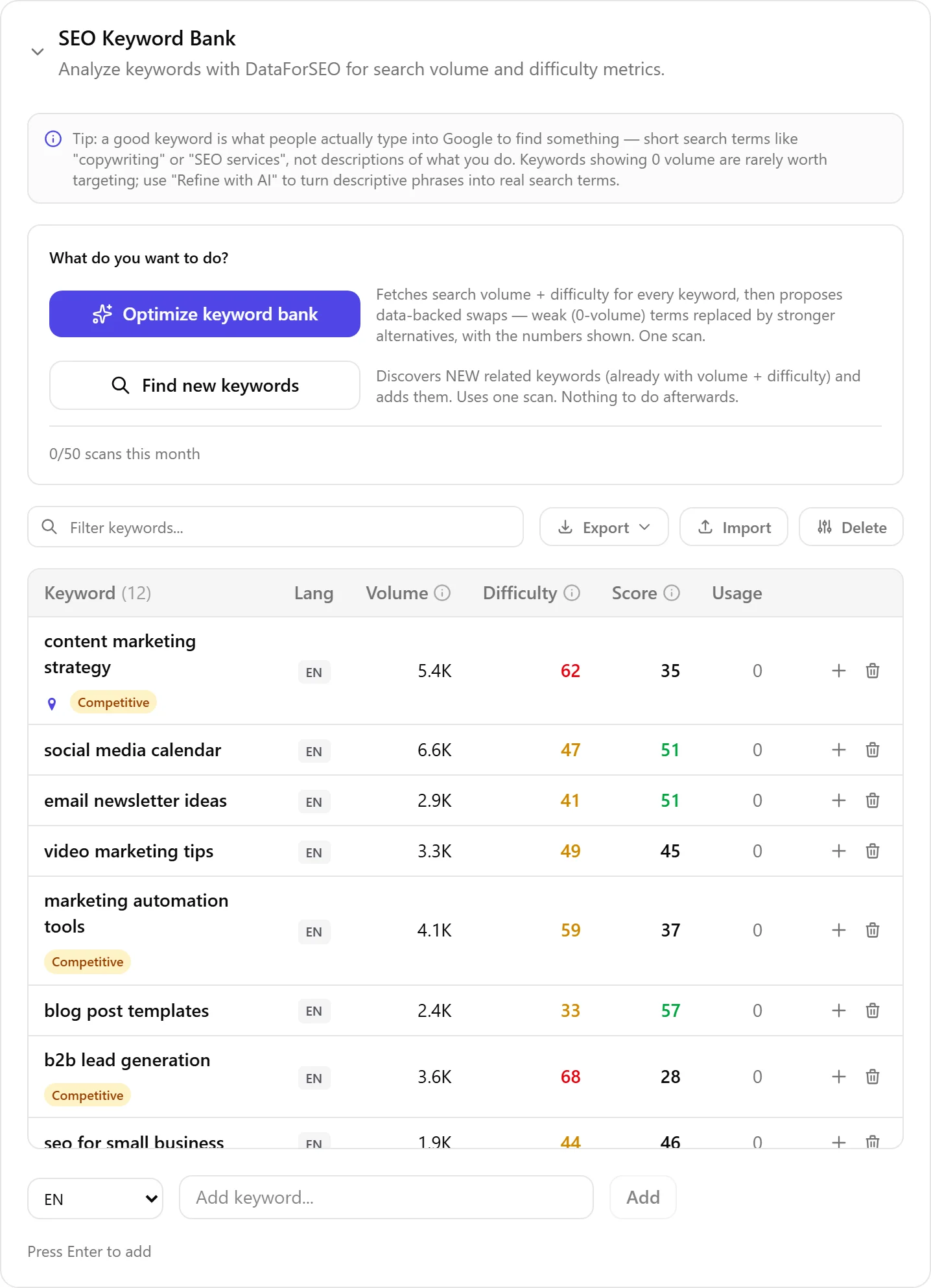
Localization is not translation. A Dutch grower and a German buyer search for the same product with different words, so a word-for-word translation of your Dutch article carries the wrong search intent into the German market. Localizing a post finds the term the target market actually searches for, and rewrites the title, URL, and meta description around it.
What Happens When You Localize a Post
For each language you choose, Nolorem:
- Works out the search terms that market would actually type, based on your source article.
- Matches those terms against your keyword bank for that language.
- Picks the best match (or, if your bank has nothing close yet, writes the derived term into your bank as a new keyword) and explains why it fits.
- Rewrites the title, SEO title, meta description, and URL slug around that keyword.
- Rewrites every section heading and body to read naturally in the target language and market, keeping the same structure and order as the source so the two versions stay easy to compare.
Images are not regenerated -- the localized version uses the same images as the source, with only the alt text translated. Sources stay identical: the same links, the same source titles as they appear on those pages, so what your post claims can still be checked against the same evidence.
How to Run It
Open Localize from the post editor's toolbar. The posts list itself shows a language sign for every post: a green code has a version, amber is a version still in progress, and grey means that language has not been translated yet.
- Localization is offered once a post is ready or further along (ready, awaiting approval, scheduled, or published). A draft cannot be localized: draft text can still change, and every language version spends a post from your monthly allowance, so localizing a draft would be starting from text you might rewrite tomorrow.
- Admins and editors can localize. Contributors cannot, because localizing spends the account's shared monthly post allowance -- the same boundary that applies to publishing.
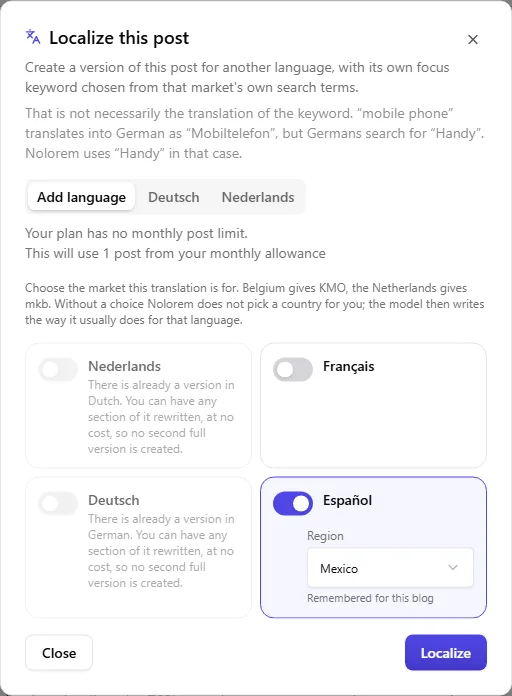
Before you run it, the panel shows how many posts you have left this month and what your selected languages will cost. A language that would take you over what remains cannot be selected, with the reason shown next to it.
Choosing a Region
Some languages are written differently depending on the country: Belgium writes "KMO", the Netherlands writes "mkb", for the same idea, "small and medium-sized enterprises". For any target language with more than one region (Dutch, English, French, Spanish, Portuguese), you pick which one this translation is for.
Without a choice, Nolorem does not pick a country for you -- there is a Global option that leaves the choice to the model rather than steering it toward any one country's vocabulary. Whichever region you pick for a language is remembered for that blog, so the next translation into the same language starts from your last choice instead of asking again. A language with only one form (German, Italian) shows no region choice at all -- there is nothing to pick.
What It Costs
One localized version equals one post from your monthly blog allowance, charged the moment that language finishes. Localizing into three languages spends three posts, exactly as if you had written three new articles.
If your allowance runs out partway through a run, the languages that fit are produced and the ones that do not are named, with your remaining count shown -- you never lose the languages you did have room for.
Rewriting a section that changed is free. If you edit a section of the source article after localizing, that section is marked as needing an update in every localized version. Refreshing it rewrites only that section, at no cost, and does not touch your monthly count. A brand-new language is the only thing that spends an allowance.
When a Version Is Incomplete
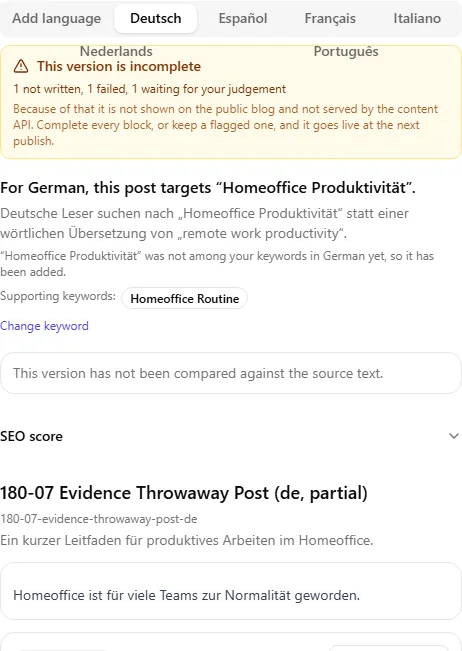
Now and then a section cannot be written cleanly the first time: the language check catches a block that came back in the wrong language and refuses it, or the writing attempt itself fails outright. When that happens the version carries a banner:
This version is incomplete 1 not written, 1 failed, 1 waiting for your judgement Because of that it is not shown on the public blog and not served by the content API. Complete every block, or keep a flagged one, and it goes live at the next publish.
Each affected block shows its own state on its own card, never lumped together:
- Not written yet -- nothing has been attempted for this block. Press Regenerate and it is written now.
- Failed -- an attempt was made and nothing usable came back. Press Try again.
- Needs your judgement -- the block DOES have text: the language check refused it after several attempts, but the text of that last attempt is shown to you rather than thrown away. Read it and either press Keep this text if it is actually fine, or Regenerate to try again.
A version only counts as complete, and only then appears on your public blog and in the content API, once every block is written and nothing is left waiting for your judgement.
The Check Against Your Source Article
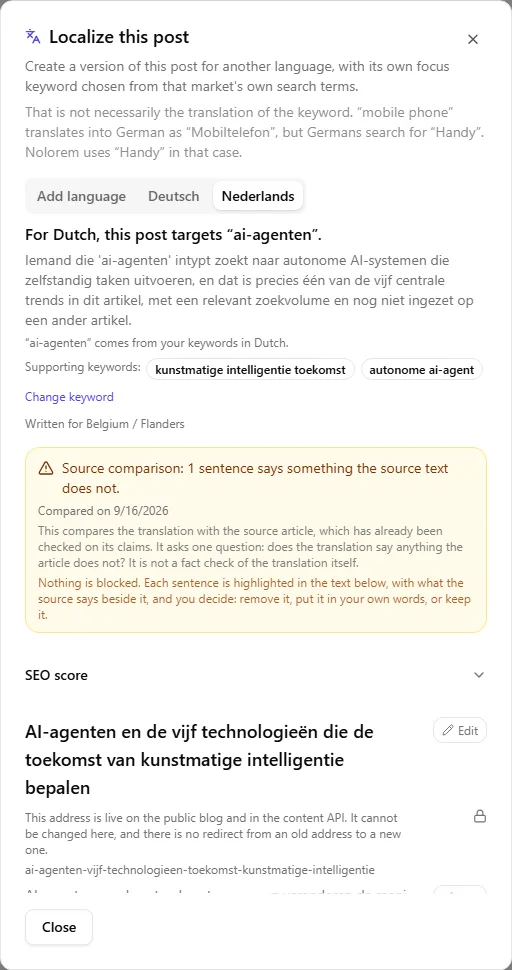
Every localized version can be compared against the article it came from, one section at a time. The comparison asks a single question: is this in the source? It does not ask whether a sentence is true. A sentence can be perfectly correct and still be flagged, because it says something your source article does not, and that means Nolorem did not get it from anywhere -- the source article is what was already checked on its claims (see The Source Check), so the only new risk a translation adds is the rewriting itself.
You will see this most often after asking for a section to be made longer. Extra length has to come from somewhere, and a rewrite that runs out of material is where an invented claim appears.
Each language shows one of three states for this comparison:
- Never compared -- you have not run it yet on this version.
- Compared, with findings, or clean -- shows the date it last ran, and how many sentences (if any) say something the source does not.
- Comparison failed -- the check itself could not complete. This is not the same as "never compared": you can press Try again.
Anything found is marked on the section card. The sentence itself is highlighted in the text, and the box underneath opens with the part that has no basis in the source (one word, a title, a clause), then quotes what your source says. You have three ways to answer it:
- Remove takes the sentence out.
- Edit swaps it for wording you type yourself.
- Keep keeps it and stops it being counted, for when the sentence is right and you know why.
From two open findings on, the comparison box for that language also offers Keep all: every open finding is kept in one go, and each one can still be looked at again afterwards.
Remove and Edit change the text directly, with no AI involved, so answering a finding can never introduce a new one. A sentence containing a link refuses both, and says so: every link from your source article is kept exactly as it was, and that rule comes first. Running the check again can bring back a sentence you already accepted, if that same sentence is flagged once more -- accepting a finding is a decision about that one sentence at that one time, not a standing exemption for it.
Nothing here blocks anything. The findings are there to be read, and they travel with the JSON file when you export. They are deliberately left out of the markdown and HTML exports, because that text goes straight into your own site and a warning line published inside an article would be worse than the finding it warns about.
Editing a Version by Hand
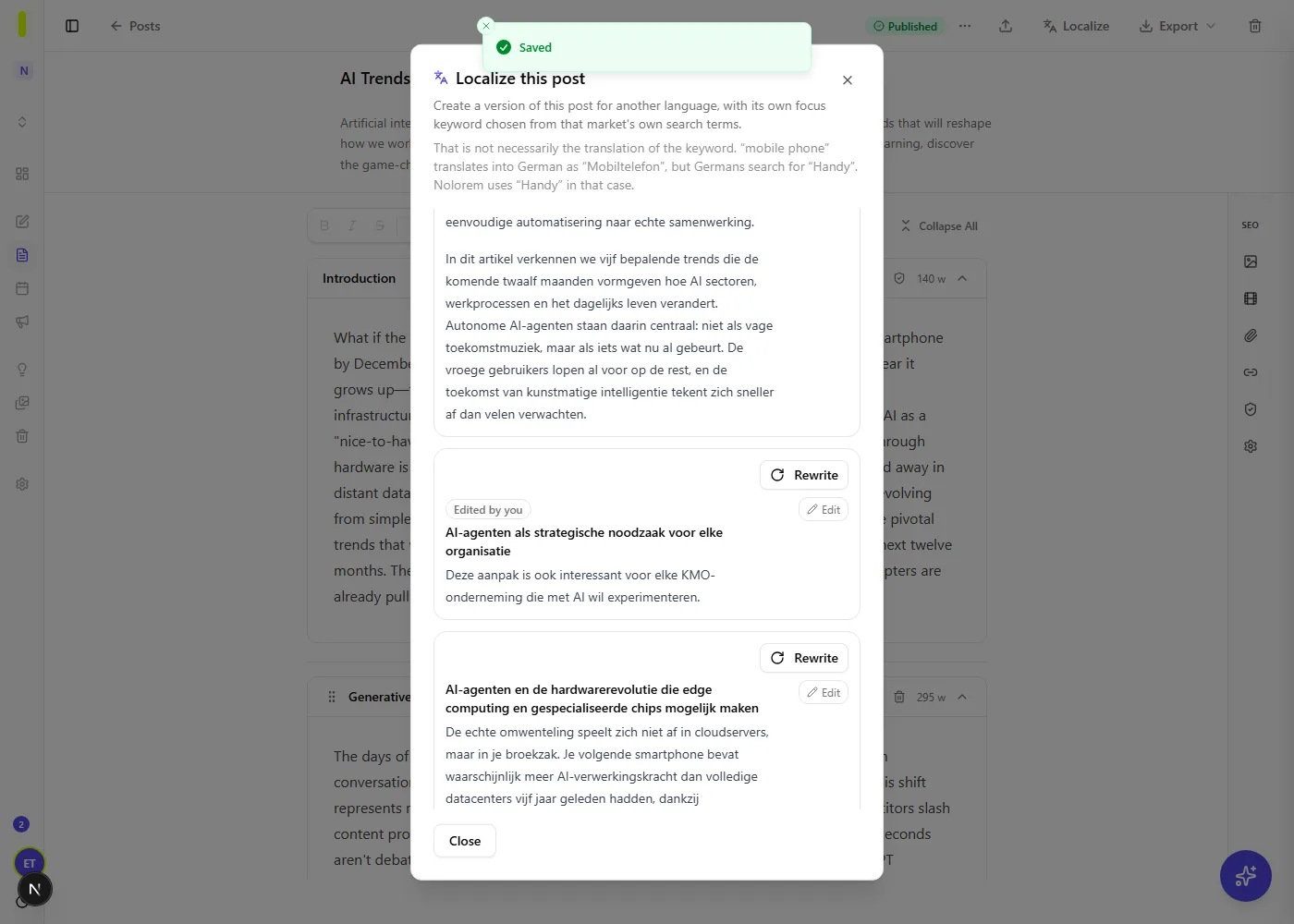
Every field in a localized version can be corrected on the spot: title, meta description, the lead paragraph, the intro, the conclusion, and each section's own heading and content. Click a field to open it and edit it there; the URL slug and meta description are plain text, the rest opens the same rich-text editor you already use in the post editor. Save applies just that one field, without calling AI at all -- so fixing a single word never touches or restarts anything else in the version.
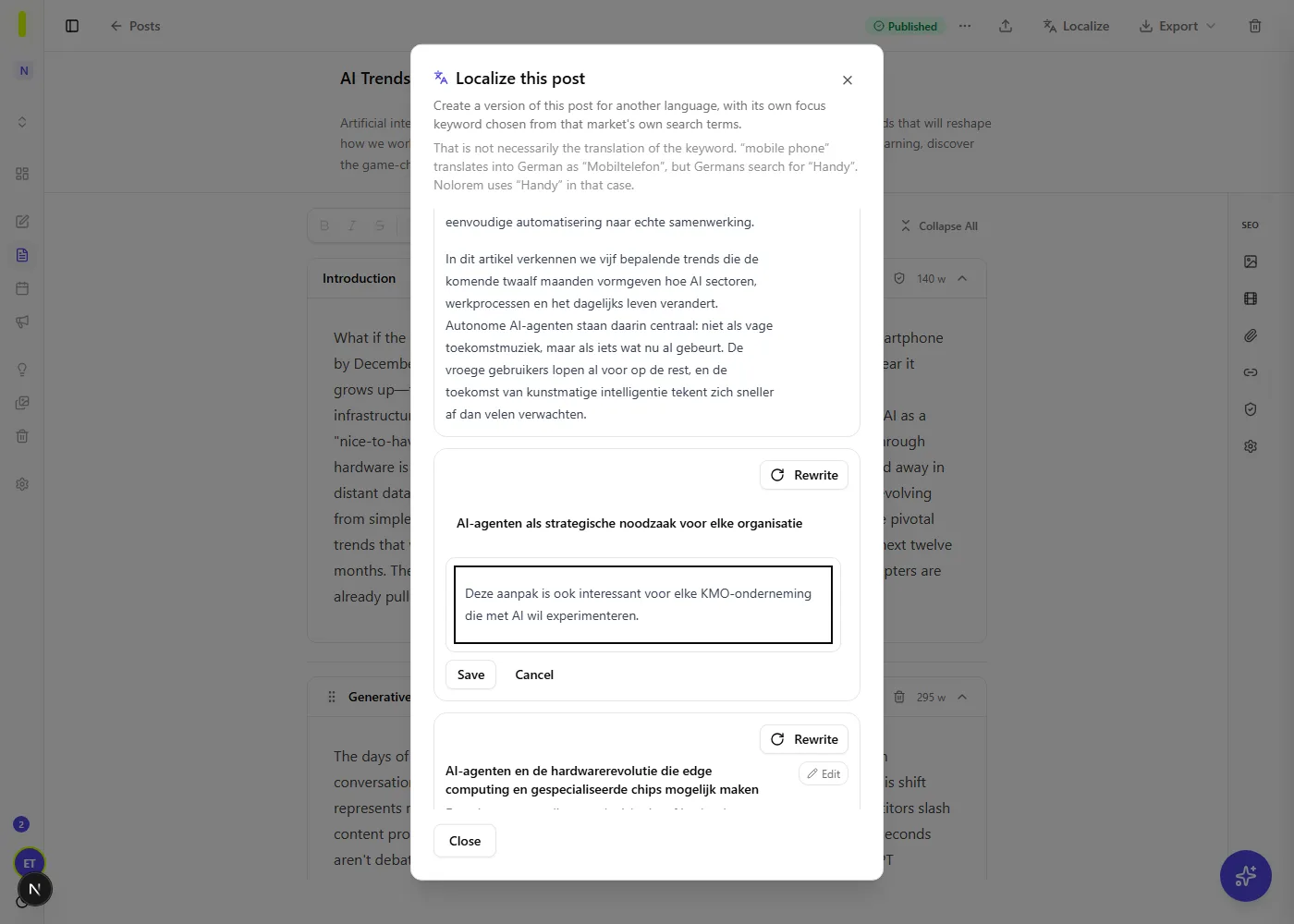
An edited block carries a small Edited by you mark. If you later ask for that block to be rewritten or regenerated, Nolorem asks first, because a rewrite would overwrite what you typed:
Replace your edited text? This block was edited by hand on . Regenerating writes a new version over your text. Your edit is not kept.
The URL slug can be edited only while the version is not yet public -- once it goes live on your public blog, that address is what search engines and any links to it already point at, so it locks and the panel explains why.
Deleting a Version
A language you no longer want can be removed for good:
Delete the version? This removes the version for good. It also disappears from the public blog and from the content API. You can create a translation up to three times. Deleting a translation is final, straight away.
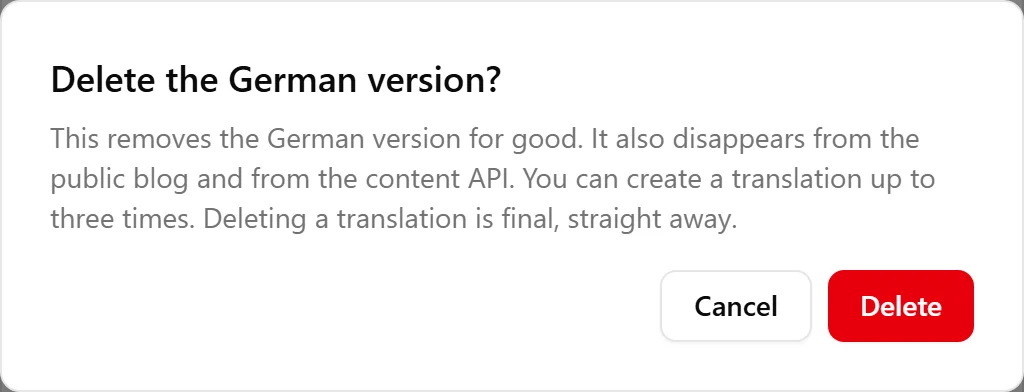
Deleting is immediate and there is no trash for a single language -- Nolorem's recycle bin only holds whole posts. What you already paid stays paid: creating the same language again after a delete costs nothing, up to three times per post and language, so a mistake does not become a second charge. Past that, creating it again costs a new post from your monthly allowance, the same as any other new language.
What You Get
The panel leads with the target keyword and why it was chosen, so you can see at a glance which search term the version is written around.
Below that: the SEO score for the localized version next to the source's, for comparison, and the internal links the article points to. Those links still point at the source-language page, since a localized version has no address of its own inside Nolorem -- swap them for the target-language equivalent when you place the text.
Export a single language as a folder with a markdown file, a JSON file, and the images, or export every language at once as one archive with a folder per language.
Where Nolorem Stops
Nolorem does not publish a localized version to your website or CMS, and there is no integration with WordPress multilingual plugins (WPML or Polylang) or with Drupal's translation modules. Placing the localized text on your site -- as a new page, a translated post, or however your CMS structures multiple languages -- is your own task, using the export above as your starting point. It is work you would have had to do for any translation, now starting from a version already written for that market's actual search terms rather than a literal translation of your own, and correctable on the spot when it needs a small fix.
Related articles
Was this article helpful?
Still need help?
Can't find what you're looking for? Open your support portal for live chat and tickets. Sign in with your Nolorem account.
Open support portal