Tracking Tags on Your Social Links
How Nolorem tags links to your own site in social posts, so every visit shows up in your analytics, and how to adjust or switch it off.
Updated Sep 29, 2026
When a post links to your own site, Nolorem adds tracking tags to that link automatically, so your analytics tool (Google Analytics, Matomo, or any other tool that reads UTM parameters) shows the visit came from this specific post and channel. You do not need to open anything to get this: it happens by itself when the post is published.
The Links Pane
Every post in the social composer has a Links icon in the right rail, next to Images, Videos and Attachments. Opening it shows the website URL a link points to, the source, medium and campaign values that will be tagged onto it, and the tagged links as they will actually go out. Every field is optional to touch: the defaults are chosen for you, and a post whose pane you never open still gets tagged.
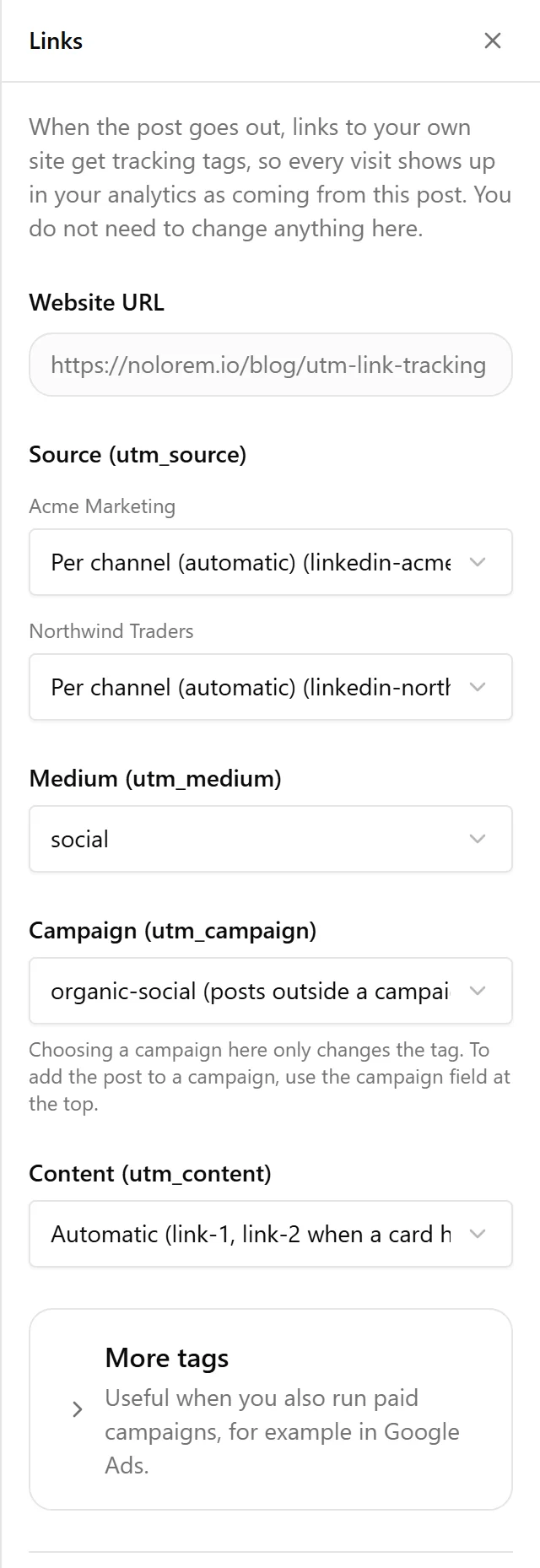
The Source field is the one that varies per channel: when you have only one connected account on a platform, it reads simply "linkedin" or "bluesky". When you connect two or more accounts on the same platform, each one gets its own name added (for example "linkedin-acme-marketing" and "linkedin-northwind-traders"), so a click from one account never gets mistaken for a click from the other.
The Campaign field lets you pick which campaign name is tagged onto the link. Choosing a campaign here changes only the tag; it does not add the post to that campaign. To do that, use the campaign field at the top of the composer instead.
Under "More tags" you can also set utm_term and utm_id, useful mainly if you also run paid campaigns elsewhere, for example in Google Ads.
The Switch on Each Card
Every channel card that carries at least one link shows a Tracking tags switch, along with a short line explaining why its links are or are not tagged right now.
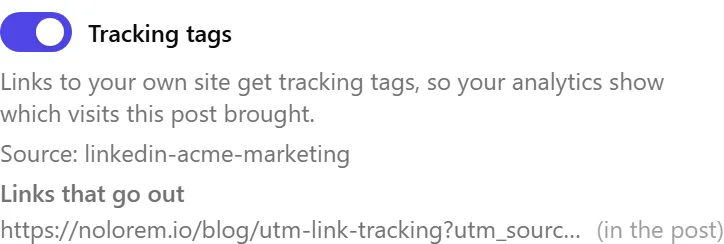
What each explanation means:
- Links to your own site get tracking tags. The switch is on because at least one link on this card points to a page on your own site.
- Tracking tags are off for this card. You switched tagging off; the links go out exactly as typed.
- These links go to another site. The switch is off by default because none of this card's links point at your own site. Switch it on if you still want them tagged.
- With tracking tags the link would no longer fit. The post would exceed the platform's character limit once tagged, or the tagged link would be pushed out of the post entirely, so the plain link goes out instead. Tagging never costs you a link. On X every link counts at its full length toward the 280 characters, so there a long tagged link falls back to the plain one sooner.
- This link already carries its own tracking tags. You typed a link that already has its own
utm_parameters, and Nolorem leaves it exactly as you wrote it. - Instagram does not make links clickable. A link in an Instagram caption or comment cannot be tapped, so Nolorem never tags Instagram links: it would only add characters nobody can follow.
- LinkedIn breaks tracking tags in a comment. A tagged link in a LinkedIn comment stops being clickable halfway, so links in the first comment go out without tags. Links in the post text itself are still tagged.
Under the switch, "Links that go out" lists every link this card will actually publish, and whether each one lands in the post text or the first comment.
Your Own Sites
Nolorem already knows your own site from your blog settings, so links to it are recognised automatically, including any subdomain. If you publish social posts that link to a site not connected to any of your blogs (for example your main company site, when your blog lives on a subdomain), add it under Settings > Tracking tags. The same settings card also holds the campaign name used for posts that belong to no campaign, so those posts still carry a meaningful utm_campaign value instead of ending up in an unlabelled group.
Limits
A few situations are worth knowing about:
- LinkedIn reshares carry the original post, including its link exactly as it was tagged for the first account. If you reshare a post from a second LinkedIn account, your analytics for that reshare will show the source of the ORIGINAL account, not the resharing one.
- A post sent to a personal LinkedIn account and a LinkedIn Page at the same time shares one underlying message, so both carry the same source in the tag. The Links pane and the card both show the source that actually goes out: each channel's Source field reads "Shared with" the other channel's name, and cannot be switched to a different value there, since a per-channel choice would have no effect. If the two accounts must be told apart in your analytics, publish two separate posts instead of one post to both.
- Instagram links are never tagged, for the reason above: they are not clickable there.
- Links in a LinkedIn comment are never tagged, for the reason above. Facebook comments are not affected: a tagged link there arrives intact.
- Nolorem does not shorten links. The full tagged address is what goes out.
- Nolorem does not read click data back in. Once a link is tagged, the actual visits are reported by your own analytics tool, not inside Nolorem.
Related articles
Was this article helpful?
Still need help?
Can't find what you're looking for? Open your support portal for live chat and tickets. Sign in with your Nolorem account.
Open support portal