Scheduling and Publishing Social Posts
Schedule posts across channels, manage your content queue, and publish manually or automatically at the right time.
Updated Sep 17, 2026
Nolorem lets you schedule social posts for any connected channel and manage everything from one place. Posts are published automatically at the scheduled time through a background job.
Scheduling a Post
When composing a social post, set the date and time in the scheduling section of the composer. Select which channels the post should go to. Click Schedule to add it to your queue.
The post appears on the unified calendar at the scheduled time, with green coloring and platform abbreviations (LI, TW, BS, etc.) so you can see at a glance what is going where.
Giving a Post a Title
A social post can carry a title. One title is shared across every channel card, so you write it once, and any single card can override it when that channel needs something different.
The title is what you see in the Social Posts list, on the cards in the grid view, and in the calendar, so a queue of scheduled posts reads as a list of subjects instead of a list of opening sentences. On Pinterest the title is also the pin title, which is the headline a pin shows.
Leaving it empty is fine. The list then falls back to the start of the post text, the way it always did.
Publishing Immediately
If you want to publish right now instead of scheduling, click Publish now in the composer. The post is sent to all selected channels immediately. Published posts show up on the calendar at the current date.
Managing Scheduled Posts
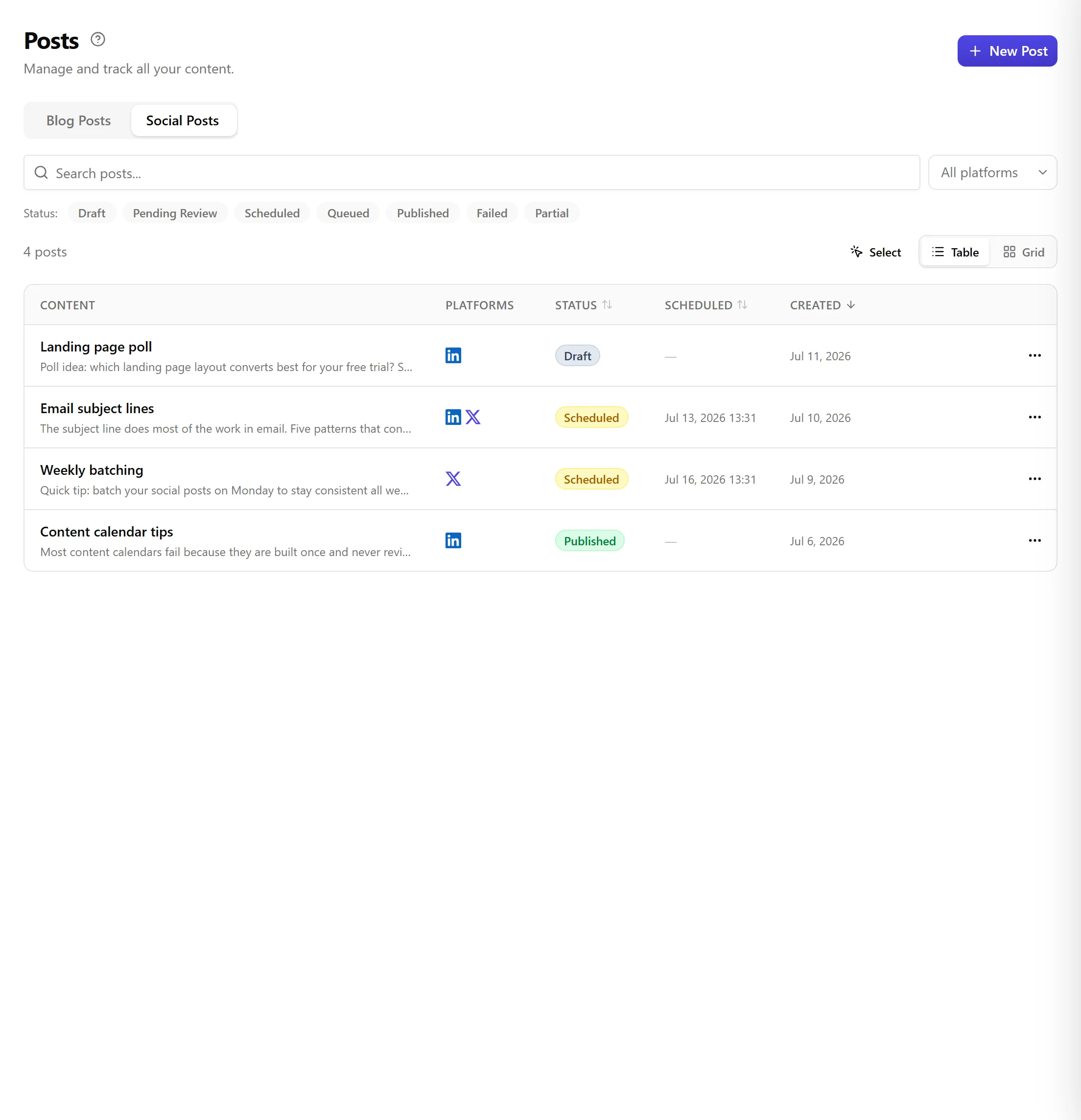
From the unified calendar or the Social Posts list:
- Reschedule: drag the post to a new date on the calendar, or edit the scheduled time from the post detail view
- Edit: update the content before the scheduled time
- Cancel: delete the scheduled post before it publishes
- Duplicate: create a copy with the same content for a different time or channel set
Deleting a Post From the Composer
The composer has its own delete action, so you do not have to close it and find the post in the list again.
Deleting removes the post from Nolorem. For a post that was already published, it also asks the channel to remove what it published there, and it tells you per channel whether that succeeded. A channel that refuses (some platforms do not allow deleting after a while) is named, so you know where something is still live.
Video on One Channel and Not Another
A video is attached per channel card rather than to the whole post, so the same post can go out with video on one channel and as text on another.
Four channels accept a video this way: LinkedIn, LinkedIn Pages, X, and Bluesky. On any other channel the video control is not offered, because that platform cannot take it.
Multi-Channel Publishing
When you schedule a post for multiple channels, each channel receives its own version adapted to that platform's character limits, hashtag rules, and media requirements. If one channel fails (expired OAuth token, for example), the other channels still publish successfully.
When a Post Fails, It Says Why
A failed post no longer shows only a red badge. It carries the reason, written as a sentence in your own language rather than the provider's raw error text.
The most common one is a channel that lost its connection: the post says so, and points at reconnecting rather than leaving you to guess. Others name the real cause, such as a missing image on a channel that requires one, or a board that was never chosen for Pinterest.
The reason shows in the Social Posts list, on the grid cards, and in the calendar popup, so wherever you notice the failure you can also read what happened.
A Post Waiting on Its Source Article
When a social post links back to one of your blog posts (a repurposed post, or one generated as part of a campaign), it waits for that blog post to actually go live before it publishes. If the blog post has not published yet at the scheduled time, the social post stays in your queue marked as waiting, and Nolorem publishes it automatically once the blog post goes live. There is nothing you need to do; if you never publish the blog post, the social post simply keeps waiting.
If the blog post's address is temporarily unreachable at send time, Nolorem retries automatically a small, fixed number of times before giving up. If the blog article was deleted, moved to the trash, or was published without a public address configured, the social post fails instead of waiting forever, and the reason points you at Blog Settings, under Publishing, so you know what to fix before scheduling the post again.
Cadence Gap Detection
Nolorem monitors your posting frequency per channel. If it detects a gap in your schedule (for example, no LinkedIn posts for the next week), it shows a suggestion in the dashboard. You can generate a quick post to fill the gap directly from the suggestion.
Draft Autosave
Social drafts are saved automatically as you type. If you close the browser or navigate away, your draft is preserved and available when you return to the composer.
Related articles
Was this article helpful?
Still need help?
Can't find what you're looking for? Open your support portal for live chat and tickets. Sign in with your Nolorem account.
Open support portal