The Document Library
Add a document with a file, a public address, or both in one dialog, let Nolorem read and tag what you upload, use your own documents as material when writing, ask the assistant about them, and get asked before the same file is stored twice.
Updated Sep 1, 2026
Nolorem keeps documents in the same media library as your images, video and audio. Open the library at Media Library, then use the Type filter and choose Documents to see only your uploaded documents.
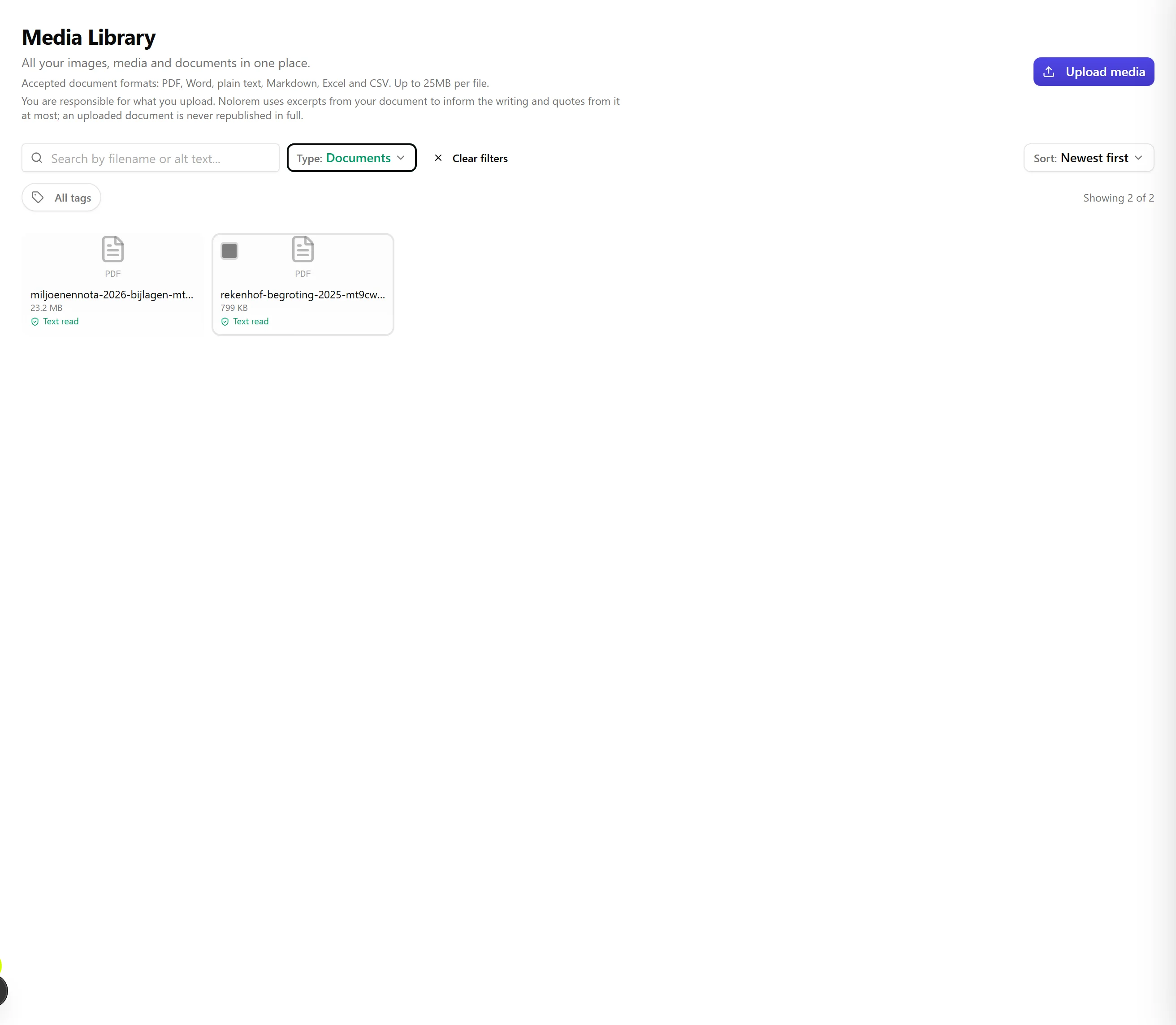
One Button, a File and an Address
Click Add media in the library toolbar. One dialog opens with a dropzone and a public address field side by side, because they are two independent choices, not two dialogs.
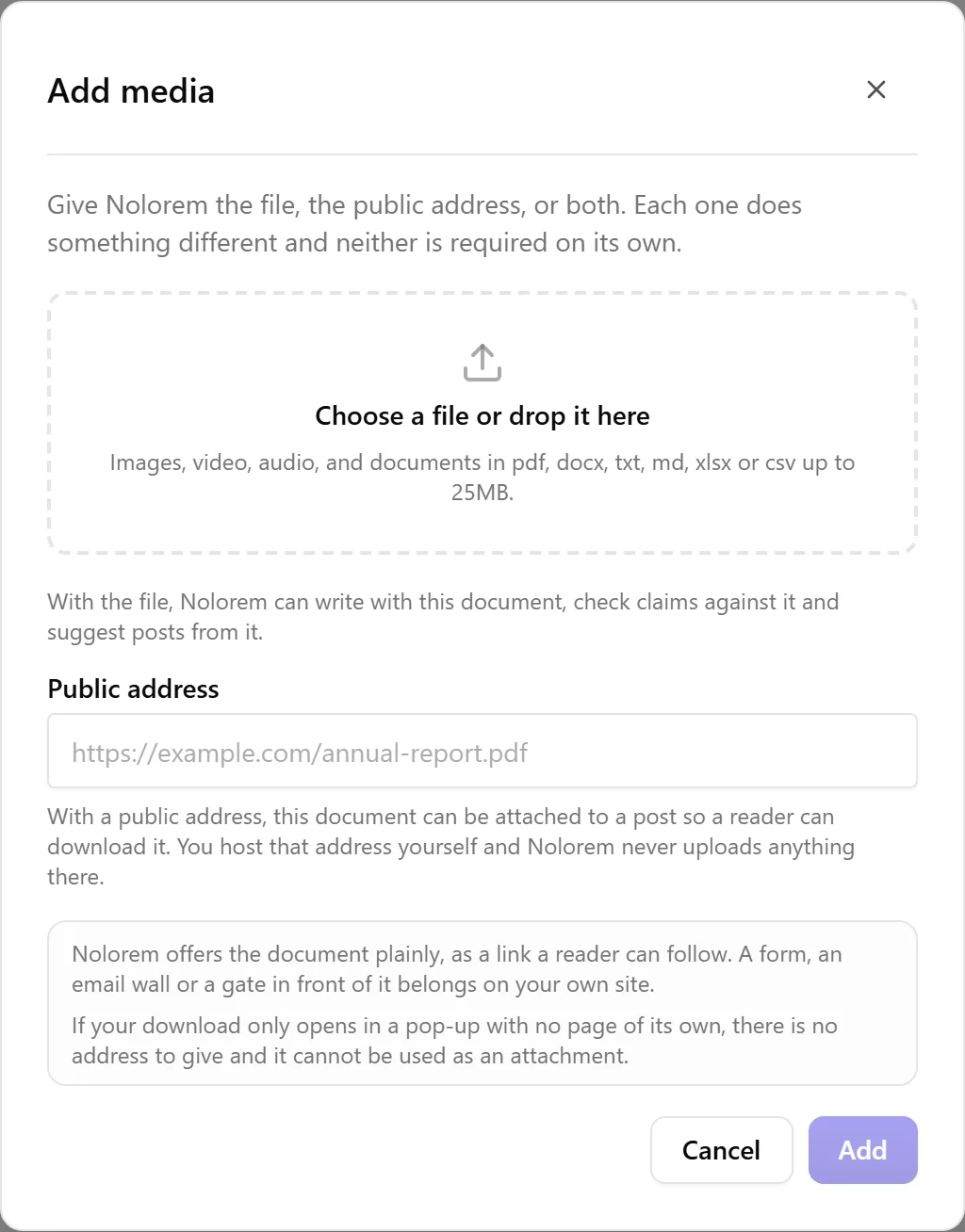
Give a file, an address, or both. Neither is required alone, and the dialog says so if you try to submit with nothing in either field: a document with neither only takes up space, since Nolorem could not read it and could not offer it either.
The file lets Nolorem work with the document: write with it, check a claim against it, and suggest it as material for a future post.
The address lets the document be attached to a blog or social post, so a reader can download it. With the file present too, the document is also named by title in the post's published source list; with no file, Nolorem never read it, so it cannot name it.
You host that address yourself, on your own site or in a shared drive such as Dropbox, OneDrive or Google Drive. Nolorem never uploads a document there on your behalf: the address is yours to keep working.
Before you go looking for an address, know one case where there is none to give. If a document's download only opens in a pop-up with no page of its own, it has no address, and it cannot be used as an attachment on a blog or social post. Nothing on the Nolorem side can change that; the fix, if there is one, is on your own site.
Accepted Formats and Size
Nolorem accepts PDF, Word, plain text, Markdown, Excel and CSV files, up to 25MB each. The dropzone tells you this before you pick a file, so you never discover the limit by trying.
The Same File Twice
Upload a file the library already holds and Nolorem stops and asks, instead of quietly making a second copy. It tells you which document it already is and the day it arrived, and gives you two answers: add it anyway, or cancel.
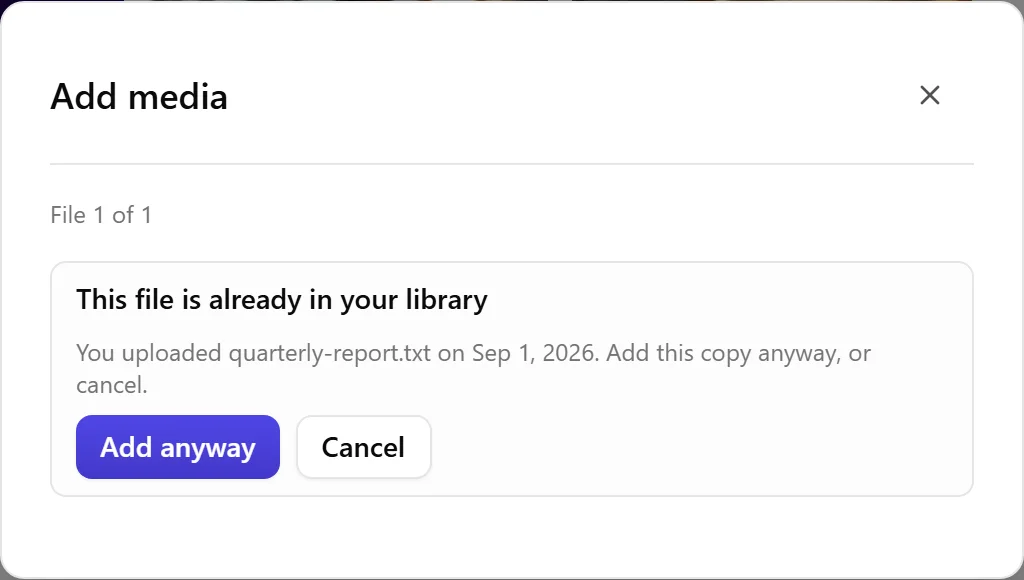
Cancel and nothing happens at all. No row, no stored file, nothing read, nothing counted against your storage. Add it anyway and you get a real second document, because there are good reasons to want one.
It compares the file itself, not its name. Rename a file on your computer and upload it again and Nolorem still recognises it. Change so much as a single character inside the file and it does not: a corrected version is a different document and comes straight in, which is exactly what you want when you re-upload a fixed report.
The comparison stays inside your own workspace. Nolorem never tells you that another organisation holds the same file, and never treats their copy as yours.
Private by Default
The file itself always stays private. Only your workspace can see it, and Nolorem never uploads it anywhere or offers it to anyone outside your organization. Attaching a document to a post never publishes the file: it only offers the address you gave it, which you host yourself.
If a document has no address yet and you want it available publicly, open it from the library and add one. That address, not anything stored in Nolorem, is what your readers see and what a post can cite.
Adding or Removing an Axis Later
Editing an existing document reopens the same dialog you used to add it. Add an address to a document you uploaded, or give the file to a document you added by address, and it becomes the same entry with both, not a second one.
You can also remove the stored file from a document that has an address, if you no longer want Nolorem holding it. Nolorem asks you to confirm first, and says plainly what removing costs: the file goes, the text Nolorem read out of it goes with it, and your storage quota is freed. The document stays in your library with its address, so it can still be attached to a post; it just stops shaping the writing.
See Attachments on Posts for what happens once a document is attached, including what a picker shows you when a document is not offerable yet.
Tags
Add tags to a document to describe what it is: a business plan, last year's sales figures, a client deliverable. Type a tag and Nolorem suggests existing tags from your workspace so you do not end up with near-duplicates like "sales" and "sale".
After you upload a document, Nolorem reads it and proposes tags of its own, shown separately as suggestions. Nothing is added automatically. A suggestion only becomes a real tag when you keep it; you can keep one, keep them all, or discard any you do not want.
When a Document Cannot Be Read
Most documents are read automatically, so their content is available to the AI. Some documents, most often a scanned PDF that is really a photograph of a printed page, contain no readable text at all. When that happens you will see No text found on that document. This is not an error and the document is not broken: it stays in your library and you can still attach it and tag it, but the AI cannot read what is inside it.
Writing With Your Own Documents
A document with a file can be more than storage. On the generation screen you can pick documents for Nolorem to draw on while it writes, so a post can rest on your own report, policy or price list instead of only on what the open web says.
Which plans include it. Writing with your own documents is available on Pro and Premium. Storing documents stays included on every plan, so a Basic subscription can keep a full library and use it everywhere else in the product. Using those documents as material for writing is the part that starts at Pro. Pro can attach up to 3 documents to one post, Premium up to 6.
Whether the document is named. This decides what your readers see, and it now depends on both axes together, not on the address alone.
If Nolorem read the document and it has a public address:
Nolorem read this document and it has a public address, so it is named in the published post's source list.
If Nolorem read the document and it has no public address:
Nolorem read this document and it has no public address, so it shapes the writing and is not named. Add an address to have it named.
If Nolorem holds no file for the document, only an address:
Nolorem holds no file for this document, so it does not shape the writing and is never named in a source list. It can be attached to a post, and your reader downloads it from your address.
So an internal document can inform an article without being listed as a source that readers could go looking for, and a document you only host is never mistaken for one that shaped the writing.
The choice is made per post. Documents you pick for one post are not carried over to the next. Every post starts with nothing attached, so a document you used once does not quietly keep turning up in later articles.
Asking the Assistant About a Document
Writing with a document is one use. Asking about one is another, and it needs no setup: open the Content Advisor from any page and ask. "What does the annual report say about our costs?" gets an answer out of that report, with the document named and linked so you can open it in one click.
The same plans apply as for writing: Pro, Premium and trials can do it, and each question draws on at most 3 documents on Pro, 6 on Premium and 2 during a trial. When the advisor finds nothing it tells you whether you have no documents at all, no document on that subject, or one it could not read.
Turning off Use for post suggestions does not hide a document from the assistant. That switch only stops Nolorem proposing posts off its own back; asking for the document by name still works. See The Content Advisor for the full picture.
A Document Can Propose Its Own Post
On the Create page, alongside the ideas Nolorem builds from your keywords and audiences, one of the six suggestion cards can come from a document in your library instead: a post written from something you already uploaded rather than from a search term.
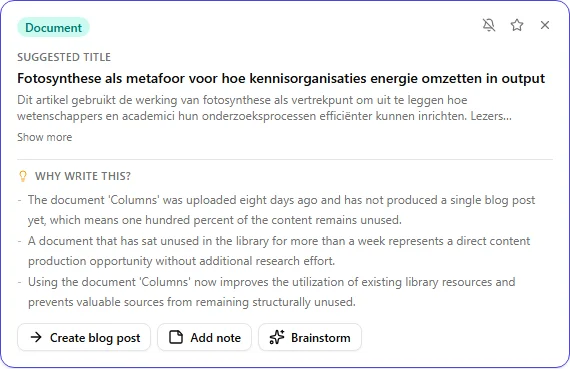
What makes a document likely to come up. A document that has been sitting in your library for a while with material nothing has been written from yet. The more of it is still unused, the more it stands out as a candidate; once a post has drawn on most of it, that document steps back and gives another card the slot. At most one document card can appear among the six, and only when one of your documents genuinely qualifies.
Two ways to stop it. Turn the switch off in the library, as above, or use the bell icon directly on the card that suggested it: click it, confirm, and that document no longer proposes posts on its own. Both write to the exact same switch, so it makes no difference which one you use. Neither stops you from asking the assistant about the document, or from picking it yourself on the Research card when you start a post.
What a document card never does. Nolorem never publishes the document itself, and never puts it anywhere public on your behalf. Clicking the card takes you to the generate page with that document already picked as material, the same as if you had ticked it yourself; if you want the document itself reachable by your readers, you give it a public address, exactly as described above.
Storage Allowance
Your document storage counts separately from your other media. How much you get depends on your subscription: Trial gives you 50MB to try it out, Basic gives you 200MB, Pro gives you 1GB, and Premium gives you 5GB. Without an active subscription, document storage is not included, and you will need to choose a plan before you can upload documents.
If you are close to your limit, Nolorem tells you exactly how much you are using and how much you have, and offers a link to see plans with more room. You can also delete a document you no longer need to free up space.
Deleting a Document
Deleting a document removes both its entry in your library and the file itself, and its address with it. This cannot be undone, so make sure you no longer need it. If the document is attached to a published post, detach it there first.
Related articles
Frequently asked questions
Was this article helpful?
Still need help?
Can't find what you're looking for? Open your support portal for live chat and tickets. Sign in with your Nolorem account.
Open support portal