Attachments on Posts
Give readers a document to download from a blog post or a social post. The file stays at your own address, an uploaded document becomes attachable the moment it has one too, and each channel shows it in the form that suits it.
Updated Aug 28, 2026
An attachment is a document your reader can download: a price list, a whitepaper, a template, a report. You add it to a blog post or to a social post, and the reader gets a link to it.
Where the File Lives
At your own address. Nolorem never hosts a document for the world. The file stays where you put it, and Nolorem stores nothing more than the address and what it found there.
If you have your own site, put the file on it. If you do not, a public link from Dropbox, OneDrive or Google Drive works just as well. What matters is that anyone can open the link without signing in.
Nolorem offers the document plainly, as a link a reader can follow, and that is all it offers. A form in front of the download, an email wall, or any other gate belongs on your own site: Nolorem does not build one, and that is a decision about what an attachment is, not a missing feature. If you want to gate a document, put the gate on your own site and give Nolorem the address of the page behind it that actually holds the file.
Adding a Document
Open the Media Library and click Add media. One dialog takes a file, a public address, or both, because an attachment only needs the address; the file is what lets Nolorem also write with the document.
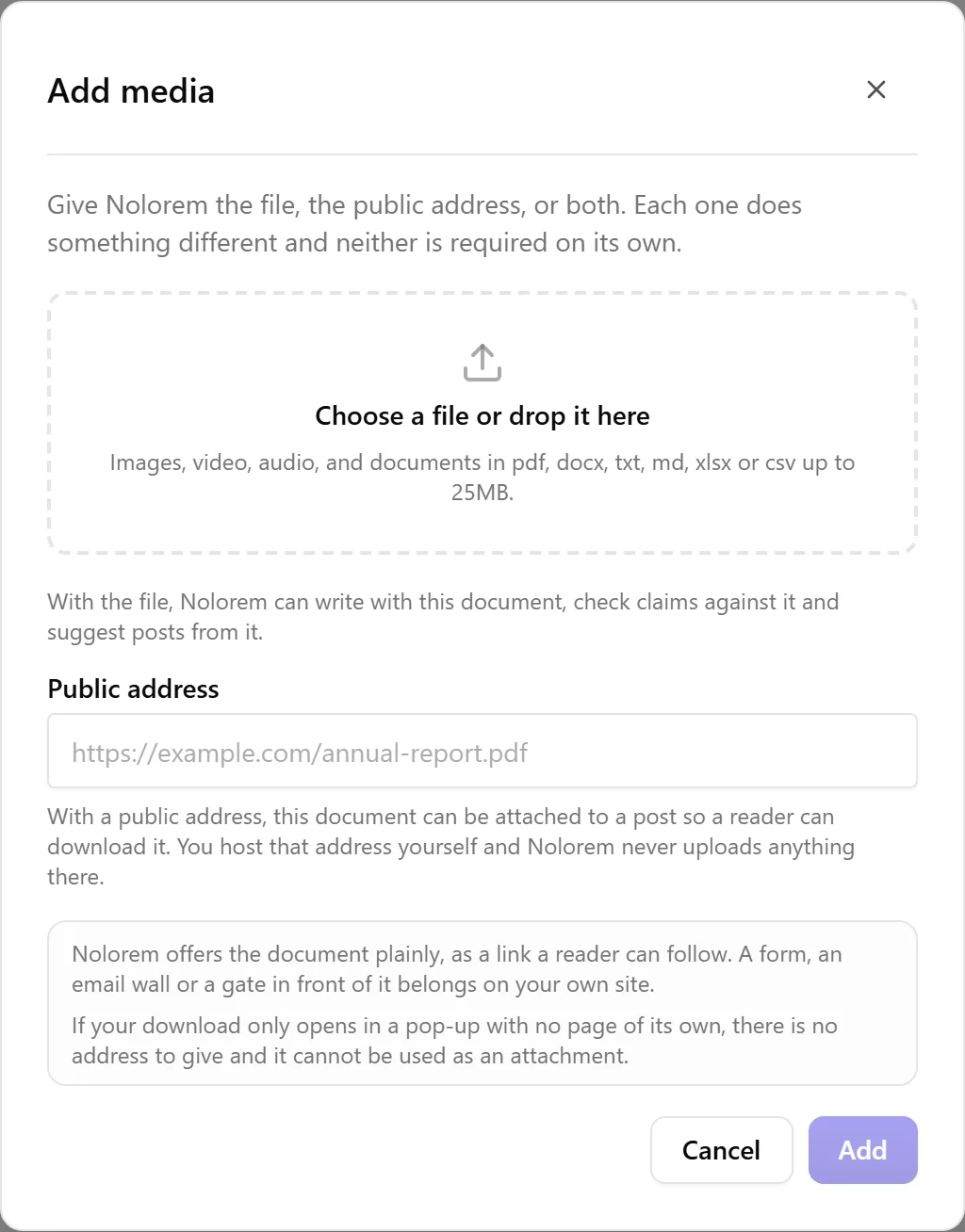
Nolorem opens the link once, when you add or edit it, to learn the file type and its size. Nothing is copied and nothing is read from the address itself: what a reader downloads always comes from your own server, never from Nolorem.
A document you already uploaded can become attachable too. Open it from the library and add a public address; it does not need to be a new entry, and it keeps everything Nolorem already read from it.
If Nolorem cannot open the link, that axis is simply not accepted, and the dialog tells you why: the address could not be reached, the file type is not one Nolorem accepts, or the file is larger than 25MB. If you also gave a file in the same step, the file is kept regardless, so a typo in an address never costs you an upload.
One case surprises people, so it is worth naming: some sites block automated visits even though the link opens perfectly in your browser. Nolorem's check looks like an automated visit, so those sites refuse it. If that happens, host the file somewhere that allows a direct link, for example a shared drive link or a plain file on your own server, and add that address instead.
Once added, the document sits in your library like any other. You can tag it, find it by tag, and use it on as many posts as you like. See the Document Library article for the full explanation of what a file and an address each buy you, and for the one case where a document has no address to give.
Choosing a Document to Attach
Open the post's attachment picker, on a blog post from the paperclip in the editor's icon rail, on a social post from the paperclip in the composer. Every document in your library appears, not only the ones that are already attachable.
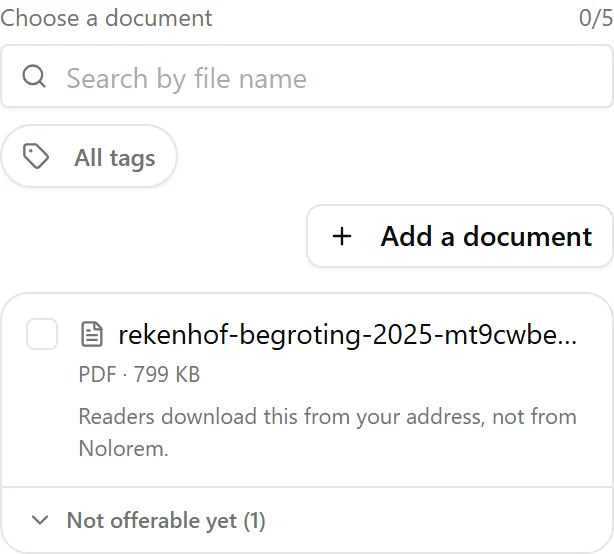
Documents that can be attached today are listed first. The rest sit folded under a heading naming how many, for example "Not offerable yet (3)", so the list stays short in a library with many documents, and nothing is simply missing with no explanation.
Open that heading and each document names its own reason: no public address yet, the address could not be reached, the file at the address is a type Nolorem does not accept for that document, or it is too large. Beside the reason is a control that opens the same add-media dialog on that exact document, so you can add or correct its address without leaving the post. Fixing it does not cost you your place in the post: the document is offered the moment its address is accepted.
On a Blog Post
Choose up to five documents. Each one gets a link text field: this is the words your reader clicks. Leave it empty and the filename is shown instead.
The attachments appear as a download block under the article, after the sources, in the language of the post. A Dutch article gets a Dutch heading even if you work in the app in English, because the reader is your reader, not you.
The block travels with the post everywhere it goes: to your CMS, to the exports, and into the Content API for a site that pulls from Nolorem.
On a Social Post
You attach one document, and each card tells you what its own channel will do with it:
- LinkedIn shows a real document post, the kind readers can page through in the feed. LinkedIn accepts PDF only, so a Word or Excel file is refused there with the reason stated. There is no conversion step; a converted file usually looks wrong, and an honest refusal is better.
- Bluesky shows a link card pointing at the document.
- Pinterest points the pin at the document, so clicking the pin opens it. The image stays as it is.
- X, Instagram, Facebook and Threads show nothing. A bare link in the text adds noise on those channels rather than help, so the card says so and leaves the post alone.
On LinkedIn and Bluesky a post can show either an image or a document, not both. If the card already carries an image, Nolorem asks you which one to keep rather than dropping one quietly.
Choosing a document on one card offers it on the other cards that can use it. Each card keeps its own choice, so you can remove it from one without touching the rest.
The One Thing That Can Go Wrong
Because the file lives at your address, a post that goes out depends on your address answering at that moment. If your server or drive is unreachable when a scheduled post publishes, that post fails and you are told why, rather than a post going out with a link to nothing.
Nolorem also does not check your links periodically. A link that works today and disappears next year keeps sitting under a published article until you change it. If you move or remove a file, update or remove the document in your library too.
You Are Responsible for What You Offer
Attaching a document points your readers at it. Nolorem shows the link and keeps no copy of the file, so having the right to offer that document is yours to be sure of. The editor and the composer both say so at the moment you attach one.
Related articles
Was this article helpful?
Still need help?
Can't find what you're looking for? Open your support portal for live chat and tickets. Sign in with your Nolorem account.
Open support portal