The Year Plan
Turn the seasonal keywords in your keyword bank into a plan for the next twelve months, with one blog post per keyword on its deadline and social posts in season.
Updated Oct 19, 2026
Some keywords have a season. Nolorem already shows when demand for them climbs and by which date a blog post has to be online (see Building Your Keyword Bank). The year plan takes that one step further: it reads all the seasonal keywords in your bank and turns them into a plan for the next twelve months, with one blog post per keyword on its own deadline and social posts while the interest is there.
A year plan is a campaign. It lives on the Campaigns page, shows on the calendar and follows the same rules as every other campaign, including the approval switch.
Who Can Make One
The year plan is part of campaigns, so it is available wherever campaigns are: on the Premium plan and during your 14-day trial. If your subscription does not include campaigns, the Campaigns page shows an upgrade card instead of the campaigns, and there is no Make a year plan button.
Starting a year plan fixes a year of posts, so it takes the same permission as publishing: admins and editors can start one. Contributors do not see the Make a year plan button. The blog also needs a communication strategy first. If it has none, the dialog says so and links you to making one; the year plan never creates a strategy for you.
Making a Year Plan
- Open the Campaigns page and click Make a year plan next to New campaign.
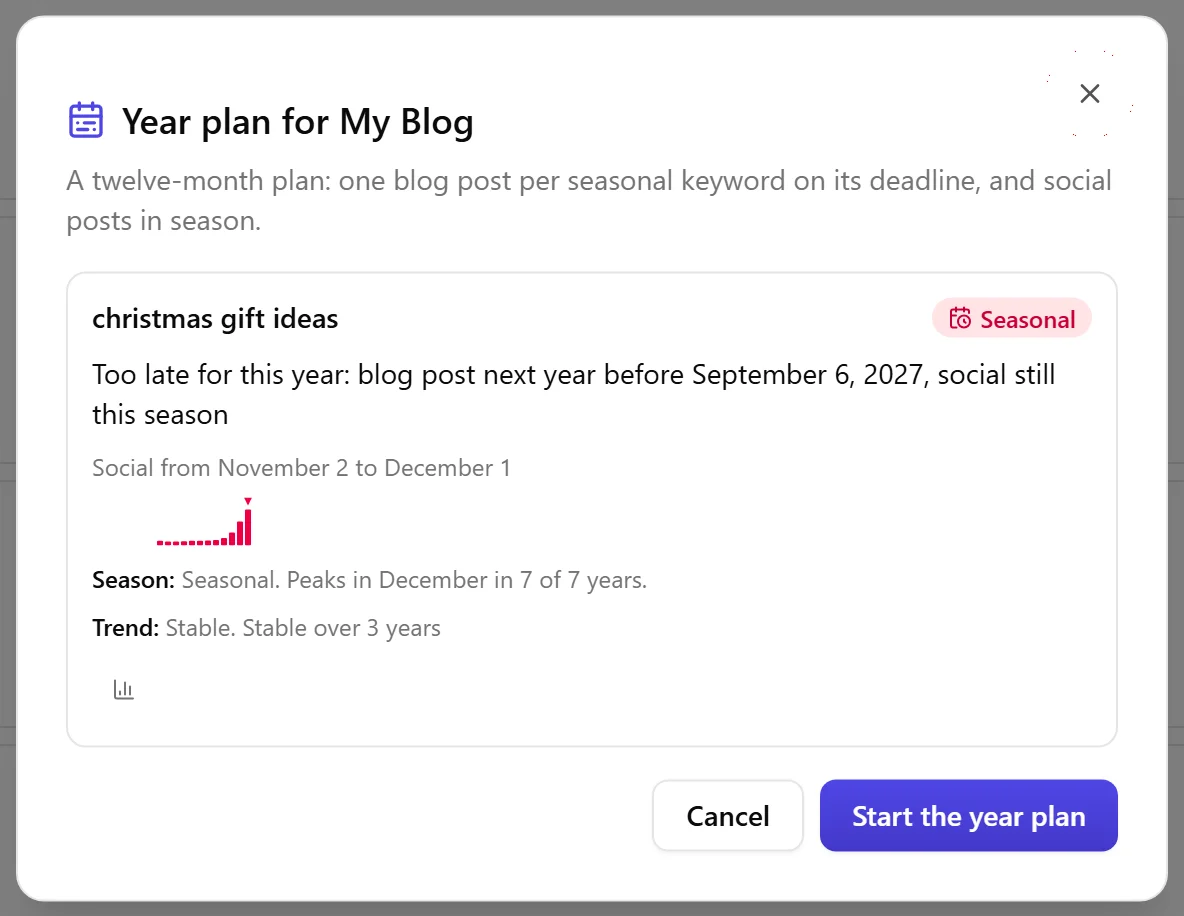
- The dialog shows a row for every seasonal keyword in the bank of the blog you are working in, with the date of its blog post, the social window and a small season curve with the Season and Trend lines. Click the search statistics icon on a row to open the statistics window of that keyword: the typical month, every year in a table and the country the numbers are measured in (see Building Your Keyword Bank).
- Click Start the year plan. You land on the campaign page of your new plan.
The plan only holds keywords that are in the keyword bank. If the bank has no seasonal keywords yet, the dialog says so and links to the bank: add keywords there and Nolorem fetches their season within a day. Because the season is read from the typical month, which leaves out the highest year, a keyword that only looked seasonal because of one unusual year can be missing from a new plan. A year plan you made earlier is not changed by this: it keeps its posts and dates as they were, and Nolorem does not rebuild it. The dates are worked out again only when you make a new plan or start the renewal for the next year.
What Each Row Says
Every row is one of these:
- New post on a date. The keyword has no post yet. The blog post is planned on its deadline: the start of the climb minus your lead time (see Blog Settings Overview).
- Refresh your post. You already have a published post on this keyword, so Nolorem proposes refreshing it instead of writing a second one that competes with it. The row tells you when the window opens. Refreshing an existing post instead of writing a duplicate is standard SEO practice; Nolorem has not measured it on your own data, so treat it as a sensible default rather than a promise of ranking.
- Finish your draft. You already have a draft on this keyword. The row asks you to finish it before the date and does not plan a second post.
- Too late for this year. The deadline has passed. The blog post moves to next year's deadline, and the social posts can still run in this season.
- Already in a running campaign. Another campaign of this blog already covers the keyword, so it is left out here.
Blog posts land on a working day and never before today. A new year plan uses working days only; the renewal of a running campaign follows the days chosen for that campaign (see "Which Days Nolorem Posts On"), and without a choice also uses working days. When a deadline falls on a day without posting the post moves back to the nearest posting day before it (without a choice, the Friday before it). When two keywords would land on the same day, the second one moves earlier and the row says so. A date that falls outside the twelve months of the plan is listed under the table and is not scheduled.
Social posts are placed inside the social window of the keyword, the months around the peak in which interest is still high. If no social channel is linked, the plan holds only blog posts and the dialog tells you.
Promotion posts. A blog post in the plan that no social post announces yet also gets one, as long as a social channel is linked and a posting day is left after it. It comes on the first posting day after the blog post, on the same channels, next to the seasonal social posts. Posts that are already in the plan are never turned into a promotion post. When posts were added, the dialog tells you after you start the plan, for example "2 promotion posts were added on top of the rhythm, so every blog is promoted." (see "Every Blog Post Gets Its Promotion Post" in Communication Campaigns).
The dates are worked out by Nolorem itself from the search history, never guessed by the AI model.
What Starting It Does
The plan is created with all its posts and dates, and the campaign is active right away. Nolorem does not write all the posts at once. Each post is written 14 days before its date, so the text is fresh and the writing is counted in the month the post is due. Until then the post shows in the list as "Planned: Nolorem writes this post on" and the date, without a spinner.
A year plan stays inside the length limit that applies to every campaign: a plan covers at most 388 days, about 55 weeks. Twelve months are about 365 days, so nothing of the year is left out because of that limit.
The posts you plan are the posts of your subscription. Before you can start, Nolorem checks each month of the year: if a month would need more posts than your subscription allows, the dialog says which month, how many are needed and how many are allowed, and the plan is not started.
Whether finished posts go out on their own depends on the approval switch, as for every campaign. Admins and editors start with posts that publish on their date; switch on Approve every post before it goes out on the campaign page if you want to read them first (see Communication Campaigns).
In the header of the campaign page, that switch is the compact Approve posts.
You can change a single post of a year plan like any campaign post: its date, its title, or lock it so nothing changes it. Moving a post to an earlier date also moves the moment it is written. What you cannot do is make the whole plan again: if you ask for it, Nolorem answers that a year plan cannot be rewritten as a whole, because that would throw away the dates that come from the season. Change posts one by one, or make a new year plan.
Pausing, Resuming and Cancelling
You can pause and cancel a year plan at any time, also when your subscription no longer includes campaigns.
While the plan is paused, nothing is written. A post that comes due during the pause waits.
When you resume, a year plan keeps its dates: every post stays on its own deadline, nothing shifts, and you do not choose a new start date. Posts whose date passed while the plan was paused keep their date and are not moved; Nolorem tells you how many there were, so you can change their date or delete them yourself. Nothing is published afterwards without you knowing.
A post whose date is more than six hours in the past when it is written or released does not go out late: it becomes a draft with a note and a notification, and waits for a new date from you (see "A Date That Has Already Passed" in Communication Campaigns).
Cancelling stops the plan for good: the posts that were not written yet are never written.
While the plan is paused, cancelled or deleted, no post leaves at its date, and Approve all on the campaign page is switched off while it is paused. After cancelling, the message says how many posts were removed. If some could not be removed, the button Remove remaining posts in the header of the cancelled plan tries again.
When the Year Ends
Thirty-one days before the end of a year plan, the campaigns page shows a proposal: how many posts to refresh and how many new ones. Click View the proposal to open the dialog for the next year, which starts on the first working day after the current plan ends. A new year never starts by itself; you start it.
When Your Subscription Changes
If your subscription changes to one without campaigns, the year plan that is running keeps going within the posts of your subscription and a notice on the Campaigns page says so. You can pause or cancel it, but you cannot resume it, and you cannot make a new one.
Related articles
Was this article helpful?
Still need help?
Can't find what you're looking for? Open your support portal for live chat and tickets. Sign in with your Nolorem account.
Open support portal