Building Your Keyword Bank
Add keywords manually or by file import, run DataForSEO scans for volume and difficulty, scrape keywords from websites, see where each figure is measured, and understand per-plan limits.
Updated Sep 21, 2026
The keyword bank is your blog's list of target keywords. It feeds the SEO scoring on every post and gives you a research workspace for finding terms worth writing about. You will find it under Settings, in the SEO section of your blog settings.
Where Your Figures Are Measured
Above the table, a line reads "Where your figures are measured", followed by every language in your bank and the country its search volume and difficulty are measured in, for example "English in Belgium" or "Nederlands in Nederland". A language marked "(guess)" has not been set by hand yet; Nolorem guessed it from your website and your writing region. Click "Change in Settings, Language" to see or change it -- see Blog Settings Overview for how the measurement country is chosen.
This matters because the same keyword can report very different numbers depending on where it is measured: a West Flemish company saw 880 monthly searches for "ai consultancy" in the Netherlands, where Belgium has only 140. Two keywords can also show different countries from each other within the same language, when one was measured before you changed the setting. In that case its row shows "measured in " under the volume, so the number never gets attributed to the wrong market. A keyword measured before this feature existed shows "country unknown, measured before this update" instead: Nolorem has no record of where those older numbers came from, so it says so rather than guessing.
Adding Keywords
There are several ways to fill the bank:
- Add one at a time. Type a keyword, pick its language, and add it. Manual keywords are pinned by default so they survive later rescans.
- Import a file. Upload a
.csvor.jsonfile. A CSV needs akeywordcolumn and may also includelanguage,volume, anddifficultycolumns. You can choose whether to update keywords that already exist. Import reports how many were added, updated, and skipped. - Discover with a scan. Use a DataForSEO scan to find related keywords automatically (see below).
- Scrape from a website. Extract keywords from your own site or specific pages (see below).
- Automatically on publish. When a post is published, its keywords are added to the bank for you.
- Automatically when you localize. Translating a post into another language can add a keyword to that language's bank -- see "Where a Keyword Came From" below.
DataForSEO Scans
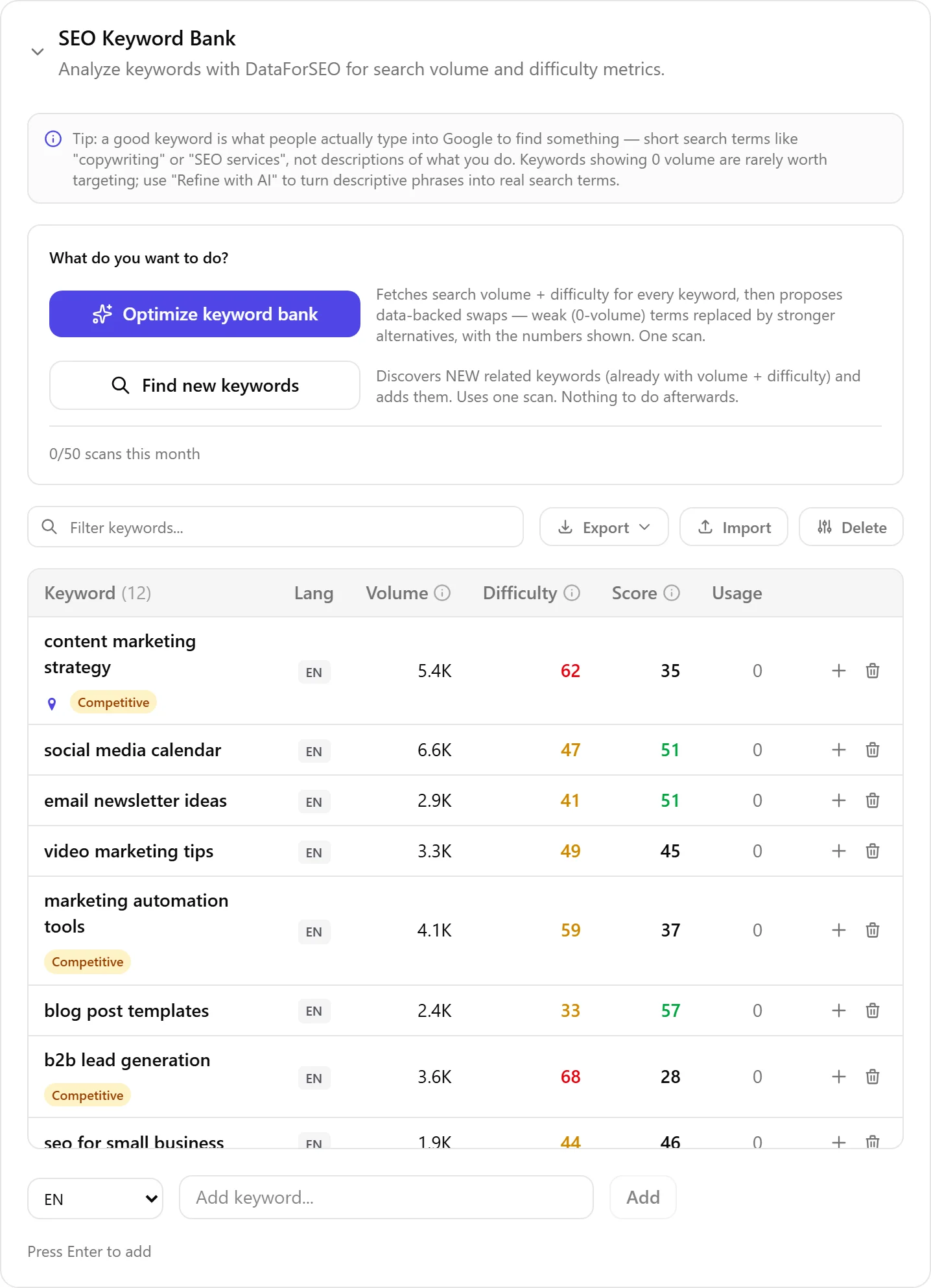
A scan enriches your keywords with real search data. Two actions live in the bank's Actions card, and both draw from the same monthly scan quota:
- Find new keywords discovers related terms from your seeds, then returns each with its search volume, competition, and keyword difficulty. Off-topic results are filtered out by an AI relevance pass and duplicates are collapsed before anything enters the bank.
- Optimize keyword bank refreshes the metrics on your existing keywords and can suggest replacements for terms that turn out not to be real search phrases. It no longer proposes removing a keyword just because its volume cell is empty: an empty cell is normal for niche and B2B terms (see "What an Empty Cell Means" below) and is not, on its own, a reason to drop the term.
Scan location is resolved from each keyword's language and the measurement country you set for that language (or the guess, if you have not set one) -- see "Where Your Figures Are Measured" above. A keyword with no data keeps an empty volume rather than a misleading zero.
Fetching Figures for Keywords That Were Never Looked Up
Some keywords in your bank have never had a DataForSEO scan run against them -- typically ones you typed by hand or ones Nolorem added while localizing a post into a new language. When the bank holds any of these, a banner appears above the table: "N keywords have not been looked up yet", with a Fetch figures button.
The button only fetches figures for those never-looked-up keywords, grouped by language and measurement country, and the banner tells you the cost before you click: "This counts as 1 of your scans this month" (or "This counts as one scan" on an unlimited plan). It is disabled with a reason once your monthly scans run out, or if fetching figures needs a paid plan.
If one group fails partway through (a network hiccup, for example), the groups that succeeded are still saved, and you are told which failed: " of groups succeeded." You can try again later for the rest. This is also how a keyword that Nolorem created while localizing your post gets its own search volume and difficulty, without you having to hunt for it in the bank.
Scraping Keywords from a Website
The website scanner reads the pages of a site and extracts the keyword phrases that genuinely appear on them.
- Scan Website uses your blog's configured website URL. It finds your content pages through
robots.txtand your sitemap (falling back to crawling your homepage), then extracts up to fifteen keyword phrases per page. - Scan specific pages lets you paste up to ten URLs of your choosing, which is how you research a competitor or a reference site.
Extracted keywords are saved to the bank, and any languages detected on the pages are activated automatically.
What an Empty Cell Means
An empty volume or difficulty cell is not a gap in the product; it is information. The bank distinguishes two different reasons:
- "not looked up" means exactly that: no DataForSEO scan has been run for this keyword yet. Click through to the "Fetch figures" button above the bank to get it a real number.
- "no figure" means Nolorem asked DataForSEO and got nothing back. Google does not publish a search volume for every term. That is normal for niche and B2B phrases, and it says nothing about whether the keyword is worth targeting.
The difficulty column adds a third possibility: "not available", which appears when DataForSEO simply does not index difficulty scores for that language in that country, most commonly English measured in Belgium (search volume is still measured there; only the difficulty score is missing). Switching the measurement country for English to the United States or the United Kingdom, in Settings, Language, restores a difficulty score for that language.
Where a Keyword Came From
A small icon next to each keyword shows where it came from: typed by hand, found by a scan, created during a localization, or imported. Hover it for the label, or use the Origin filter next to the language filter to show only keywords from one source, for example to review everything a website scan just added.
What Each Keyword Shows
For every keyword the bank tracks:
- Search volume, formatted with K and M for large numbers
- Keyword difficulty, from 0 to 100, colour-coded. When a keyword has a search volume but no difficulty score yet, the opportunity score still needs one to compute from, so it assumes a difficulty of 30 and marks the score with a small icon (hover it: "Difficulty unknown, 30 assumed in the opportunity score") so you know the number is an estimate, not a measurement.
- Usage count, the number of your draft, scheduled, and published posts that target the keyword. This is counted live, so it always matches reality.
- Source, the same four origins as the origin icon above the table: typed manually, discovered by a scan, created during a localization, or pulled from an import.
- Pinned status. Pinned keywords sort first and are protected from being replaced during a rescan.
Nolorem also derives an opportunity score from volume and difficulty to help you spot high-value, low-competition terms at a glance. You can sort the bank by keyword, volume, difficulty, opportunity, or usage, and export the whole bank to CSV or JSON; both exports include the measurement country and the last-checked date alongside the usual columns.
Plan Limits
Two separate limits apply, both tied to your plan:
Keyword bank size
| Plan | Keywords in bank |
|---|---|
| Basic | 25 |
| Pro | Unlimited |
| Premium | Unlimited |
| Trial | Unlimited |
DataForSEO scans per month
| Plan | Scans per month |
|---|---|
| Basic | 2 |
| Pro | 10 |
| Premium | 50 |
| Trial | 5 |
Scan counts reset at the start of each calendar month. The keyword bank itself is available from the Basic plan upward.
Related articles
Was this article helpful?
Still need help?
Can't find what you're looking for? Open your support portal for live chat and tickets. Sign in with your Nolorem account.
Open support portal