Connecting Your Social Channels
Link LinkedIn, X, Bluesky, and other platforms to Nolorem so you can schedule posts across all of them from one place.
Updated Jun 12, 2026
Nolorem connects to your social platforms through a secure OAuth flow. Your passwords never touch our servers. You can revoke access at any time from the platform's own settings.
Currently Supported Platforms
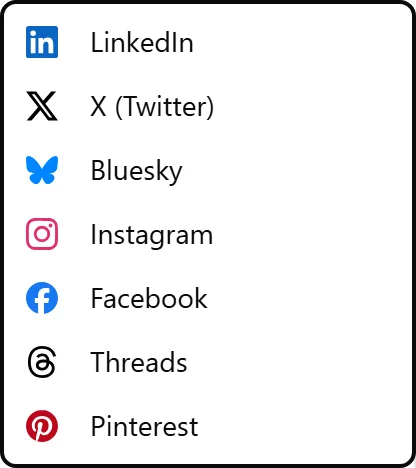
- LinkedIn (personal profiles and Company Pages)
- X (Twitter)
- Bluesky
- Facebook Pages and Instagram Business
- Threads
Step 1: Open Channel Settings
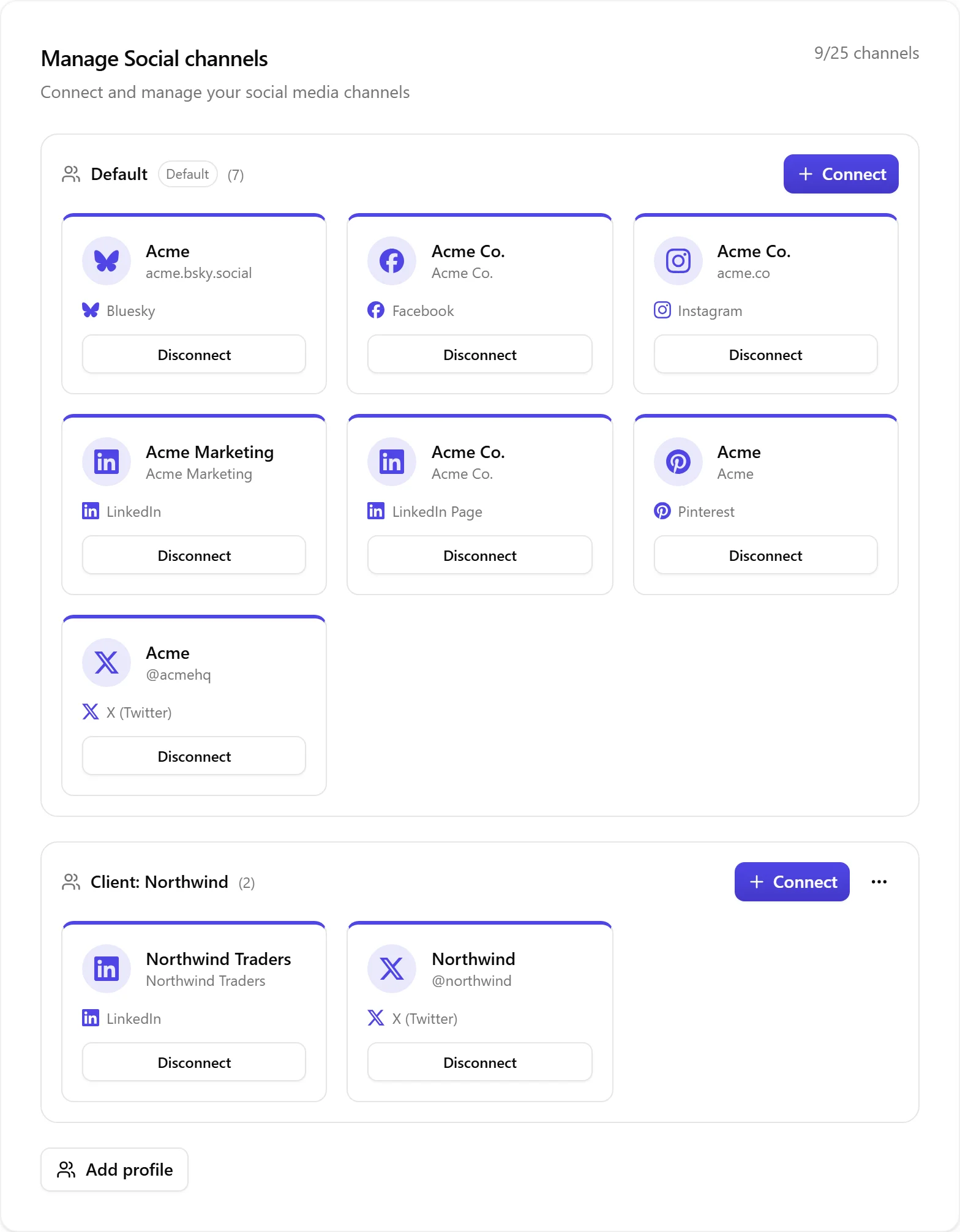
Navigate to Settings and scroll to the Social Channels section. Your connected accounts are grouped per profile, each with its own Connect button.
Step 2: Click Connect
Click a profile's Connect button and pick the platform you want to add from the list. A new tab opens with the platform's own login page.
Step 3: Authorize Nolorem
Sign in to the platform and approve the requested permissions. Nolorem only asks for what it needs:
- Read your profile name and avatar
- Publish posts on your behalf
- Read engagement metrics for analytics
Step 4: Select Accounts
Some platforms, like LinkedIn and Facebook, expose several destinations under one login: your personal account plus every Company Page you admin. Check the ones you want Nolorem to manage and confirm. Each one becomes its own channel.
Step 5: Verify the Connection
Back in Nolorem, the newly connected account shows up in your Social Channels list with a green checkmark. You can now select it as a target when composing posts.
Connecting a Second Account of the Same Platform
Multiple social profiles are a Premium feature. On Basic and Pro you have a single profile, so the profile controls (Add profile and per-profile Connect) are not shown, and your Social Channels page simply lists your connected accounts.
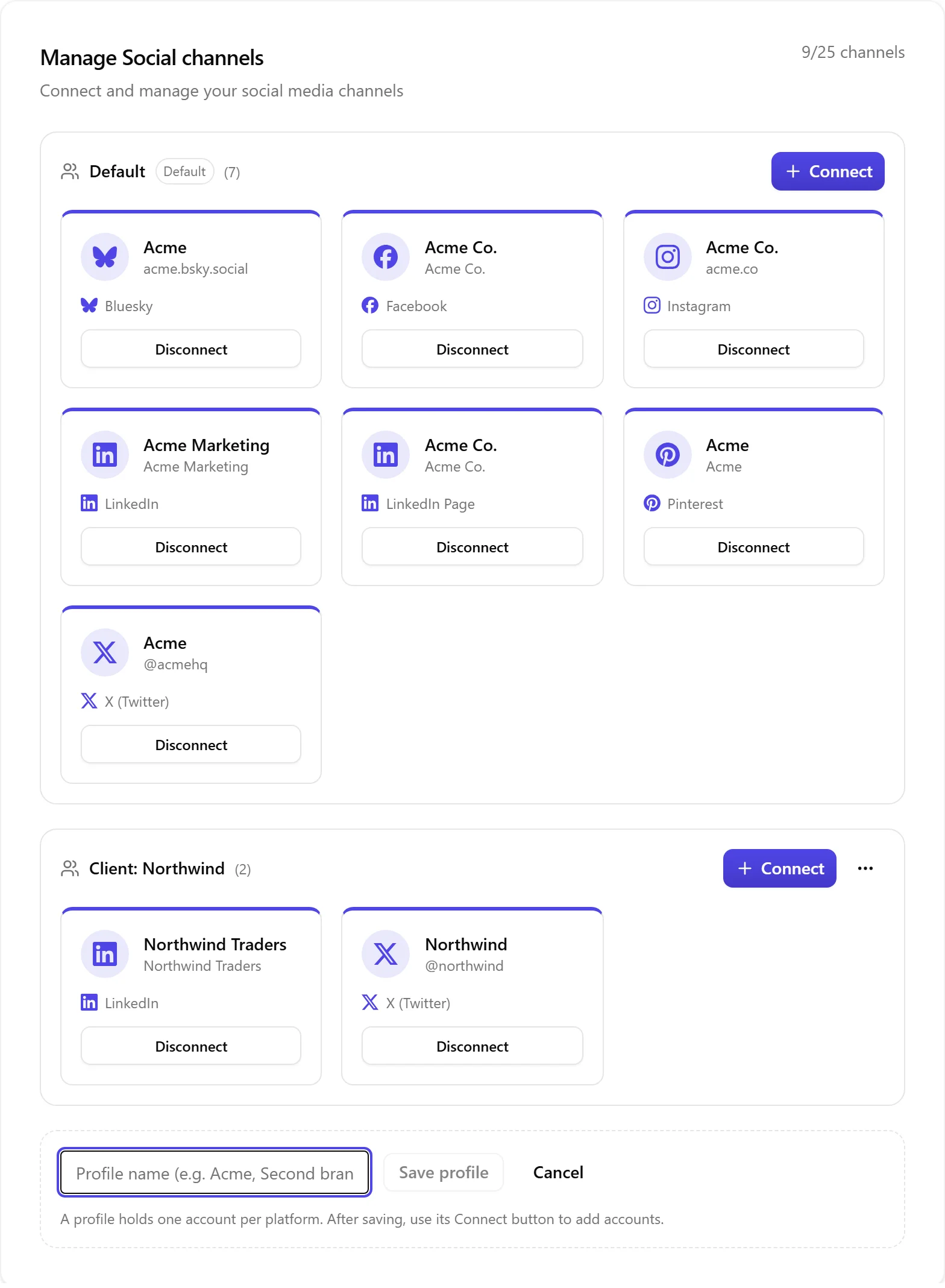
One login covers your account and its Company Pages, but not a second separate account of the same platform, for example a different person's LinkedIn. To add one on Premium, create another social profile. A profile is its own set of connections that holds at most one login per platform. Premium includes up to five, so agencies and multi-brand owners can keep each client's accounts in their own profile.
To add a profile, open Settings and scroll to Social Channels, click Add profile, give it a name, and Save profile. Then use that profile's Connect button to link accounts into it. When you compose, channels are grouped per profile and you can select across profiles to publish to all of them at once.
Troubleshooting
If a connection fails:
- Make sure you are logged into the right account in your browser before clicking Connect
- Check that your platform account does not have two-factor blocking third-party OAuth
- For Company Pages, confirm you have admin rights on the page
Related articles
Frequently asked questions
Was this article helpful?
Still need help?
Can't find what you're looking for? Open your support portal for live chat and tickets. Sign in with your Nolorem account.
Open support portal