Connecting Facebook to Nolorem
Connect a Facebook Page to Nolorem, and what to do when no Page was selected at Meta.
Updated Oct 1, 2026
This guide covers connecting Facebook to Nolorem. For the general flow, profiles and other networks, see Connecting your social channels.
Before you start
- You can sign in to the Facebook account you want to connect.
- You have a Facebook Page, and you have access to it yourself.
Connect Facebook
- Open Settings and scroll to Social Channels.
- Click Connect on the profile you want to add the account to.
- Pick Facebook from the list.
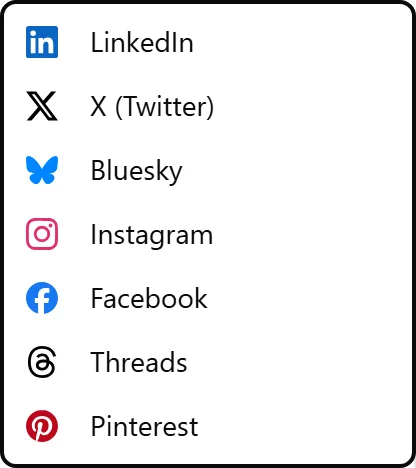
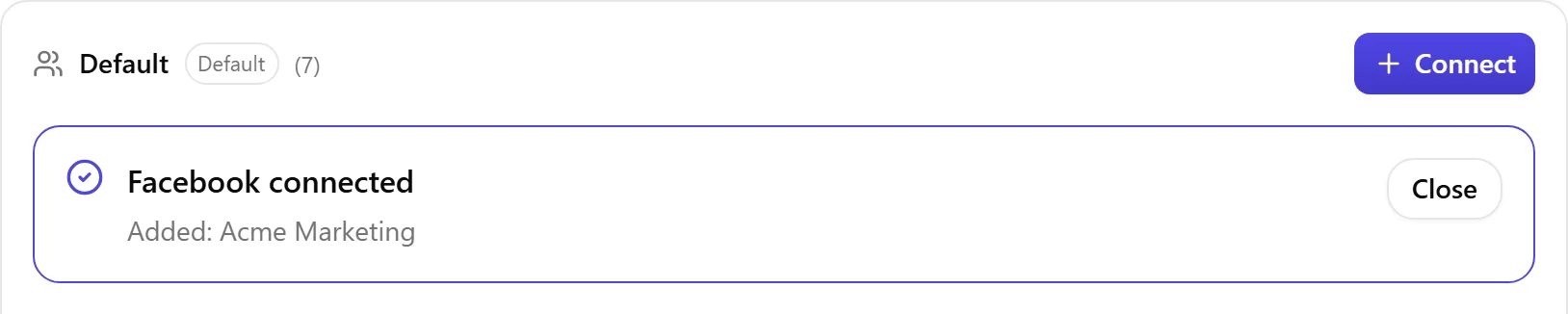
A new tab opens with the Facebook sign-in. Sign in and approve the permissions Nolorem asks for. When you are done, the tab usually closes by itself; if it stays open, you can close it. Nolorem then shows the result in your settings: which account was added or reconnected.
If it did not work
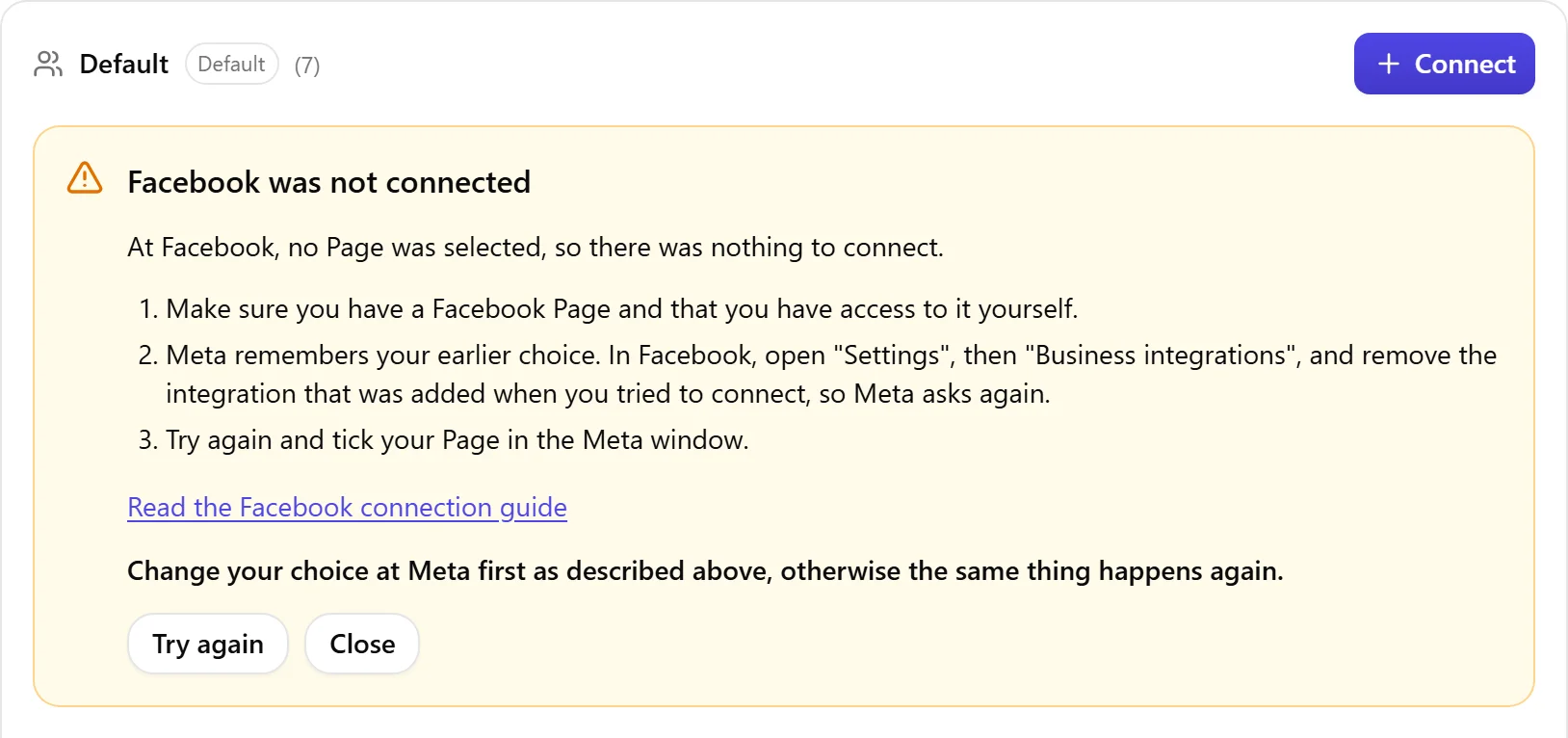
Nolorem shows a block under the profile saying that Facebook was not connected. If we know the cause, the block names it. If we do not, it says so and lists the most common causes.
Check these points:
- You were signed in to the right Facebook account in this browser.
- Your browser allowed Nolorem to open a new tab.
- You have a Facebook Page and access to it yourself.
- You ticked the Page in the Meta window. Meta remembers an earlier choice until you remove the integration under "Settings", then "Business integrations".
Then click Try again in the block.
No Page was selected
At Facebook, no Page was selected, so there was nothing to connect.
- Make sure you have a Facebook Page and that you have access to it yourself.
- Meta remembers your earlier choice. In Facebook, open "Settings", then "Business integrations", and remove the integration that was added when you tried to connect, so Meta asks again.
- Try again and tick your Page in the Meta window.
Change your choice at Meta first, otherwise the same thing happens again.
Not all permissions were granted
At Facebook, not all requested permissions were granted.
- Try again and approve every permission Meta asks for. Nolorem cannot publish without them.
- If Meta does not ask again, remove the earlier integration under "Settings", then "Business integrations", and try again.
Back to Connecting your social channels.
Related articles
Was this article helpful?
Still need help?
Can't find what you're looking for? Open your support portal for live chat and tickets. Sign in with your Nolorem account.
Open support portal