API de contenu public
Utilisez l'API de contenu public de Nolorem pour lire vos articles de blog par programmation. Créez une clé API, choisissez sa portée, authentifiez-vous avec un jeton bearer et synchronisez le contenu vers n'importe quel système externe.
Mis à jour le Sep 5, 2026
L'API de contenu public vous donne un accès programmatique en lecture seule aux articles de blog de votre organisation Nolorem. Utilisez-la pour récupérer du contenu vers un site Drupal, un front-end personnalisé, une application mobile ou tout système externe qui a besoin de vos données de blog.
L'API est disponible sur tout abonnement payant, y compris un essai. Un abonnement actif est requis ; tout accès se fait en lecture seule, et la publication et l'édition restent dans Nolorem.
Créer une clé API
Seuls les administrateurs de l'organisation peuvent créer des clés API.
- Dans Paramètres, faites défiler jusqu'à la section Clés API (visible uniquement par les administrateurs).
- Cliquez sur Créer une clé API.
- Saisissez un nom descriptif pour la clé (par exemple, « Site web Drupal » ou « Script de synchronisation du contenu »).
- Choisissez la portée de la clé (voir ci-dessous).
- Copiez la clé affichée à l'écran. Elle commence par
nlr_live_.
La clé n'est affichée qu'une seule fois. Stockez-la immédiatement dans un gestionnaire de secrets ou une variable d'environnement. Si vous la perdez, révoquez la clé et créez-en une nouvelle.
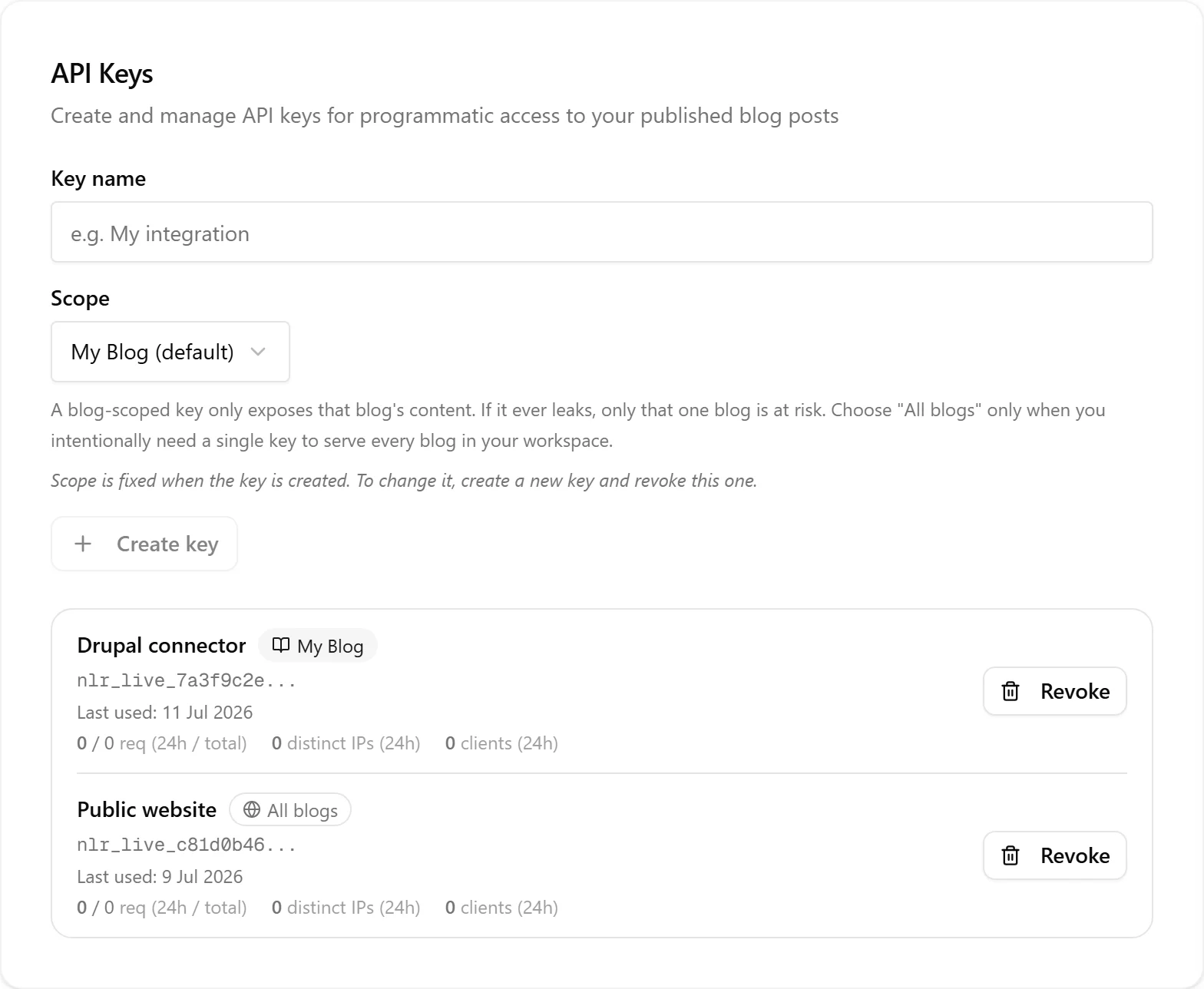
Choisir la portée d'une clé
Lorsque vous créez une clé, vous choisissez si elle couvre un blog spécifique ou tous les blogs de votre organisation.
Clé limitée à un blog (recommandé) : la clé est liée à un seul blog. Elle ne peut accéder qu'aux articles, catégories et tags de ce blog. Si la clé venait à être divulguée ou partagée, seul le contenu de ce blog serait exposé.
Clé à l'échelle de l'organisation : la clé a accès à tous les blogs de votre organisation. N'utilisez cette portée que lorsque vous avez une raison délibérée d'accéder à plusieurs blogs avec une seule clé.
Le badge de portée sur chaque clé de la liste indique à quel blog la clé est liée, ou « Tous les blogs » pour une clé à l'échelle de l'organisation. La portée est fixée à la création. Pour la modifier, créez une nouvelle clé avec la portée souhaitée, mettez à jour tous les consommateurs, puis révoquez l'ancienne clé.
Authentifier les requêtes
Passez la clé dans l'en-tête Authorization de chaque requête :
Authorization: Bearer nlr_live_your_key_here
Exemple avec curl :
curl https://nolorem.io/api/v1/posts \
  -H "Authorization: Bearer nlr_live_your_key_here"
L'API est de serveur à serveur. Il n'y a pas d'en-têtes CORS, donc les clients navigateurs ne peuvent pas l'appeler directement. Effectuez tous les appels API depuis votre back-end ou un script côté serveur.
Lister vos blogs
GET /api/v1/blogs liste les blogs auxquels votre clé peut accéder. La forme de la réponse est la même que la clé soit limitée à un blog ou à l'échelle de l'organisation.
curl https://nolorem.io/api/v1/blogs \
  -H "Authorization: Bearer nlr_live_your_key_here"
Réponse :
{
  "data": [
    { "id": "uuid", "slug": "my-blog", "name": "My Blog" },
    { "id": "uuid", "slug": "company-news", "name": "Company News" }
  ]
}
Une clé limitée à un blog renvoie exactement une entrée (le blog lié). Une clé à l'échelle de l'organisation renvoie tous les blogs. Utilisez ce point de terminaison pour découvrir quels blogs une clé couvre avant de récupérer du contenu.
Filtrer les articles par blog
Tous les points de terminaison de contenu acceptent un paramètre blog facultatif. Passez soit l'UUID du blog, soit son slug :
# Filtrer par slug
curl "https://nolorem.io/api/v1/posts?blog=my-blog" \
  -H "Authorization: Bearer nlr_live_your_key_here"

# Filtrer par UUID
curl "https://nolorem.io/api/v1/posts?blog=550e8400-e29b-41d4-a716-446655440000" \
  -H "Authorization: Bearer nlr_live_your_key_here"
Si vous omettez blog, l'API renvoie le contenu de tous les blogs auxquels votre clé peut accéder (le comportement par défaut, non contraignant).
Si vous utilisez une clé limitée à un blog et passez ?blog= pointant vers un autre blog, l'API renvoie 403 Forbidden. Cela empêche de deviner quels blogs existent dans une organisation.
Le même paramètre blog fonctionne sur /api/v1/categories et /api/v1/tags.
Lister les articles
GET /api/v1/posts renvoie une liste paginée d'articles pour les blogs accessibles à votre clé. Par défaut, il renvoie les articles publiés, 20 par page.
curl "https://nolorem.io/api/v1/posts?status=published&per_page=50" \
  -H "Authorization: Bearer nlr_live_your_key_here"
Réponse :
{
  "data": [
    {
      "id": "uuid",
      "blog_id": "uuid",
      "title": "My blog post",
      "slug": "my-blog-post",
      "excerpt": "Lead paragraph...",
      "language": "en",
      "available_locales": ["en", "nl"],
      "locale_slugs": {
        "en": "my-blog-post",
        "nl": "mijn-blogbericht-over-contentgeneratie"
      },
      "category": "Technology",
      "tags": ["AI", "Productivity"],
      "featured_image_url": "https://...",
      "published_at": "2026-06-01T10:00:00Z",
      "updated_at": "2026-06-10T14:30:00Z",
      "html": null
    }
  ],
  "meta": { "page": 1, "per_page": 50, "total": 123 }
}
Le champ html est toujours null dans les réponses de liste. Utilisez les points de terminaison de détail pour obtenir le corps complet de l'article.
Filtres disponibles
| Paramètre | Description | Exemple |
|---|---|---|
blog | UUID ou slug du blog (par défaut : tous les blogs accessibles) | blog=my-blog |
status | published, draft ou scheduled (par défaut : published) | status=published |
language | Code de langue ISO 639-1 | language=nl |
category | Nom de catégorie (insensible à la casse) | category=Technology |
tag | Nom de tag (insensible à la casse) | tag=AI |
updated_since | Date-heure ISO 8601 ; uniquement les articles modifiés après cette date | updated_since=2026-06-01T00:00:00Z |
page | Numéro de page, à partir de 1 | page=2 |
per_page | Éléments par page, 100 maximum | per_page=100 |
Récupérer un article dans une autre langue
language et locale se ressemblent et font l'inverse l'un de l'autre. Lisez ceci une fois et vous ne les confondrez plus.
language filtre. Il sélectionne quels articles reviennent, en se basant sur la langue dans laquelle un article a été écrit. ?language=nl renvoie vos articles néerlandais et laisse de côté les anglais.
locale ne filtre rien. Il renvoie les articles que vous obteniez de toute façon, mais dans la langue demandée, dès qu'une traduction complète de cet article existe. ?locale=nl sur le point de terminaison de liste renvoie toujours chaque article : ceux qui ont une traduction néerlandaise complète reviennent avec leurs title, slug, excerpt, seo_title et seo_description en néerlandais, les autres reviennent inchangés.
Vous utilisez déjà ?language= ? Rien ne change pour vous. Laissez locale de côté et chaque champ que vous lisiez déjà conserve exactement la valeur qu'il avait, et language garde le sens qu'il a toujours eu. La seule différence tient aux deux champs décrits plus bas, désormais toujours présents dans chaque réponse.
# Chaque article, en néerlandais là où une traduction néerlandaise complète existe
curl "https://nolorem.io/api/v1/posts?locale=nl" \
  -H "Authorization: Bearer nlr_live_your_key_here"

# Un article, en néerlandais, y compris le corps HTML et les textes alternatifs des images
curl "https://nolorem.io/api/v1/posts/550e8400-e29b-41d4-a716-446655440000?locale=nl" \
  -H "Authorization: Bearer nlr_live_your_key_here"
Sur les deux points de terminaison de détail, la projection couvre aussi html et le texte alt de chaque entrée de images, de sorte que toute la page tient dans une seule langue.
Une traduction encore en cours ne compte pas. Si la traduction dans la langue demandée n'est pas terminée, vous recevez la version source inchangée, jamais une page qui change de langue à mi-parcours. language continue de désigner la langue source dans chaque réponse, que vous passiez locale ou non.
Le point de terminaison par slug accepte aussi un slug traduit. Avec locale, /api/v1/posts/slug/{slug} correspond également au slug que porte cette langue, et pas uniquement au slug source : /api/v1/posts/slug/contentkalender-vullen-met-geautomatiseerde-contentgeneratie?locale=nl renvoie le même article que son adresse anglaise. Le slug source est essayé en premier et l'emporte toujours, de sorte qu'un slug traduit ne peut jamais masquer l'adresse propre d'un autre article. Sans locale, seul le slug source correspond, et un slug traduit seul renvoie donc 404.
Savoir quelles langues possède un article
Vous n'avez pas à deviner, ni à faire une requête par langue. Chaque article porte deux champs, dans les réponses de liste comme dans les réponses de détail :
{
  "language": "en",
  "available_locales": ["en", "nl"],
  "locale_slugs": {
    "en": "why-automated-content-generation-fixes-your-empty-calendar",
    "nl": "contentkalender-vullen-met-geautomatiseerde-contentgeneratie"
  }
}
available_locales énumère toutes les langues dans lesquelles cet article peut être servi, sa langue source comprise. Une langue n'y figure que si ?locale= peut réellement y livrer une page complète : la liste est donc sûre pour construire vos balises hreflang.
locale_slugs donne le slug que porte chacune de ces langues. Notez que les deux slugs ci-dessus diffèrent par plus qu'un mot traduit : chaque langue choisit son propre slug autour de son propre mot-clé cible, vous ne pouvez donc pas déduire l'un de l'autre. Utilisez cette table pour construire l'URL par langue sur votre propre site.
Récupérer un seul article
Récupérez un article par son UUID pour obtenir le corps HTML complet :
curl "https://nolorem.io/api/v1/posts/550e8400-e29b-41d4-a716-446655440000" \
  -H "Authorization: Bearer nlr_live_your_key_here"
Ou par son slug :
curl "https://nolorem.io/api/v1/posts/slug/my-blog-post" \
  -H "Authorization: Bearer nlr_live_your_key_here"
Les deux renvoient un seul objet PublicPost (non enveloppé dans un tableau data) avec le champ html renseigné.
Les deux points de terminaison utilisent par défaut status=published, comme le point de terminaison de liste ci-dessus. Récupérer un article par id ou par slug qui n'est pas publié renvoie désormais 404, sauf si vous ajoutez ?status=draft ou ?status=scheduled à la requête.
Synchronisation incrémentielle avec updated_since
Pour synchroniser uniquement le contenu nouveau ou modifié, stockez l'horodatage de votre dernière synchronisation réussie et passez-le comme updated_since lors de la prochaine exécution :
# Synchronisation initiale : récupérer tous les articles publiés
curl "https://nolorem.io/api/v1/posts?per_page=100" \
  -H "Authorization: Bearer nlr_live_your_key_here"

# Synchronisations suivantes : uniquement les articles modifiés depuis la dernière synchronisation
curl "https://nolorem.io/api/v1/posts?updated_since=2026-06-10T14:30:00Z&per_page=100" \
  -H "Authorization: Bearer nlr_live_your_key_here"
Parcourez tous les résultats page par page avant de stocker votre nouvel horodatage de synchronisation.
Détecter les articles dépubliés ou supprimés
Lorsque vous utilisez updated_since pour la synchronisation incrémentielle, la réponse par défaut ne renvoie que les articles qui sont toujours publiés. Si un article a été dépublié ou supprimé dans Nolorem depuis votre dernière synchronisation, il disparaît simplement des résultats sans aucun signal pour le retirer sur la destination.
Pour obtenir ce signal, passez include_deleted=true en même temps que votre horodatage updated_since :
curl "https://nolorem.io/api/v1/posts?updated_since=2026-06-10T14:30:00Z&include_deleted=true" \
  -H "Authorization: Bearer nlr_live_your_key_here"
La réponse inclut tous les articles actifs comme d'habitude, plus des entrées « tombstone » (marqueurs de suppression) minimales ajoutées à la fin de data. Chaque tombstone contient :
id: l'UUID de l'article que vous avez déjà d'une synchronisation précédentestatus: le statut actuel de l'article, ou"deleted"s'il a été supprimé définitivementupdated_at: le moment où le changement s'est produitdeleted:truesi l'article a été supprimé,falses'il a simplement été dépublié ou remis en brouillon
{
  "data": [
    { "id": "...", "title": "Live post", "updated_at": "..." },
    { "id": "...", "status": "draft", "updated_at": "...", "deleted": false },
    { "id": "...", "status": "deleted", "updated_at": "...", "deleted": true }
  ],
  "meta": { "page": 1, "per_page": 20, "total": 1, "tombstones": 2 }
}
Utilisez meta.tombstones pour connaître le nombre d'entrées tombstone ajoutées. meta.total reflète toujours uniquement les articles actifs.
Lorsque votre outil de synchronisation voit un tombstone, dépubliez ou retirez la page correspondante sur la destination (par exemple, mettez le nœud Drupal correspondant en dépublié ou en brouillon).
Sans include_deleted=true, le comportement est identique à celui d'avant ce changement : seuls les articles actifs et publiés sont renvoyés.
Lister les catégories et les tags
Deux points de terminaison renvoient la taxonomie complète des catégories et des tags de votre blog. Ils sont utiles aux outils externes qui ont besoin de faire correspondre les catégories ou les tags Nolorem à leur propre taxonomie (par exemple, un connecteur Drupal faisant correspondre les catégories Nolorem aux termes de vocabulaire Drupal). Les deux acceptent le paramètre blog.
# Toutes les catégories de votre organisation (ou du blog limité)
curl "https://nolorem.io/api/v1/categories?blog=my-blog" \
  -H "Authorization: Bearer nlr_live_your_key_here"

# Tous les tags de votre organisation (ou du blog limité)
curl "https://nolorem.io/api/v1/tags?blog=my-blog" \
  -H "Authorization: Bearer nlr_live_your_key_here"
Les deux renvoient la liste complète dans une seule réponse (non paginée) :
{ "data": [{ "id": "uuid", "name": "Marketing" }, { "id": "uuid", "name": "Technology" }] }
Le même jeton bearer, la même exigence d'abonnement actif et la même portée posts:read s'appliquent que pour les points de terminaison des articles.
Analyses d'utilisation par clé
Dans les Paramètres, chaque ligne de clé peut être développée pour afficher des analyses d'utilisation :
- Requêtes (dernières 24 h / total) : combien d'appels API cette clé a effectués.
- Sources distinctes : combien d'adresses IP et d'applications clientes distinctes ont utilisé cette clé récemment.
- Dernière utilisation : l'horodatage de la requête authentifiée la plus récente.
Ces analyses vous aident à comprendre comment vos clés sont utilisées et à repérer des schémas inattendus.
Indicateur de partage de clé
Si une clé affiche un grand nombre d'adresses IP distinctes sur une courte période, Nolorem peut la signaler comme « peut-être partagée ou compromise ». L'indicateur apparaît sous la forme d'un avertissement ambre sur la ligne de la clé. La clé continue de fonctionner et aucune action automatique n'est prise : il s'agit d'un signal indicatif.
Lorsque vous voyez l'indicateur, examinez vos journaux d'utilisation. Si vous avez partagé la clé intentionnellement (par exemple, avec plusieurs serveurs d'un cluster), demandez-vous si le schéma d'accès est attendu. Si la clé a pu être divulguée ou partagée avec des parties non prévues, révoquez-la et créez-en une nouvelle pour limiter l'accès.
Limites de débit
Chaque clé API est soumise à ces limites :
- 60 requêtes par minute
- 5 000 requêtes par jour
Lorsque vous dépassez une limite, l'API renvoie un HTTP 429 avec un en-tête Retry-After indiquant combien de secondes attendre avant de réessayer :
HTTP/1.1 429 Too Many Requests
Retry-After: 43
{ "error": "Rate limit exceeded" }
Mettez en place un backoff exponentiel pour des scripts de synchronisation de longue durée fiables.
Codes d'erreur
| Statut | Signification |
|---|---|
| 400 | Paramètres de requête invalides |
| 401 | Clé API manquante ou invalide |
| 403 | Abonnement actif requis, la clé n'a pas la portée posts:read, ou clé limitée à un blog utilisée avec une valeur ?blog= non concordante |
| 404 | Article introuvable |
| 429 | Limite de débit dépassée (vérifiez l'en-tête Retry-After) |
Spécification lisible par machine
La spécification complète de l'API au format OpenAPI 3.1 est disponible à :
GET /api/v1/openapi.json
Ce point de terminaison ne nécessite pas d'authentification. Vous pouvez l'importer dans Postman, Insomnia ou tout outil compatible OpenAPI.
Révoquer une clé
Pour révoquer une clé, faites défiler jusqu'à la section Clés API dans les Paramètres, trouvez la clé par son nom et cliquez sur Révoquer. La clé cesse de fonctionner immédiatement. Les requêtes en cours qui étaient déjà authentifiées se termineront, mais aucune nouvelle requête avec la clé révoquée n'aboutira.
Articles liés
Cet article vous a-t-il été utile ?
Besoin d'aide supplémentaire ?
Vous ne trouvez pas ce que vous cherchez ? Ouvrez votre portail de support pour le chat en direct et les tickets. Connectez-vous avec votre compte Nolorem.
Ouvrir le portail de support