Managing Your Account
Update your profile, workspace, password, and notifications, and delete your account when needed.
Updated Sep 8, 2026
Your account settings control your personal profile, workspace identity, password, and notification preferences. Navigate to Settings then Account. This page is accessible to every team member, regardless of role.
Profile
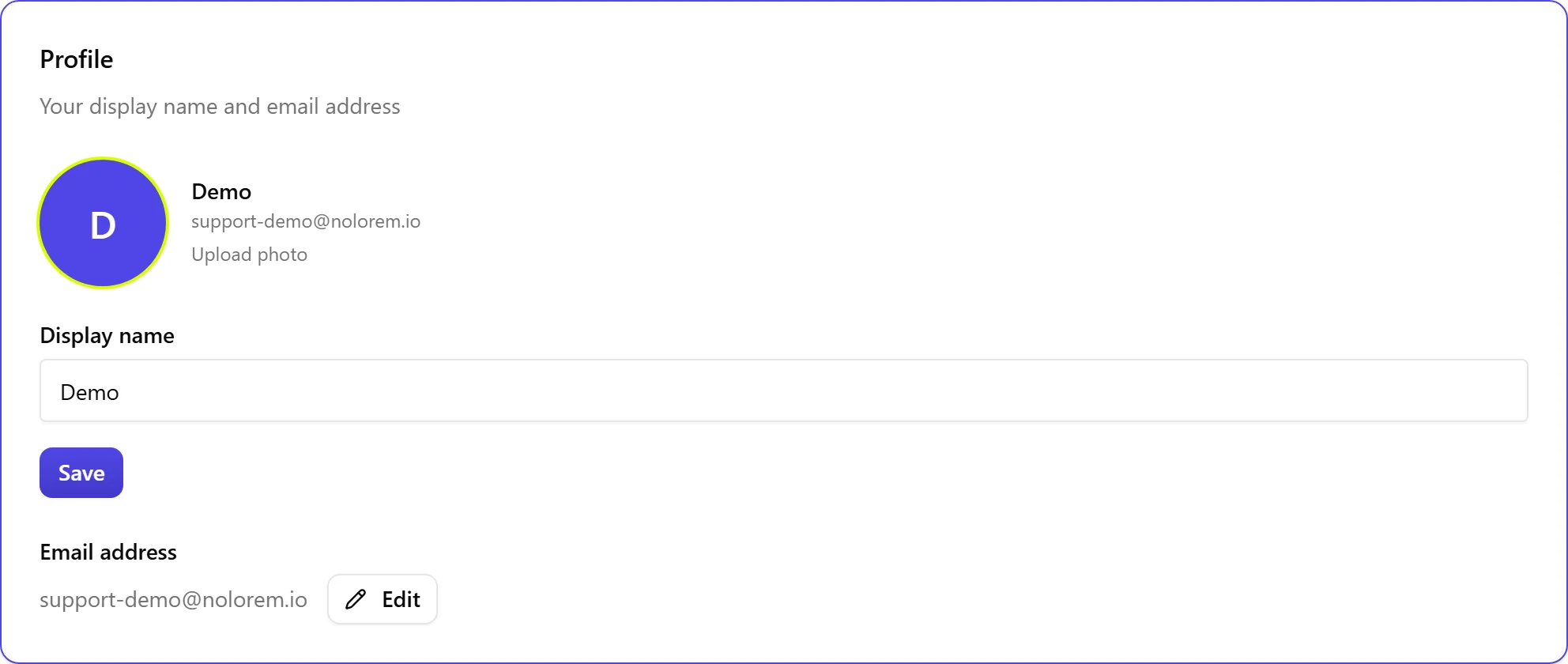
The Profile card lets you update your display name, email address, and profile photo.
- Enter your name in the Display name field.
- To change your email, type the new address and click Send confirmation, then confirm from your inbox.
- To upload a photo, click Change profile picture and select an image (JPG, PNG, GIF, or WebP, max 2 MB). Click Remove photo to revert to the default avatar.
If you signed in with Google or another OAuth provider, your email is managed by that provider and cannot be changed here.
Interface Language
The interface language now lives in Settings, Language, alongside your content languages. Choose from English, Dutch, French, German, Spanish, Italian, or Portuguese. It affects menus, labels, and system messages, not the language your blog content is generated in.
Workspace Name
The Workspace card shows your organization name. Update it to change how your workspace appears throughout the platform.
Workspace Timezone
Your workspace has its own timezone, and every date Nolorem shows you is rendered in it. This is what keeps a date from reading as one day on the page and another in your browser during the hours around midnight.
It defaults to Europe/Brussels. To change it, pick a zone from the list under Workspace. The change applies immediately, with no page reload.
Only an admin of the workspace can change it. Editors and contributors see the setting and the current value, but the picker is greyed out for them. The zone belongs to the workspace, not to you personally: everyone on the team sees dates in the same zone, which is the point, so that a scheduled post means the same moment to all of you.
Your Plan
The Your plan card displays your current subscription and status. Admins can click Manage billing to open the billing page. If you have no active subscription, click View plans to see pricing options.
Password
The Password card is visible only if you signed up with email. Enter a new password (at least 8 characters), confirm it, and click Change password. You do not need to enter your old password.
If you cannot sign in, reset your password instead. On the sign-in page, click Forgot your password?, enter your email, and click Send reset link. Open the link in the email we send you and choose a new password. Reset links are single-use and time-limited, so if one has expired, request a new link and use the most recent email. If you signed up with Google or another provider, you do not have a Nolorem password and should change it with that provider.
Email Notifications
Toggle each category on or off: Billing, Generation failures, Weekly digest, Usage warnings, and Onboarding tips. Each toggle saves automatically.
Danger Zone

At the bottom of the page:
- Leave organization: visible only when your workspace has more than one member. If you are the last admin, transfer ownership or delete the organization first.
- Delete account: permanently removes your account after a 14-day grace period.
Exporting Your Data
Before you delete anything, you can take a copy of what nolorem holds. Two exports exist, and they answer different questions.
Whole workspace hands over everything your organization holds: all blogs and social posts, settings, brand assets, Voice DNA profiles, keywords, ideas and campaigns, one file per kind of record. Only an administrator can run it, because it covers every member's work and not only yours.
My own data hands over only the data that is about you as a person, across every workspace you belong to: your profile, memberships, notifications, assistant history and subscription. Anyone can run this one, for themselves, and no administrator can download it in your place.
Find both under Settings, Data Export. Neither export contains the password or API tokens for a connected site, because those are never written to a downloadable file; view, rotate or replace a connection from Settings, Integrations instead. Payment and invoice data is described rather than included, since Stripe holds it under its own legal retention obligation; open Settings, Billing, Manage billing to download an invoice directly.
Deleting Your Account
Deletion is a two-stage process: an immediate soft delete followed by permanent removal after 14 days. What gets removed depends on whether you are the only member of your workspace, and the dialog tells you which of the two applies before you confirm.
- You are the only member of your workspace. Deleting your account deletes the workspace with it: blog posts and drafts, social posts and scheduling data, Voice DNA profiles, Content Advisor memory, media assets, SEO keyword data, team members and invitations, blog settings and CMS connections, and billing records are all removed, and any active subscription for the workspace is cancelled automatically. This cannot be undone.
- Other members remain in your workspace. Only your own account and personal data (your profile, notifications, assistant history and workspace membership) are removed. The workspace and everything in it, including its blog posts, social posts, media, Voice DNA profiles and campaigns, continue to exist for the other members.
Two records survive even a completed deletion, and neither one identifies you afterwards: an administrative access record with your identifying details replaced, kept for accountability, and a record that you made the deletion request, kept so nolorem can show it was answered within the legal 30-day response period. See our privacy policy for the basis and the exact retention periods.
If you are the last admin of a workspace with other members, you cannot delete your account: make someone else an admin, or remove the other members, first.
- In the Danger zone, click Delete account.
- Type DELETE (in capitals) to confirm.
- Click Delete account to proceed.
Once confirmed, your account is deactivated and you are signed out, and you can no longer log in. A 14-day countdown begins, during which your data still exists but is inaccessible.
After the grace period, everything named above for your case is permanently removed. This cannot be recovered, as there is no end-user restore process.
Before you delete, consider exporting any content you want to keep (see above), and cancelling your subscription first if you want access until the current billing period ends.
Related articles
Was this article helpful?
Still need help?
Can't find what you're looking for? Open your support portal for live chat and tickets. Sign in with your Nolorem account.
Open support portal