Drupal Connector
Install and configure the Nolorem Connector Drupal module to pull your published blog posts into a Drupal 10 or 11 site. One install manages multiple blogs via separate connections, each with its own API key, field mapping, and target content type.
Updated Jun 17, 2026
The Nolorem Connector is a Drupal 10/11 module that pulls your published blog posts from the Nolorem Public Content API into your Drupal site. Posts are mapped to any content type you choose. The connector is read-only: Drupal pulls from Nolorem, and Nolorem remains the authoring system.
Prerequisites
Before you install the connector, make sure you have:
- A Nolorem subscription on any paid plan (the Public Content API is available on every paid plan).
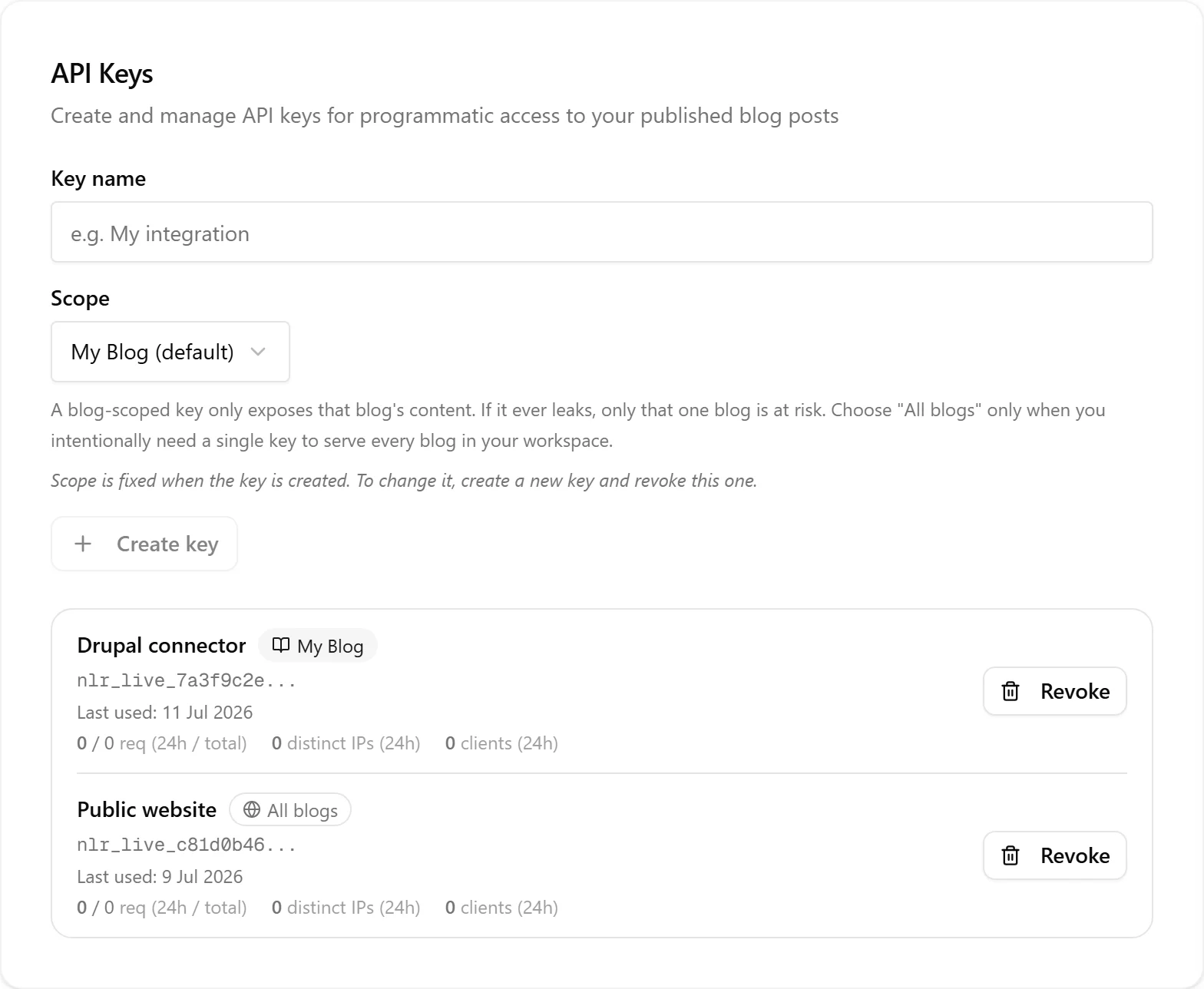
- An API key from Settings (see the Public Content API article).
- Drupal 10 or 11, running PHP 8.3 or later.
- Optionally, the Metatag module installed if you want SEO metadata written to your nodes.
Create the API key in Nolorem under Settings, API Keys. A blog-scoped key (bound to one blog) is recommended for a connector.
Download the Module
Download the connector tarball from the Nolorem public URL:
https://nolorem.io/drupal-modules/nolorem_connector.tar.gz
Extract it into your Drupal site's modules/custom/ directory so that the path is modules/custom/nolorem_connector/nolorem_connector.info.yml.
Enable the Module
Go to Admin > Extend (or run drush en nolorem_connector) and enable Nolorem Connector. The module depends on Drupal core Node and Taxonomy modules. Metatag is optional.
The Multi-Connection Model
One connector install can manage multiple Nolorem blogs. Each connection has its own API key, blog target, and field mapping. For example, you can pull "Marketing Blog" into a Drupal Article content type and "Company News" into a Press Release content type from a single install.
Adding a Connection
Go to Admin > Configuration > Web Services > Nolorem Connector and click Add connection.
- Enter a label for this connection (for your reference).
- Enter the API base URL (for nolorem.io hosted accounts, use
https://nolorem.io). - Enter an API key (starting with
nlr_live_). - Click Test connection to verify the credentials.
Adaptive Blog Selection
After a successful test, the connector calls the Nolorem API to determine the key's scope and adapts automatically.
Blog-scoped key: the connector reads the key's accessible blogs and finds exactly one. It displays the blog name as a read-only confirmation. No blog dropdown is shown because the target blog is fixed by the key itself.
Org-wide key: the connector finds multiple accessible blogs and shows a blog selector dropdown. Choose which blog this connection should pull from. The selection is saved with the connection and used for all syncs.
Click Save connection to store the settings.
Map Fields
Click the Field Mapping tab and select the connection you want to configure.
-
Select the target content type that Nolorem posts should be imported into.
-
Map each Nolorem field to the corresponding Drupal field on that content type:
- Title -- usually the built-in Title field
- Body -- the main body or content field (accepts HTML; format set to Full HTML)
- Excerpt -- a plain text or summary field
- Slug -- map this to your content type's Path (URL alias) field to give imported posts a clean URL from the Nolorem slug, or to a plain text field if you only want to store the slug as data
- Featured image -- an image field
- Category -- an entity reference field pointing to a taxonomy vocabulary
- Tags -- an entity reference field (multi-value) pointing to a taxonomy vocabulary
You do not need to map a Nolorem ID field. De-duplication is automatic: the connector creates and maintains a hidden "Nolorem post ID" field on your content type and uses it to update existing nodes instead of creating duplicates.
-
SEO metadata can be handled in two ways, and they are alternatives:
- Map the individual SEO title / SEO description / SEO keywords rows to plain text fields on your content type, or
- If the Metatag module is installed, toggle Write SEO metadata to Metatag field and select a Metatag field. The connector then writes all three (title, description, keywords) into that single field.
If you use Metatag, leave the three individual SEO rows unmapped -- Metatag handles them.
-
(Optional) Set a URL alias prefix if you mapped Slug to the Path field. Leave it blank to publish posts at the site root (for example
/my-post), or enter a prefix such as/blogto publish under a section path (for example/blog/my-post). If you prefer to manage URL patterns with the Pathauto module instead, leave Slug unmapped and leave this blank so Pathauto controls the aliases. -
Click Save mapping.
Nolorem categories and tags for the connection's blog are displayed on the mapping screen so you can see which terms will be imported. Terms that do not exist in your Drupal vocabulary are created automatically.
Run Your First Sync
Go to the Sync tab and click Sync now to pull the latest published posts (all connections). The connector creates matching Drupal nodes for each connection's blog. Afterwards a per-blog summary shows what happened: each blog has its own section with a count line (imported, updated, unpublished) and a list of the affected posts by title, linked to the Drupal node. Drafts and posts not published in Nolorem are collapsed into a single "skipped" count, and any failures are listed with their error.
On subsequent syncs, only posts changed since the last successful sync for that connection are fetched (incremental sync via updated_since and blog).
Automatic Sync via Cron
The connector runs automatically on Drupal cron, once per hour by default, processing all connections. Make sure Drupal cron is configured (Automated Cron module or a system cron job). You do not need to click Sync now for ongoing sync; cron handles it.
What Posts Are Pulled
Each connection only pulls published posts from its configured blog. Posts in any other status (draft, ready, awaiting approval, scheduled, etc.) are not visible to the connector until they are published.
If you use the API key as your publish destination (without a connected WordPress or Ghost site), the Drupal connector works the same way: publish a post in Nolorem using the "Publish now" or "Schedule" button, and the connector will pull it on the next sync.
What Happens When You Unpublish or Move a Post Back to Draft or Ready
When a post moves out of "published" in Nolorem (for any reason: clicking Unpublish, moving it back to draft or to the "Ready" state, or deleting it), the connector receives a tombstone signal on the next sync. The matching Drupal node is set to unpublished; it is not deleted. This is reversible: if you republish the post in Nolorem, the node is republished on the next sync.
Troubleshooting
Sync results show failed items. Failed items appear in the results table and are logged. Check Admin > Reports > Recent log messages and filter by Type = nolorem_connector for details. The connector never stops a sync run due to a single failure -- all other items are still processed.
Test connection returns an error. Verify that your API key is correct and that your Nolorem account has an active subscription. Make sure your Drupal server can reach https://nolorem.io on port 443.
Wrong blog content is being pulled. Check the connection's blog selection. If you used a blog-scoped key, the blog is fixed by the key. If you used an org-wide key, verify which blog you selected in the connection settings.
Nodes are created but images are missing. Confirm that the featured image field is mapped and that your server has outbound HTTP access to the Nolorem image CDN. Image download failures are non-fatal and logged; the node is still created without the image.
SEO metadata is not written. Make sure the Metatag module is installed and enabled, and that the SEO mapping toggle is on in Field Mapping with a valid Metatag field selected.
Module update available. The connector periodically checks for new versions and shows an admin notice when a newer version is available. Download the updated tarball from the URL in the notice, replace the files in modules/custom/nolorem_connector/, and clear Drupal caches.
Related articles
Was this article helpful?
Still need help?
Can't find what you're looking for? Open your support portal for live chat and tickets. Sign in with your Nolorem account.
Open support portal