The Ideas Board
Capture content ideas with tags, filter and search them, and convert them into blog or social drafts.
Updated Jun 15, 2026
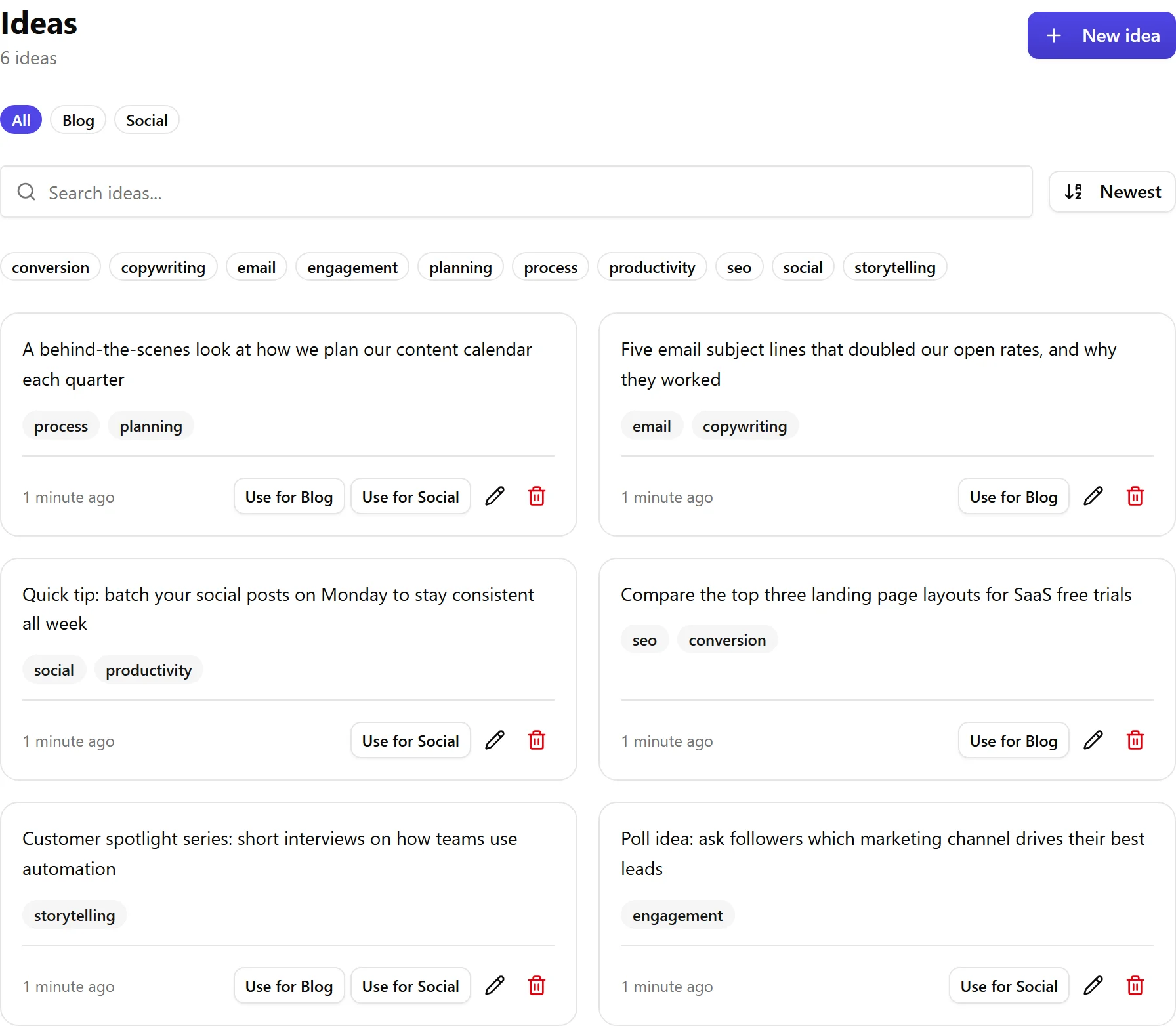
The Ideas board is a scratchpad for content inspiration. Capture a headline, a topic, or a random thought whenever it strikes, then come back later to turn it into a real post. Click Ideas in the sidebar to open a two-column card grid of your saved ideas.
Add an Idea
- Click New idea in the top-right corner.
- Enter your idea in the text area (up to 2,000 characters).
- Add optional tags by typing and pressing Enter or comma (up to 10 tags).
- On a Bundle plan (Blog plus Social), choose where the idea belongs: Blog, Social, or Both.
- Click Save idea, or press Ctrl+Enter from any field to save quickly.
Find Ideas
- Search: filter ideas by content.
- Tool filter (Bundle subscribers): toggle All, Blog, or Social.
- Tag filter: click a tag badge to filter. Multiple tags use AND logic. Click Clear filters to reset.
- Sort: toggle Newest or Oldest.
Edit and Delete
Click the pencil icon on a card to edit the content and tags, then Save. Click the trash icon to delete an idea, with a confirmation step.
Turn an Idea into a Draft
Each card has action buttons:
- Use for Blog: opens the blog generate page with the idea pre-filled as the topic.
- Use for Social: opens the social composer in AI-generate mode with the idea pre-filled.
Once an idea has been used, a green checkmark appears so you can see which ideas became content.
Related articles
Was this article helpful?
Still need help?
Can't find what you're looking for? Open your support portal for live chat and tickets. Sign in with your Nolorem account.
Open support portal