Scan Your Website to Fill In Settings
Point Nolorem at your website and it proposes a company profile, brand colors, a logo, languages, keywords, and your company name, ready for you to review.
Updated Aug 15, 2026
Typing out a company profile, picking brand colors, and hunting for keywords all take time. If your business already has a website, Nolorem can read it and propose a starting point for each of those, so you correct rather than start from a blank field.
Where to Find It
The scan lives right next to the Website URL field:
- In Settings, under Company, once you have entered your website address.
- During the setup wizard, in the first step, right where you enter your website address.
Enter your website address, then click Scan my website.
What It Reads
Nolorem visits the public pages of your website: your homepage and a handful of others it can find through your sitemap or navigation, such as an About or Services page. It also reads your site's own styling to work out its color palette. None of this touches anything private: only pages a visitor to your site could open without logging in.
What It Proposes
A single scan can propose up to seven things:
- Company name -- read from your site's title or metadata.
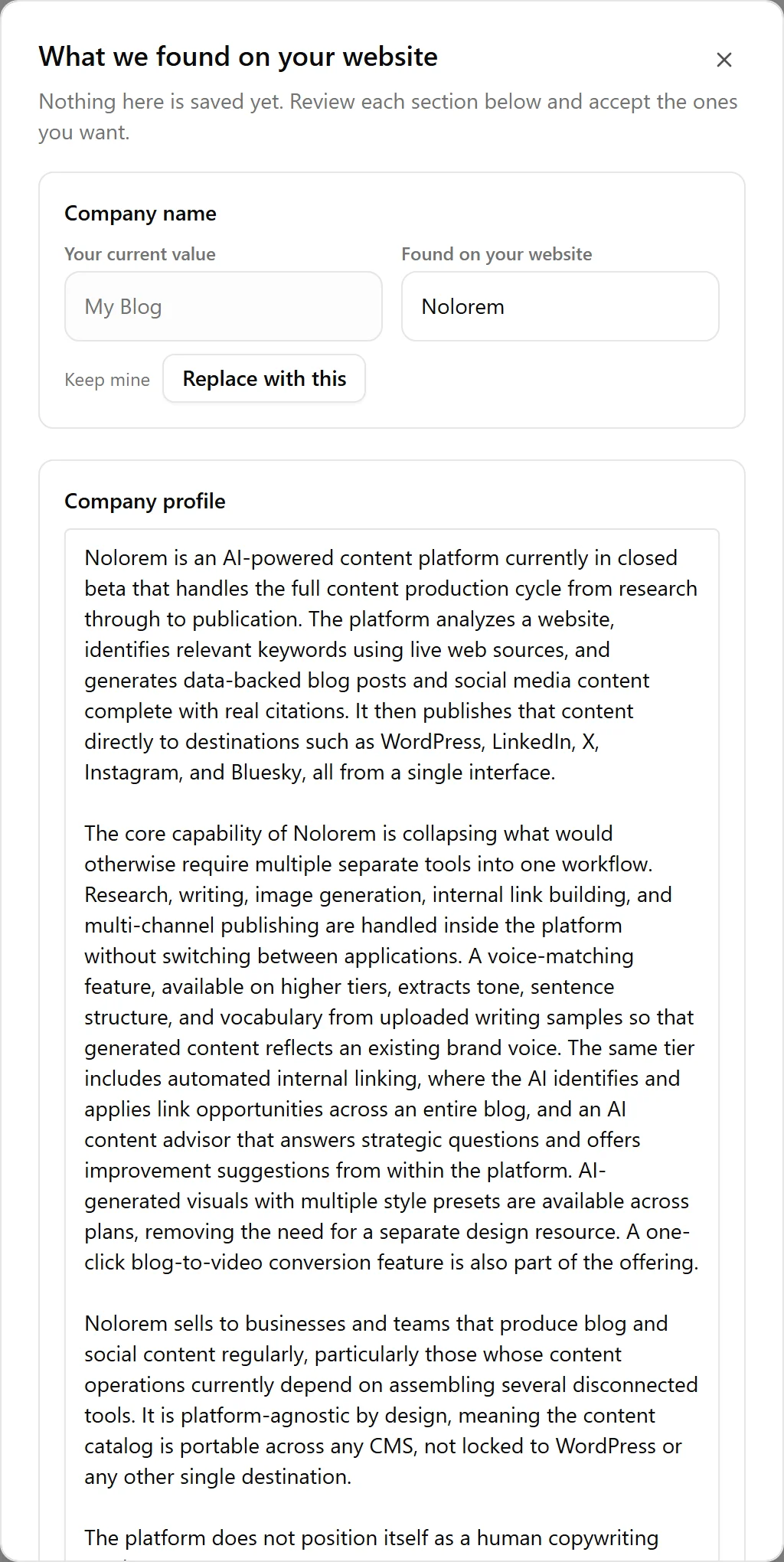
- Company profile -- a short written summary of what your business does, drafted by AI from what it read on your site, in your blog's content language.
- Brand colors -- the colors your site actually uses, read from its own styling, not guessed from photos or logos.
- Logo -- your logo, found on your site's own homepage (usually your header image, or failing that your site's icon) and downloaded for you. It says where it found it, so you can judge whether it got the right one. See Putting Your Logo on Generated Images for what happens once you accept it.
- Languages -- the languages your site is published in, so your content languages can match.
- Keywords -- search terms related to your business, added to your SEO keyword bank.
- Pages found -- a list of the pages the scan looked at, for your own reference.
Nothing Changes Until You Accept It
Every section in the review window is a proposal, not a save. If a field is empty, like a fresh company profile, you can accept the proposal directly. If you already have something in that field, the scan shows its proposal alongside your current value with Keep Mine selected, so nothing you wrote gets overwritten unless you deliberately choose Replace With This. You can also accept every empty or additive section at once with Accept All, which never touches a field you already filled in.
Colors, languages, and keywords are added alongside what you already have rather than replacing it, up to the normal limits for each (five brand colors, and so on). Accepting a found logo adds it to your uploaded logos with no name of its own -- it does not switch on the "logo on generated images" setting by itself. You decide separately whether and where to use it.
What you accept lands on the blog you scanned from. Brand colors and a logo belong to that one blog, so accepting them leaves every other blog exactly as it was. If the blog you scanned from already carries a brand, Nolorem asks you to confirm before it replaces it.
If Some Sites Show a Dark Version
Some websites also publish a dark color scheme. When Nolorem detects one, the color section offers a button to read that version too, and adds any genuinely different colors it finds to the proposal.
When the Scan Finds Little or Nothing
A scan can come back thin for a few reasons:
- The site is built entirely in JavaScript and its content only appears after the page runs in a browser. Nolorem can usually still read these, but a small number of sites remain hard to read this way.
- The page is behind a login. Nolorem only ever reads what a visitor could see without signing in, so member areas, client portals, and password-protected pages are never scanned.
- The site is very thin, for example a single landing page with little text. The scan will still propose whatever it can find, even if that is just a company name.
If a scan comes back with little to show, the manual fields are always right there to fill in yourself.
What Comes Next
A scanned company profile still benefits from a read-through: see Blog Settings Overview for what each settings section controls and how the company profile is used alongside your audience, brand, and language settings.
Related articles
Was this article helpful?
Still need help?
Can't find what you're looking for? Open your support portal for live chat and tickets. Sign in with your Nolorem account.
Open support portal