Trending Topics and Content Gaps
The Create page surfaces scored content opportunities: trending topics, content gaps, keyword ideas, feed items, and saved ideas.
Updated Jun 15, 2026
The Create page does more than launch post generation. It surfaces a curated feed of content opportunities, scored for relevance to your blog. Navigate to Create, and below the quick-start options the "Suggestions based on your data" section displays opportunity cards.
The Two Filter Groups
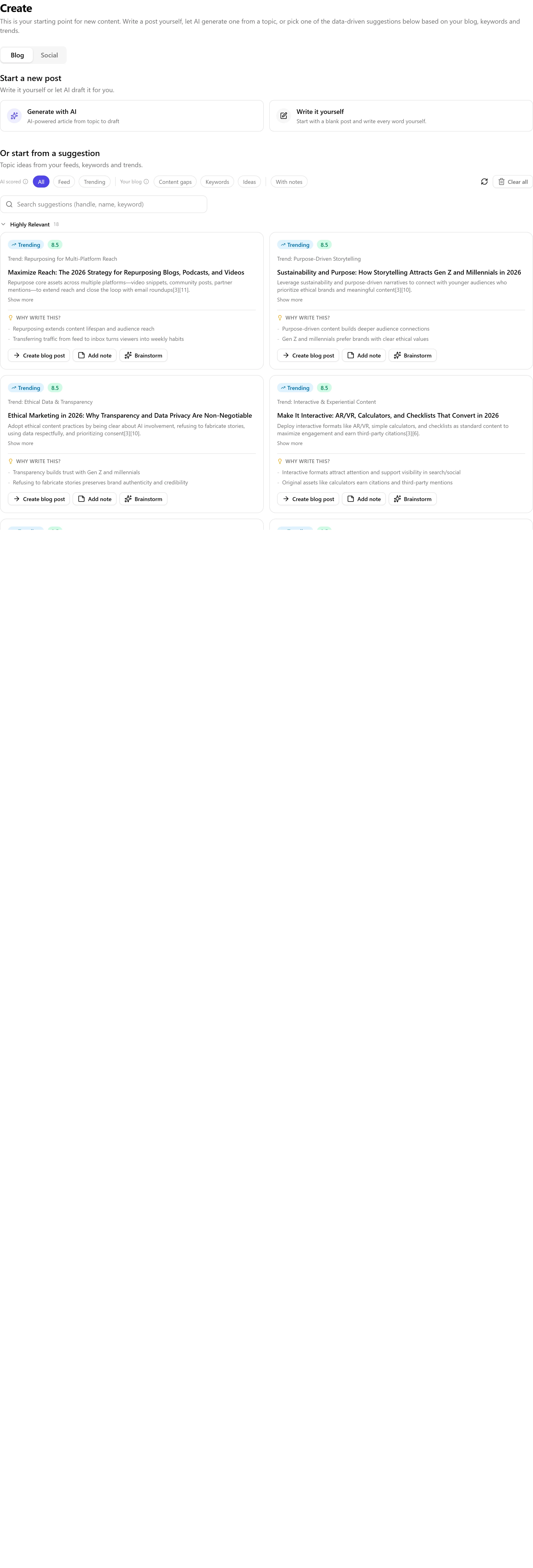
Scored and external sources:
- All: every scored item together.
- Feed items: content scraped from your discovery sources (RSS feeds, websites, social channels).
- Trending: trending topics from your own niche, scored by AI for relevance to your blog and brand.
Your blog data:
- Content gaps: topic clusters where your blog has little or no coverage compared to what your audience expects.
- Keywords: keyword opportunities based on search volume, competition, and your existing content.
- Ideas: ideas you saved earlier on the Ideas board.
Trending Topics
Trending topics are synthesised by AI from current signals in your own niche and are scored for relevance to your keyword bank and brand. Each card shows a Trending badge, a relevance score out of 10 (green for 7+, amber for 5 to 6.9, red below 5), an AI-generated suggested title and summary, and a "Why write this?" section with data-backed reasons. Trending data refreshes automatically once a day. Trending topics are a Pro feature; Basic subscribers see a teaser with an upgrade prompt.
Content Gaps
A content gap is a topic your audience expects but that your blog has not covered yet. Nolorem identifies these by analyzing your keyword bank, your existing posts, and industry patterns. For example, if your keyword bank includes "email marketing" but no post covers it in depth, a content gap card suggests writing about it. Filling gaps helps you cover topics people are searching for, improve topical authority and SEO, and avoid blind spots.
Actions on Every Card
- Create post: opens the blog generation page with the topic and keyword pre-filled.
- Add note: expands an inline text area for context or angles to explore later.
- Brainstorm: opens the Content Advisor with the topic as context.
You can also dismiss a card (hover to reveal the X) or bookmark feed items (star icon) to pin them at the top. Click the refresh button to re-scrape your sources and re-score trending topics, up to 3 refreshes per day.
Related articles
Was this article helpful?
Still need help?
Can't find what you're looking for? Open your support portal for live chat and tickets. Sign in with your Nolorem account.
Open support portal