Teammitglieder und Rollen
Lade Mitglieder ein, weise die Rollen Admin, Editor oder Contributor zu, verwalte Einladungen und verstehe Sitzplatzbegrenzungen.
Aktualisiert am Jun 16, 2026
Nolorem-Workspaces unterstützen mehrere Teammitglieder mit rollenbasiertem Zugriff. Navigiere zu Einstellungen, dann Team. Dieser Tab ist nur für Workspace-Admins sichtbar; Nicht-Admins, die die URL direkt öffnen, werden weitergeleitet.
Mitglieder ansehen
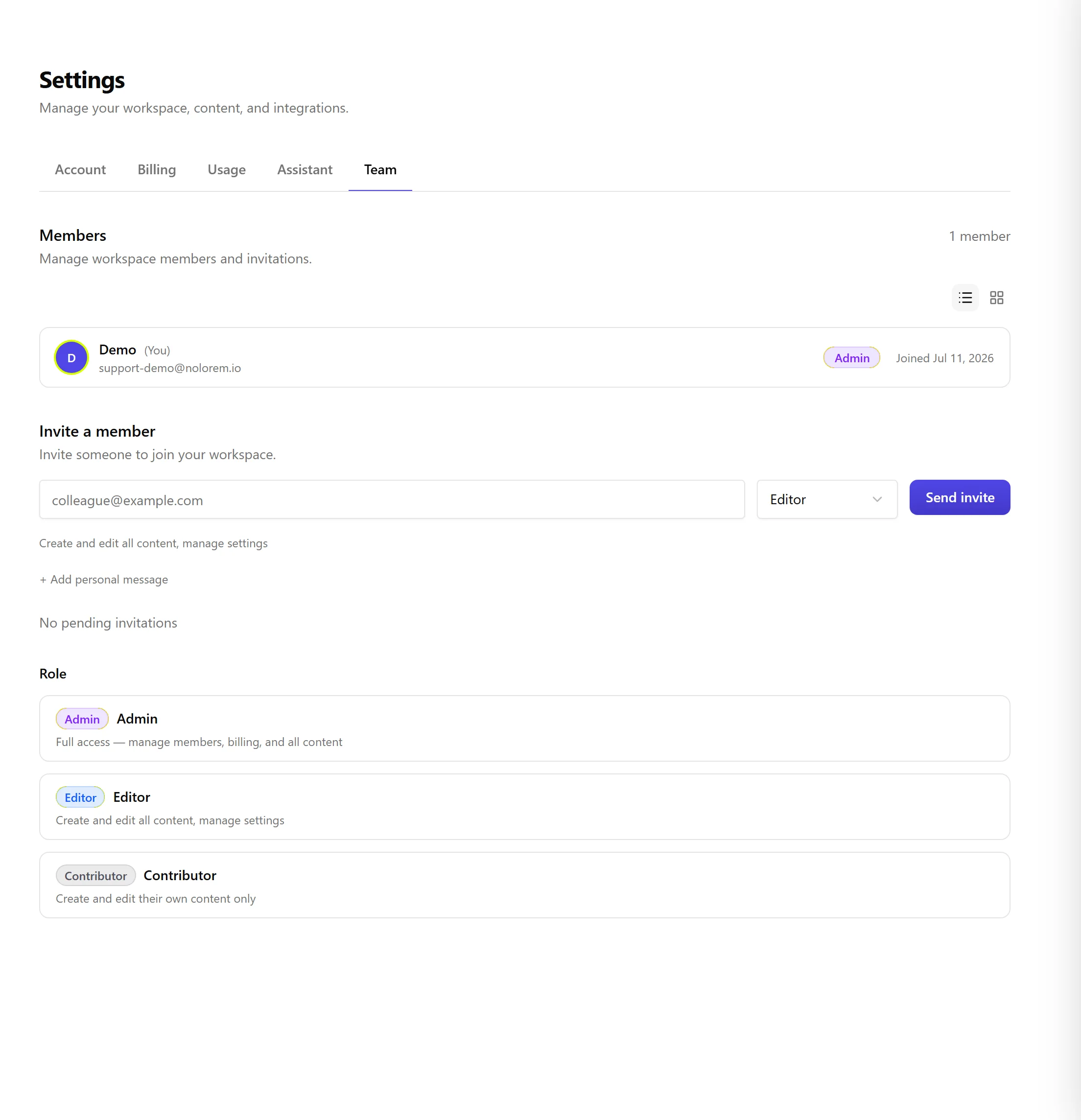
Der Bereich Mitglieder listet jedes aktive Mitglied mit seinem Namen, seiner E-Mail-Adresse, seinem Rollen-Badge und seinem Beitrittsdatum auf. Eine Zählung oben rechts zeigt die belegten Sitzplätze im Verhältnis zu deinem Tariflimit an, zum Beispiel "3 / 5 Mitglieder".
Ein Mitglied einladen
- Gib im Bereich Mitglied einladen die E-Mail-Adresse der Person ein.
- Wähle eine Rolle: Admin, Editor oder Contributor.
- Klicke optional auf Persönliche Nachricht hinzufügen, um der Einladungs-E-Mail eine Notiz beizufügen.
- Klicke auf Einladung senden.
Die eingeladene Person erhält eine E-Mail mit einem Link zum Beitritt. Erweitere den Bereich Einladungen, um ausstehende, abgelaufene, angenommene und widerrufene Einladungen anzuzeigen. Du kannst eine abgelaufene oder ausstehende Einladung erneut senden oder eine ausstehende widerrufen.
Rollen
| Rolle | Berechtigungen |
|---|---|
| Admin | Vollzugriff: Mitglieder, Abrechnung und alle Inhalte verwalten |
| Editor | Alle Inhalte erstellen und bearbeiten, veröffentlichen und planen, Einstellungen verwalten |
| Contributor | Eigene Inhalte erstellen und bearbeiten und zur Prüfung einreichen |
Rollen-Badges sind farbcodiert: Lila für Admin, Blau für Editor, Grau für Contributor. Verwende das Rollen-Steuerelement neben einem Mitglied, um dessen Rolle zu ändern. Du kannst deine eigene Rolle nicht ändern, wenn du der letzte Admin bist.
Workflow zur Inhaltsprüfung
Contributor können Blog- und Social-Beiträge entwerfen, aber nicht direkt veröffentlichen oder planen. Stattdessen übergeben sie ihre Arbeit einem Editor oder Admin zur Prüfung.
Als Contributor: verfasse deinen Beitrag wie gewohnt und verwende dann Zur Prüfung einreichen. Im Blog-Editor ist dies die Aktionsschaltfläche, an der Editoren auch Veröffentlichen und Planen sehen; im Social-Composer speichern du den Beitrag auf dieselbe Weise zur Prüfung. Der Beitrag wechselt in den Zustand Wartet auf Genehmigung. Wenn du Änderungen vornehmen musst, setzt du ihn wieder auf Entwurf zurück, überarbeitest du ihn und reichst du ihn erneut ein.
Als Editor oder Admin: wenn ein Contributor einen Beitrag einreicht, erhält jeder Editor und Admin im Workspace eine In-App-Benachrichtigung und eine E-Mail. Öffne Beiträge (oder den Kalender), um Beiträge zu finden, die als Wartet auf Genehmigung markiert sind. Zeige auf die Zeile des Beitrags und wähle Genehmigen: Das Menü erklärt zuerst, dass Genehmigen den Beitrag veröffentlicht, entweder sofort oder zu einem Datum deiner Wahl, und bietet dann:
- Jetzt veröffentlichen, um ihn sofort live zu schalten.
- Planen, um ein Datum und eine Uhrzeit für die Veröffentlichung auszuwählen.
- Ablehnen (die Schaltfläche neben Genehmigen), um ihn als Entwurf zur Überarbeitung an den Contributor zurückzusenden.
Ein Beitrag mit dem Zeichen Offene Punkte aus der Quellenprüfung kann nicht aus der Liste genehmigt werden: Das Menü sagt das, statt Jetzt veröffentlichen oder Planen anzubieten, und verweist dich auf den Editor, wo du die Punkte löst, bevor du veröffentlichst.
Diese Prüfungssteuerungen erscheinen direkt in der Beitragsliste, sowohl im Blog- als auch im Social-Tab und sowohl in der Tabellen- als auch in der Kartenansicht -- zeige auf eine Zeile, oder bewege den Tastaturfokus dorthin, um sie einzublenden.

Ein Mitglied entfernen
Entferne ein Mitglied aus dem Workspace über die Aktion Entfernen neben seinem Namen. Es verliert den Zugriff sofort, aber die von ihm erstellten Inhalte verbleiben im Workspace.
Sitzplatzbegrenzungen
Dein Abonnement legt die maximale Anzahl an Mitgliedern fest. Wenn du das Limit erreichst, zeigt das Einladungsformular eine Meldung an und Einladung senden ist deaktiviert. Führe ein Upgrade deines Tarifs durch, um weitere Sitzplätze hinzuzufügen.
Verwandte Artikel
War dieser Artikel hilfreich?
Brauchst du noch Hilfe?
Findest du nicht, wonach du suchst? Öffne dein Support-Portal für Live-Chat und Tickets. Melde dich mit deinem Nolorem-Konto an.
Support-Portal öffnen