Creating Videos from Blog Posts
Turn your blog posts into short-form videos using AI-powered templates, with optional background audio and poster thumbnails.
Updated Jun 3, 2026
Nolorem can convert any blog post into a short-form video. The AI extracts key points, writes a visual script, and renders the video using animated templates. The whole process runs in the background.
How It Works
- Open a blog post in the editor
- Go to the Video panel
- Select a template
- Click Generate
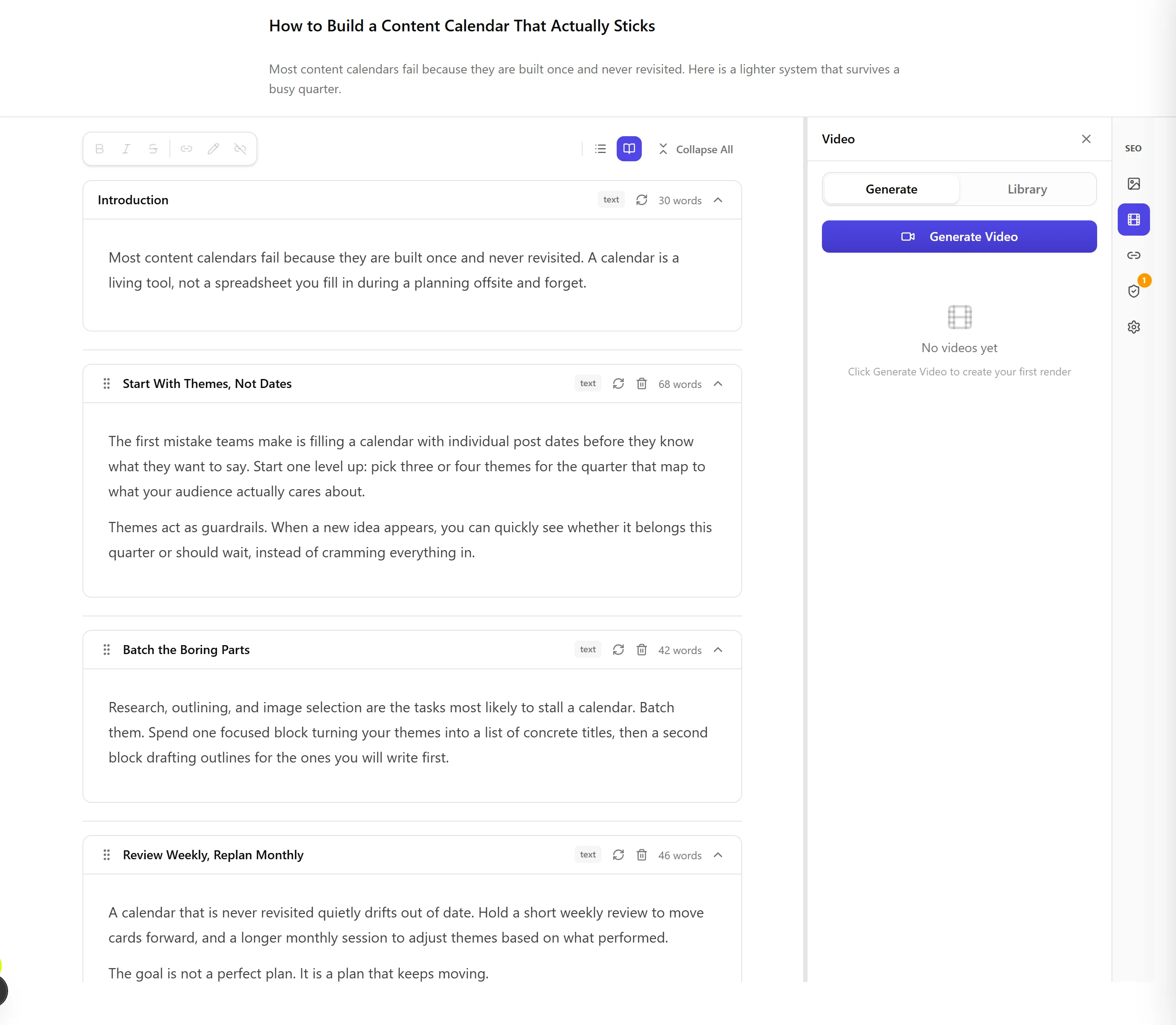
Nolorem creates a rendering job that runs in the background. You can leave the page and come back. The video panel polls for status and shows a notification when the video is ready.
Templates
Four templates are available, each with a different visual style and animation approach. The templates use HTML, CSS, and GSAP animations rendered frame-by-frame through a headless browser. This produces smooth, professional-looking videos without requiring external video editing software.
What the AI Does
The AI reads your blog post (sections, headings, key points) and writes slide content optimized for video. It condenses your written content into short, visual-friendly text that works at video pace. Each slide is timed for readability.
Audio Options
Videos are initially rendered silent. You have two audio options:
- AI-generated audio: Nolorem can generate a background music track using AI. The audio is muxed with the video in a separate step, so generating new audio does not require re-rendering the video.
- Custom audio: provide your own audio file and Nolorem will mux it with the video.
Volume control and the ability to detach audio are available on the video player.
Poster Thumbnails
A poster frame (thumbnail) is automatically extracted from the rendered video and saved as a WebP image. This thumbnail is used as the video preview in the media library and can be used as a social media preview image.
Where Videos Are Stored
All rendered videos appear in your media library under the Videos tab. From there you can download, preview, or link them to other content. Videos are also linked to the blog post they were generated from.
Related articles
Frequently asked questions
Was this article helpful?
Still need help?
Can't find what you're looking for? Open your support portal for live chat and tickets. Sign in with your Nolorem account.
Open support portal