Publishing to Webflow
Connect your Webflow site with a Site API token, map fields, push posts live, schedule via Nolorem, and troubleshoot setup.
Updated Sep 21, 2026
Nolorem publishes blog posts directly to your Webflow CMS using the Webflow Data API. No plugin is required. You connect with a Site API token, map your Nolorem fields to your collection fields once, and then push posts straight to a live Webflow CMS item.
Connect Your Webflow Site
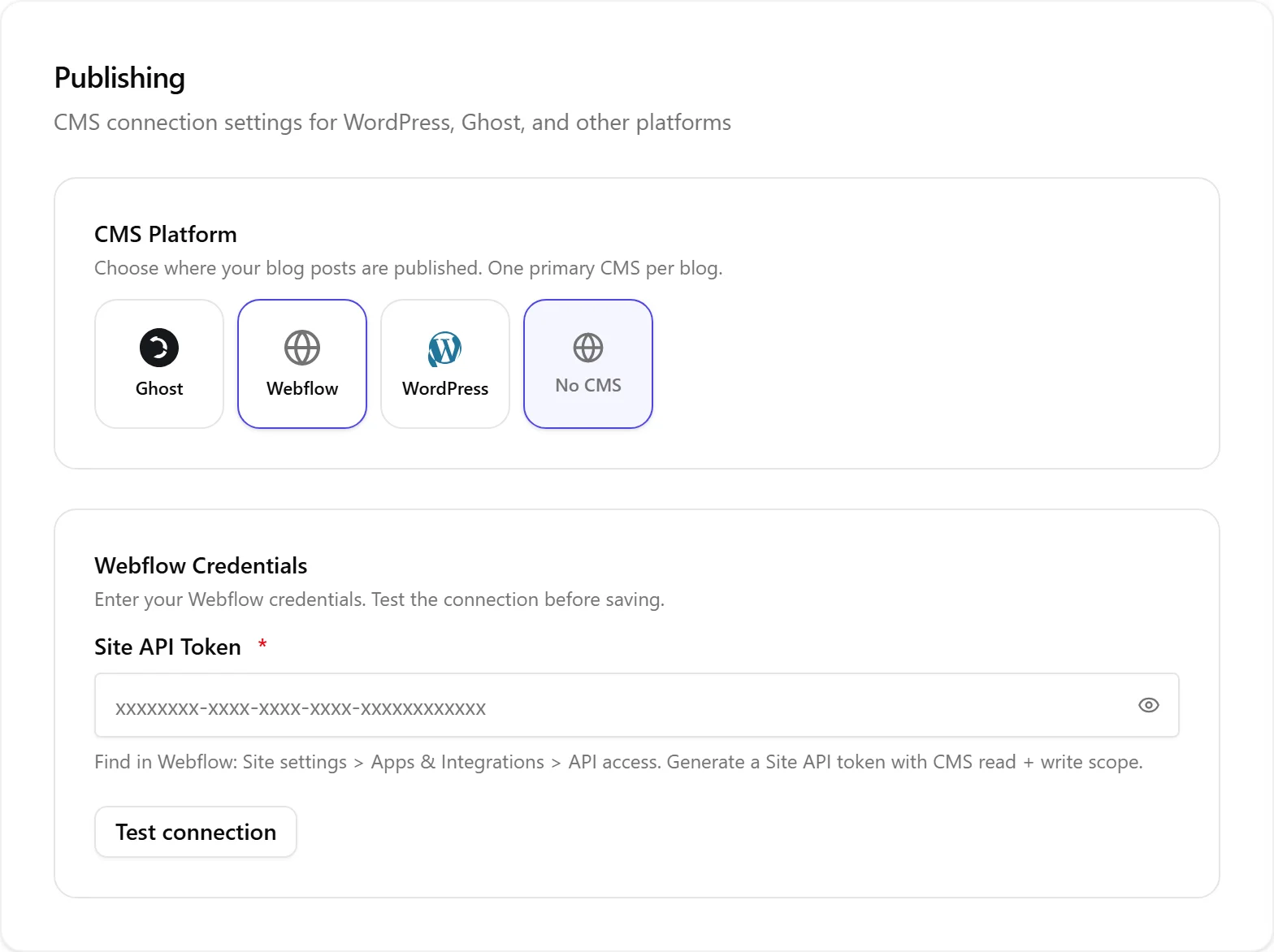
- Go to Settings then Publishing.
- Select Webflow as your CMS platform.
- Enter your Site API token. In Webflow, find it under Site settings then Apps and integrations then API access. Generate a token with CMS read and write scope.
- Click Test connection to verify.
- Pick your Site and then your Collection from the dropdowns. There is no manual ID to look up, the lists are loaded from Webflow.
Map Your Fields
After you pick a collection, Nolorem shows one row per Nolorem field (title, slug, body, excerpt, featured image, meta title, meta description, focus keyword, categories, tags). Each row has a dropdown of your collection's live Webflow fields, with a sensible match suggested automatically.
- For any row you can switch to a fixed value instead of a field, and type a static value.
- If your collection has a required field that has no matching Nolorem source, Nolorem warns you and blocks Save until you map it or give it a fixed value.
- Your mapping is saved per blog, so different blogs can target different collections.
The field list is read live from Webflow every time you open the mapping, so renaming or adding a field in Webflow is picked up automatically.
Push a Post
- Open a blog post in the editor.
- Click Push to CMS in the post actions.
- Nolorem formats the body as Webflow RichText, sends your mapped fields, and creates a live CMS item.
When you publish, the item goes live on your published Webflow site immediately. Title, body, excerpt, featured image, SEO fields, categories, and tags are all filled in according to your mapping. Webflow re-hosts your featured image on its own CDN.
Update an Existing Post
If you edit a post that was already pushed and click Push to CMS again, Nolorem updates the same Webflow item in place. No duplicate is created, and your live site reflects the change.
Schedule a Post
Webflow has no built in scheduler for CMS items, so Nolorem handles scheduling for you. When you set a post to Scheduled with a future date, Nolorem stages the item in Webflow as a draft, so it is not visible on your live site yet. At the scheduled time, Nolorem publishes it live automatically. You do not need to do anything at the publish moment.
Unpublish
Unpublishing a post in Nolorem removes the item from your live Webflow site, so its page returns a not found. The item is kept in your collection as a draft, so you can republish it later. It is never deleted.
Index Your Site
Nolorem does not import your existing Webflow items as posts. Instead, Settings then Publishing has a Site index card that reads the pages already live on your Webflow site so new articles Nolorem writes can link to them, at no cost to your blog allowance. See The Site Index for what it shows and how to use it. Because Webflow only reports a public address for items that are actually live, a draft item in your collection is not indexed until you publish it.
Webflow Setup Notes
A few things are configured on the Webflow side, not in Nolorem:
- Your Webflow site must be published at least once from the Webflow Designer. Until then, live pushes fail with a message that the site is not published.
- Individual post pages only appear once your collection has a Collection Page template and the site has been published from the Designer. The API can create the content, but only the Designer can create the template page that renders it.
- To show the article body on the page, add a Rich Text element to your Collection Page template and connect it to the field you mapped the body to.
Publishing Is Failing
If a push fails, the editor reverts the post to draft. Common causes:
- Site not published: publish your Webflow site once from the Designer, then push again.
- Required field not filled: if a required Webflow field is mapped to a Nolorem field that is empty, Webflow rejects the item. Add content to that field in Nolorem, or set a fixed value in the mapping.
- New required field in Webflow: if you made a field required in Webflow after saving your mapping, reopen the mapping in Settings then Publishing and map or default it.
- Invalid token: if you removed or rotated the Site API token in Webflow, generate a new one with CMS read and write scope and update it in Settings then Publishing.
Related articles
Was this article helpful?
Still need help?
Can't find what you're looking for? Open your support portal for live chat and tickets. Sign in with your Nolorem account.
Open support portal