The Site Index
Nolorem reads the pages already on your site so new articles can link to them. Nothing becomes a post, nothing is published, and it never counts against your allowance.
Updated Sep 21, 2026
Nolorem keeps a list of the pages that already exist on your own site, so that new articles it writes for you can link to them. This list is called the site index.
What the Site Index Is
The site index is not a list of posts, and indexing a page never creates one. Nothing on the list is published, edited, or touched on your site in any way: Nolorem only reads the page's public address and its text, so it can decide when a new article should link to it.
Indexing your site costs nothing. It does not spend a post from your monthly blog allowance, however many pages are found.
Index Your Site
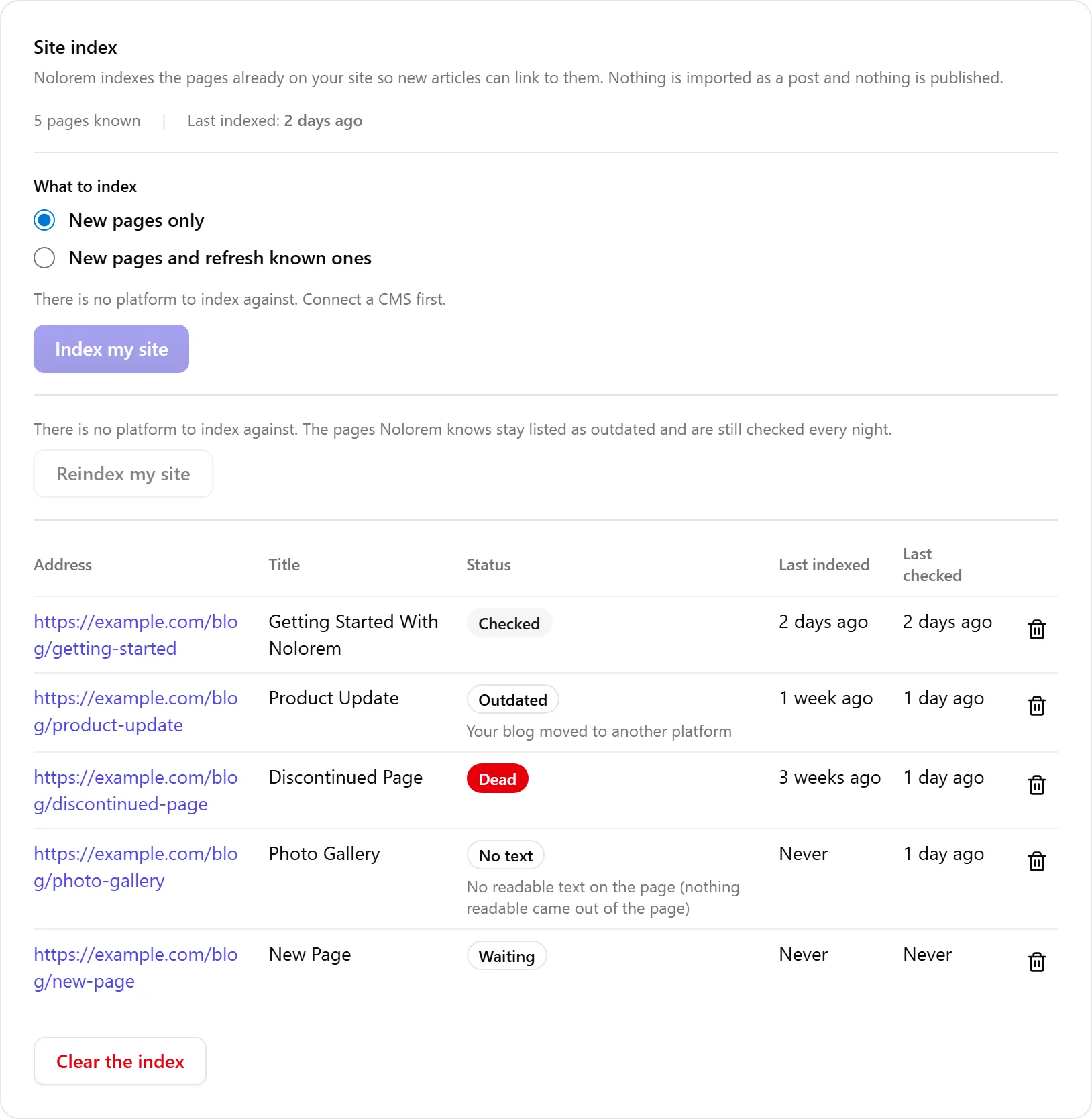
Go to Settings, then Publishing, and find the Site index card underneath your CMS connection. Click Index my site to have Nolorem visit your site's own pages and add them to the list.
You choose between two modes each time you index:
- New pages only adds pages Nolorem has not seen before, and leaves everything it already knows untouched.
- New pages and refresh known ones does the same, and also re-reads the text of pages already on the list, in case they changed.
Nolorem shows a short preview first, how many pages it found and how many are new, before it starts. If your CMS platform has no public address for a page (this happens on Webflow for items that are not live), that page is skipped and does not appear in the list.
The Site index card appears for every blog, whether or not it is connected to a CMS. If your blog has No CMS, or a custom platform Nolorem cannot read pages from automatically, the card still shows what Nolorem already knows, it simply has nothing new to add until you connect a platform it can read.
Statuses
Every page on the list carries one status:
- Checked: Nolorem has read the page and its text, and everything looks fine.
- Outdated: something changed under this page (usually a platform switch, see below) and Nolorem has not confirmed it yet.
- Dead: the page's address no longer answers.
- No text: Nolorem could read the page but found no usable text on it.
- Waiting: the page was just added and its text has not been fetched yet; this finishes within a few minutes, or on the next scheduled run.
Remove Pages
You can remove a single page with the trash icon on its row, or clear the whole index at once. Either way, the effect is the same: your existing articles stop linking to that page. The link text stays exactly as it was, only the link itself is removed, the next time the article is pushed to your CMS or its links are otherwise refreshed. Removing a page from the index never touches the page itself or anything on your site.
After You Switch Platforms
If you move your blog to a different CMS platform, or change domains, the pages Nolorem already knew are marked outdated rather than removed. A short explanation appears telling you that reindexing also updates the links your existing articles hold on this blog, since those addresses may now point to the old platform.
Click Reindex my site to fetch the pages from the new platform. Nolorem matches each new page to the outdated one it replaces, first by address, then by title if the address does not match. A page it cannot match this way stays listed as outdated: nothing is deleted, and it is still checked every night in case it turns up later.
Reindexing on its own only updates the addresses Nolorem holds internally. If any of your already published articles link to a page that moved, Nolorem shows you exactly how many and asks you to confirm before it pushes those articles to your CMS again with the corrected links. Nothing is pushed automatically.
If your blog has no platform to reindex against (for example No CMS), the reindex button stays disabled and says so: the pages Nolorem already knows stay listed as outdated, and are still checked every night.
Who Can Do This
Indexing, reindexing, and removing pages are available to an admin or an editor. A contributor can see the site index and every page on it, but not act on it.
Related articles
Was this article helpful?
Still need help?
Can't find what you're looking for? Open your support portal for live chat and tickets. Sign in with your Nolorem account.
Open support portal