Der Onboarding-Assistent
Eine geführte Einrichtung in fünf Schritten, die nach der Anmeldung läuft und deine Website, Keywords, Stimme und deinen ersten Blogbeitrag konfiguriert.
Aktualisiert am Jun 15, 2026
Wenn du dich zum ersten Mal bei Nolorem anmeldest, führt dich ein Onboarding-Assistent durch die wesentlichen Einrichtungsschritte. Wenn du ihn abschließt, erhält die KI den Kontext, den sie braucht, um vom ersten Tag an markengerechte Inhalte zu erstellen.
So funktioniert es
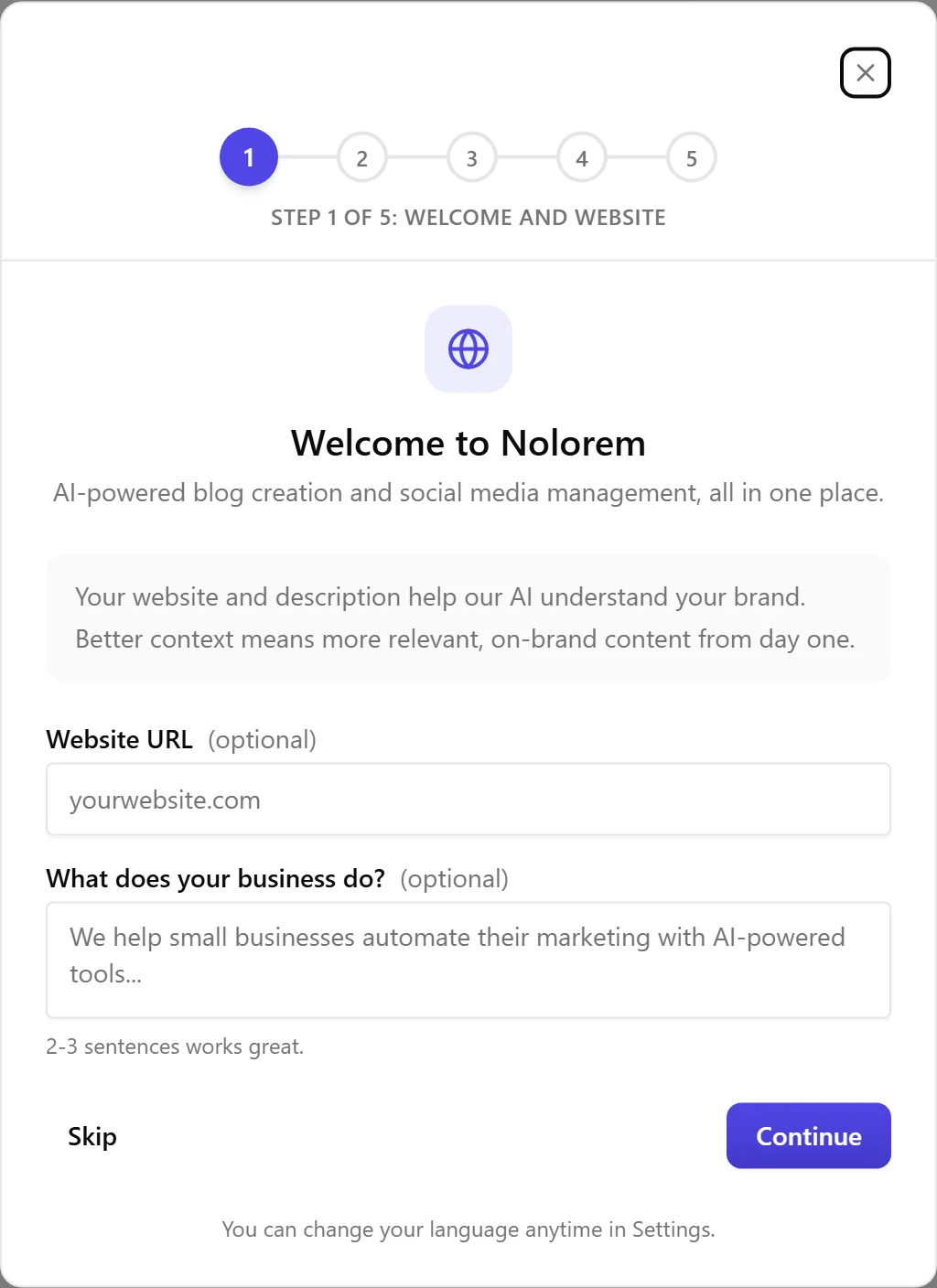
Der Assistent öffnet sich für neue Nutzer automatisch als zentrierter Dialog. Eine Fortschrittsanzeige zeigt fünf Schritte als nummerierte Punkte. Du kannst jeden Schritt überspringen und später darauf zurückkommen. Wenn du die 14-tägige kostenlose Testphase nutzt, hebt der Assistent dies hervor, damit du das Beste aus der Testphase herausholen kannst.
Die fünf Schritte
1. Willkommen und Website
Gib deine Website-URL und eine kurze Beschreibung dessen ein, was dein Unternehmen tut (beides optional). Die KI nutzt dies, um deine Marke und Branche zu verstehen. Beide Felder werden automatisch in deinen Blog-Einstellungen gespeichert.
2. Keywords
Dieser Schritt befüllt deine SEO-Keyword-Bank. Pro- und Trial-Nutzer können ihre Website automatisch scannen lassen, und die KI extrahiert relevante Keywords. Nutzer des Basic-Plans geben Keywords manuell ein. Du kannst später jederzeit weitere in den Einstellungen hinzufügen. Basic-Abonnenten überspringen diesen Schritt, da die Keyword-Bank eine Pro-Funktion ist.
3. Stimmprofil
Dieser Schritt stellt Voice DNA vor und fragt, ob du deinen ersten Beitrag generieren möchtest. Du erfährst, was du in den Einstellungen konfigurieren kannst: Ton und Stil, Zielgruppe und Schreibproben. Wähle Ja, um mit dem Schritt Generieren fortzufahren, oder Überspringen, um abzuschließen und auf eigene Faust zu erkunden.
4. Erster Beitrag
Wenn du dich für die Generierung eines Beitrags entschieden hast, besteht dieser Schritt aus fünf Unterschritten: Thema, Sprache, Metapher, Bilder und Zusammenfassung. Prüfe deine Auswahl und klicke auf Generieren. Der Assistent schließt sich dann und leitet dich zur Blog-Generierungsseite weiter.
5. Alles bereit
Ein Zusammenfassungsbildschirm zeigt eine Checkliste der abgeschlossenen und übersprungenen Schritte, Schnellverweise zum Dashboard, zur Beitragserstellung und zu den Einstellungen sowie einen Hinweis auf den Content Advisor für Pro- und Premium-Nutzer. Klicke auf Loslegen, um zu beginnen.
Den Assistenten erneut öffnen
Wenn du den Assistenten schließt, bevor du ihn abgeschlossen hast, kannst du ihn über einen Auslöser in der Kopfzeile erneut öffnen, um die Einrichtung fortzusetzen. Du kannst auch abgeschlossene Schritte erneut aufrufen, um zu überprüfen, was du konfiguriert hast.
Verwandte Artikel
War dieser Artikel hilfreich?
Brauchst du noch Hilfe?
Findest du nicht, wonach du suchst? Öffne dein Support-Portal für Live-Chat und Tickets. Melde dich mit deinem Nolorem-Konto an.
Support-Portal öffnen