Utiliser la médiathèque
Parcourez, recherchez, téléchargez et gérez toutes vos images, vidéos et pistes audio générées par l'AI ou importées, au même endroit.
Mis à jour le Jun 3, 2026
La médiathèque rassemble chaque image, vidéo et fichier audio créé ou importé dans Nolorem. Au lieu de fouiller dans chaque publication pour retrouver un fichier, vous pouvez tout parcourir et gérer depuis un emplacement central.
Accéder à la médiathèque
Cliquez sur Médias dans la barre latérale. La médiathèque est accessible sur tous les forfaits.
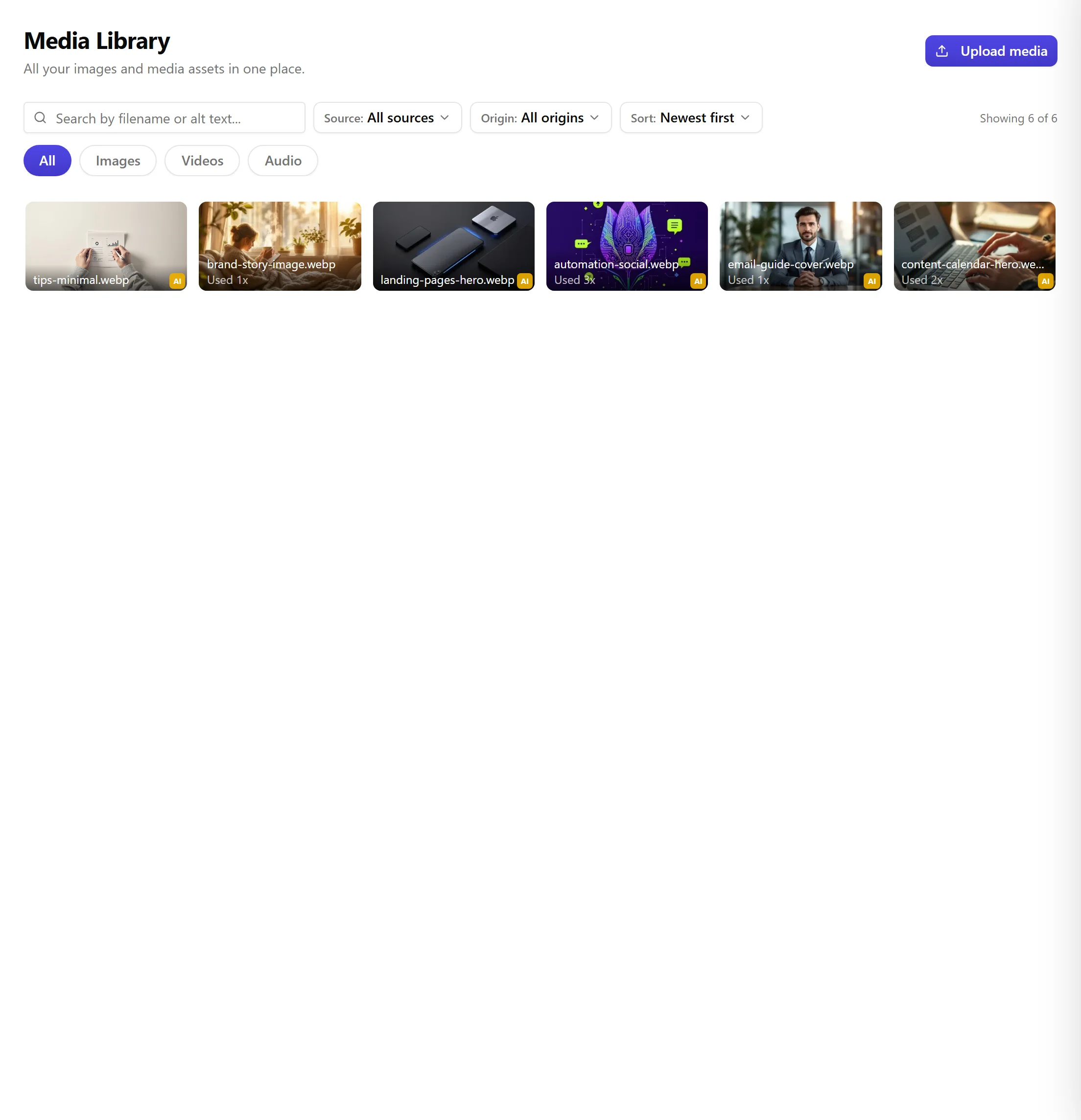
Ce que vous y trouverez
La médiathèque stocke :
- Les images générées par l'AI (images à la une du blog, images de section, images de publications sociales)
- Les images importées (tout ce que vous avez ajouté manuellement à une publication)
- Les vidéos générées par l'AI (créées à partir d'articles de blog via des modèles vidéo)
- Les pistes audio générées par l'AI
Chaque fichier affiche son type, sa date de création, ses dimensions ou sa durée, et la publication à laquelle il est associé.
Parcourir et filtrer
Utilisez la barre de filtres en haut pour restreindre par :
- Type : images, vidéos ou audio
- Statut : terminé, en cours de génération ou échoué
- Source : l'article de blog ou la publication sociale à laquelle le fichier appartient
Les fichiers sont triés par date de création, du plus récent au plus ancien.
Rechercher
Saisissez un mot-clé dans la barre de recherche pour filtrer par nom de fichier ou par titre de la publication associée. C'est le moyen le plus rapide de trouver un fichier précis quand vous savez ce que vous cherchez.
Télécharger
Cliquez sur n'importe quel fichier pour ouvrir la vue détaillée. Le bouton de téléchargement enregistre le fichier dans son format et sa résolution d'origine. Les images se téléchargent en WebP ou PNG, les vidéos en MP4, et l'audio dans son format d'origine.
Réutiliser des fichiers
Lors de la composition d'une nouvelle publication (blog ou social), vous pouvez sélectionner des fichiers existants dans la médiathèque au lieu d'en générer de nouveaux. C'est utile lorsque vous souhaitez réutiliser une image forte sur plusieurs contenus sans dépenser un nouveau crédit de génération.
Articles liés
Questions fréquentes
Cet article vous a-t-il été utile ?
Besoin d'aide supplémentaire ?
Vous ne trouvez pas ce que vous cherchez ? Ouvrez votre portail de support pour le chat en direct et les tickets. Connectez-vous avec votre compte Nolorem.
Ouvrir le portail de support